
Claude + Canva MCP: Make Repeatable On-Brand Designs on a Free Plan
Use the Canva MCP to make Claude build editable, on-brand infographics, carousels, and social posts on a free Canva plan. No Canva Pro, no design skills.

The Canva MCP, a connector that lets Claude operate your Canva account, builds real designs and hands them back as exported files. Infographics, slide decks, social posts, thumbnails. You’d assume that needs Canva Pro. It doesn’t. A free plan produced the whole kit, in my own brand colors. This guide maps exactly how far it goes, which walls still matter, and the workflow that keeps it reusable.

Canva is one of the most-used design tools in the world. Hundreds of millions of monthly active users, creating everything from social posts to presentations to infographics.
Even on the free plan, you can make professional-looking designs.
But I could never master Canva the way I wanted. Getting an idea out of my head and into a finished graphic meant arranging the layout, adjusting the spacing, replacing elements until it felt right.
For over a year, that was where I got stuck.
Too many panels, too many buttons, too many decisions. I could picture what I wanted. I just couldn’t get there fast.
Now that’s changed.
Instead of designing inside Canva, Claude builds the design and imports it straight into Canva as a fully editable file.
Give Claude one article, and it generates:
An infographic
A 9:16 story
An Instagram square
A YouTube thumbnail
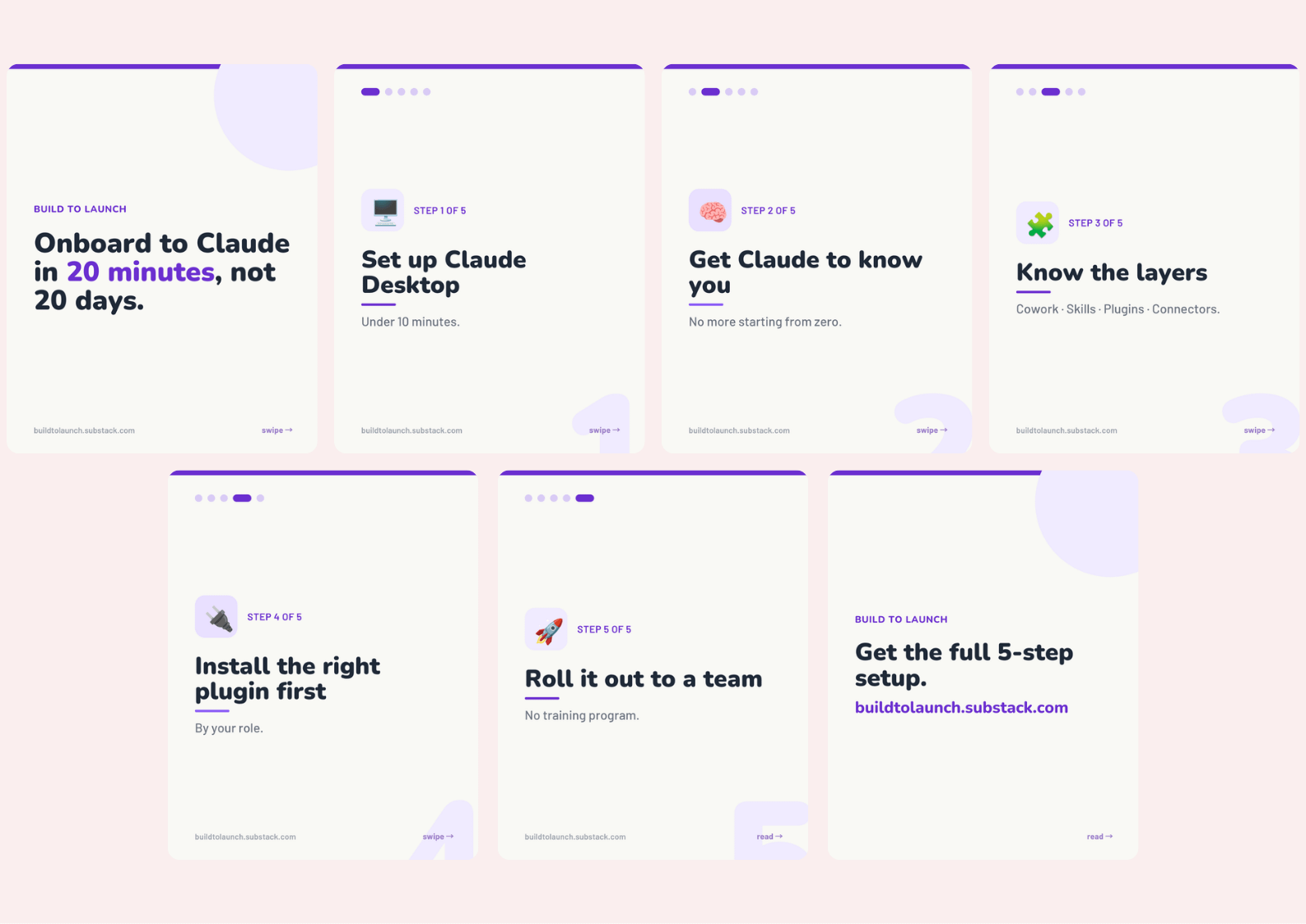
A 7-slide carousel
Every one arrives as a real Canva design you can edit and export. All on the free plan.
That’s what caught my attention. Canva’s own AI tools cap out at ten generations, lifetime. The import has no cap at all. Generate as many as you want, no credits burned.
So I tested how far a free Canva account actually goes.
What’s inside:
Creating infographics, carousels, and charts from one article: all on a free plan
The skill that makes the Canva MCP effortless: the kit and the exact prompts
Run it, step by step: to your first finished kit in about 20 minutes
Make it yours: your brand, every design coming out on-brand
Forty tools, five that matter on free: the tool calls the whole workflow rides on
Where the free plan stops: the Pro walls, and the free path around them
By the end: a finished, exported, on-brand visual kit from Claude on a free Canva plan.
🎁 The Free-Plan Visual Kit: grab it at the end.
The skill, the on-brand templates, the prompts that run it in your own Claude, plus the tool reference, the by-hand recipe, and my test log of what a free plan does and doesn't do.
Hi, I’m Jenny 👋
I believe anyone can thrive with AI, not by mastering the tools, but by building real things with them. I run Build to Launch and the Practical AI Builder program, where we go from experimenting to shipping. Come build with us.
If you’re new to Build to Launch, welcome! Here’s what you might enjoy:

What the Canva MCP Gives You
An MCP is a connector that lets Claude operate another tool directly.
The Canva one lets Claude build designs inside your Canva account and hand them back as real files. PNG, PDF, a full slide deck.
Not a flat AI image with the text baked into the pixels, where fixing one typo means regenerating the whole thing and hoping it lands. A Canva file you own, reopen, and change one element at a time.
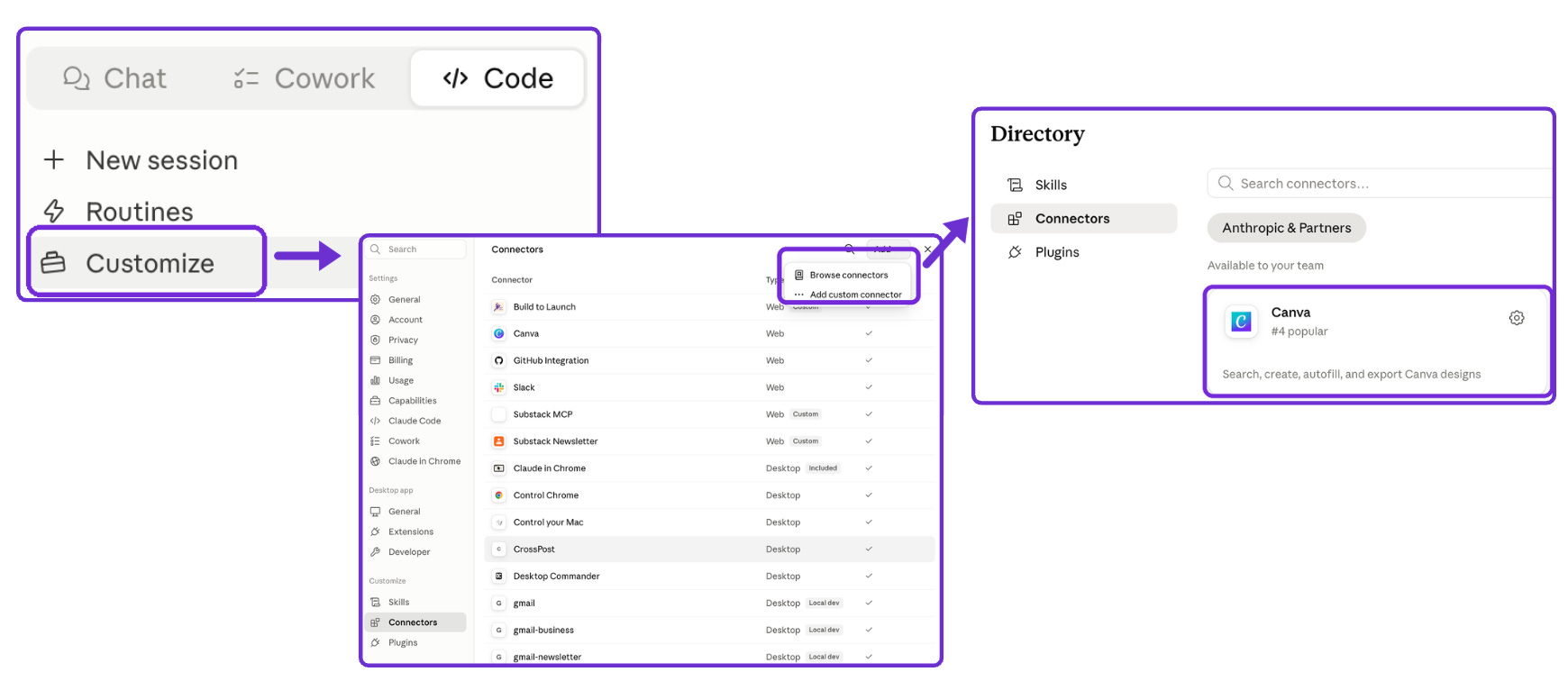
Setting it up takes two steps, both free:
Register on Canva.com. I just log in with Google.
Canva website homepage Connect Canva to your AI. In Claude, add it under Connectors. It works the same from ChatGPT and other assistants that support connectors.
Creating Infographics, Carousels, and Charts From One Article
Throughout the test, I used these 2 articles to explore different use cases:
First, to get familiar with it, I started with the simplest input I could: one plain page. No design, just the content from a single article. I asked Claude to bring it into Canva.
It came back as a real, editable Canva design.
That verified the workflow. Time to explore what it can actually make.
Every format I’d post
Formats are the finished shape, sized for where it gets posted.
I tried the formats I was actually interested in with one article:
Instagram square
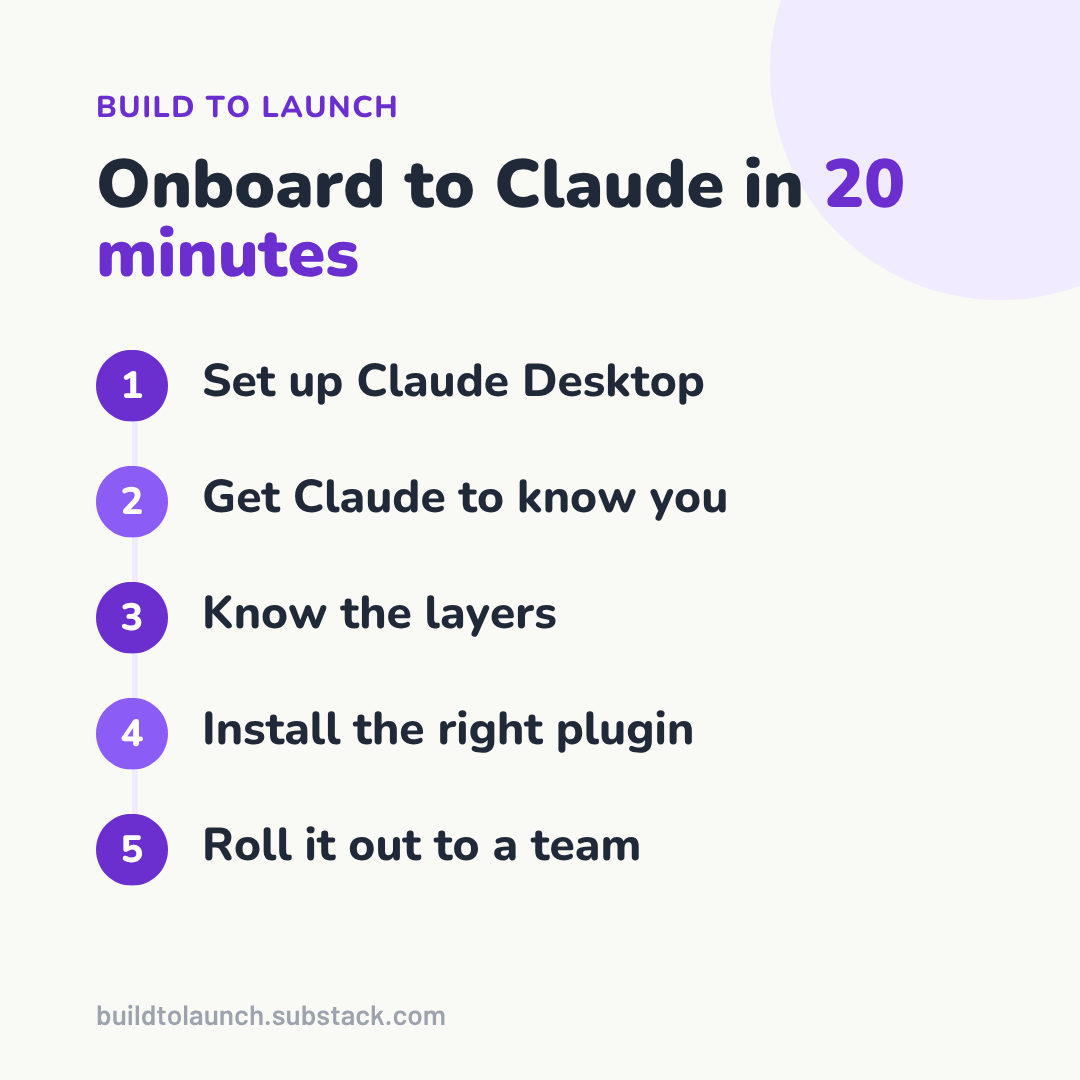
Vertical story
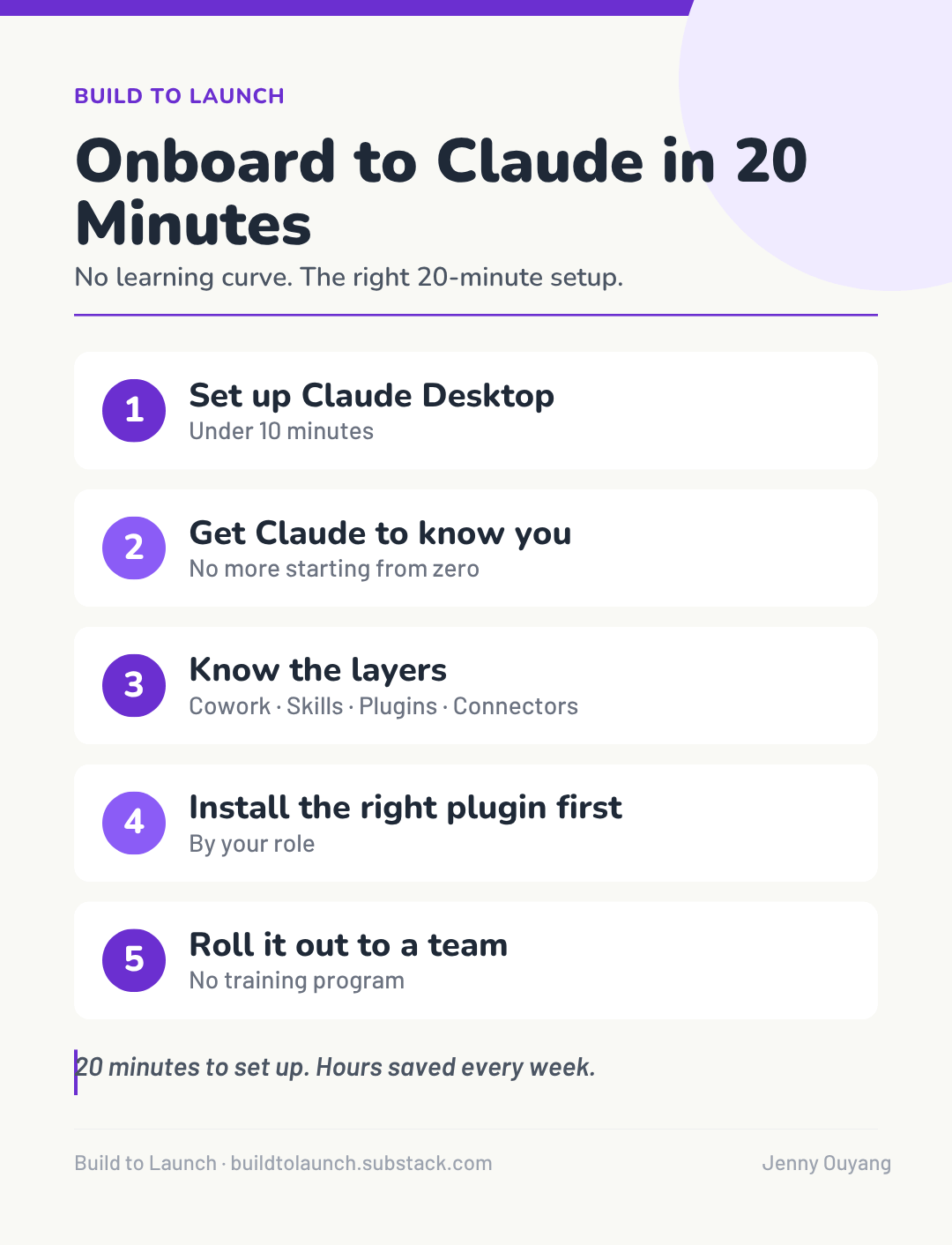
Wide YouTube thumbnail
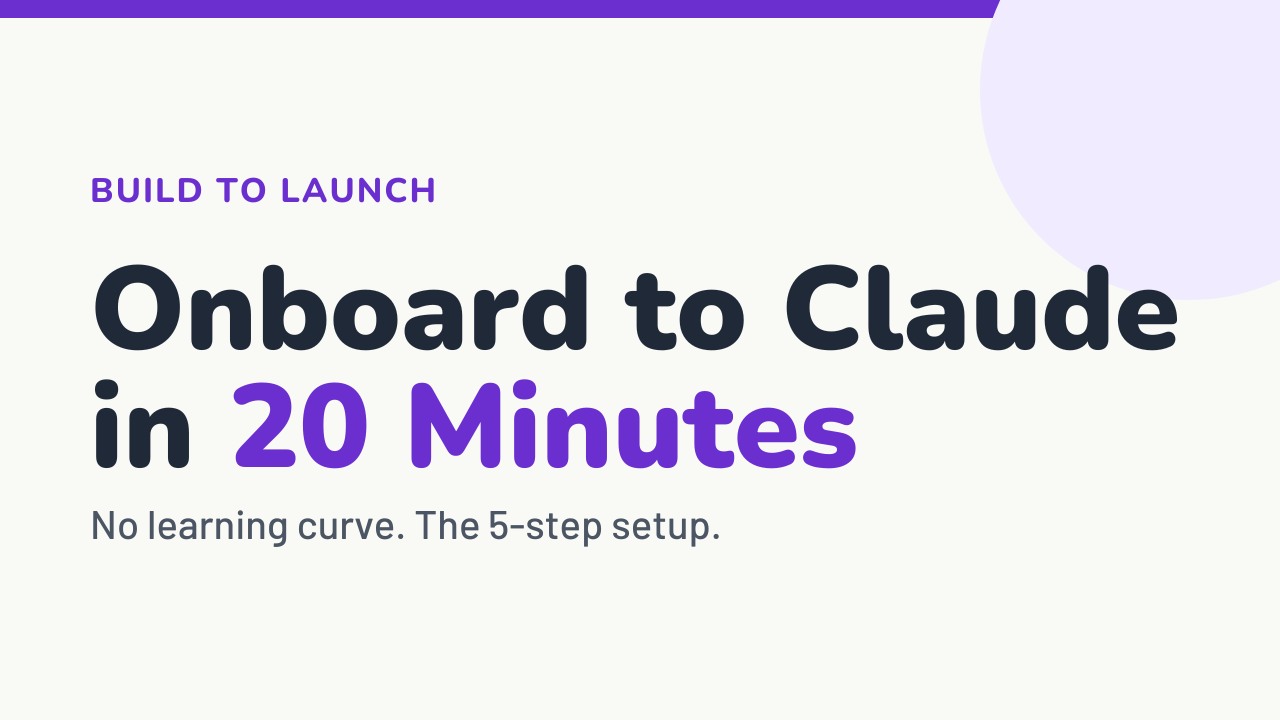
Tall infographic
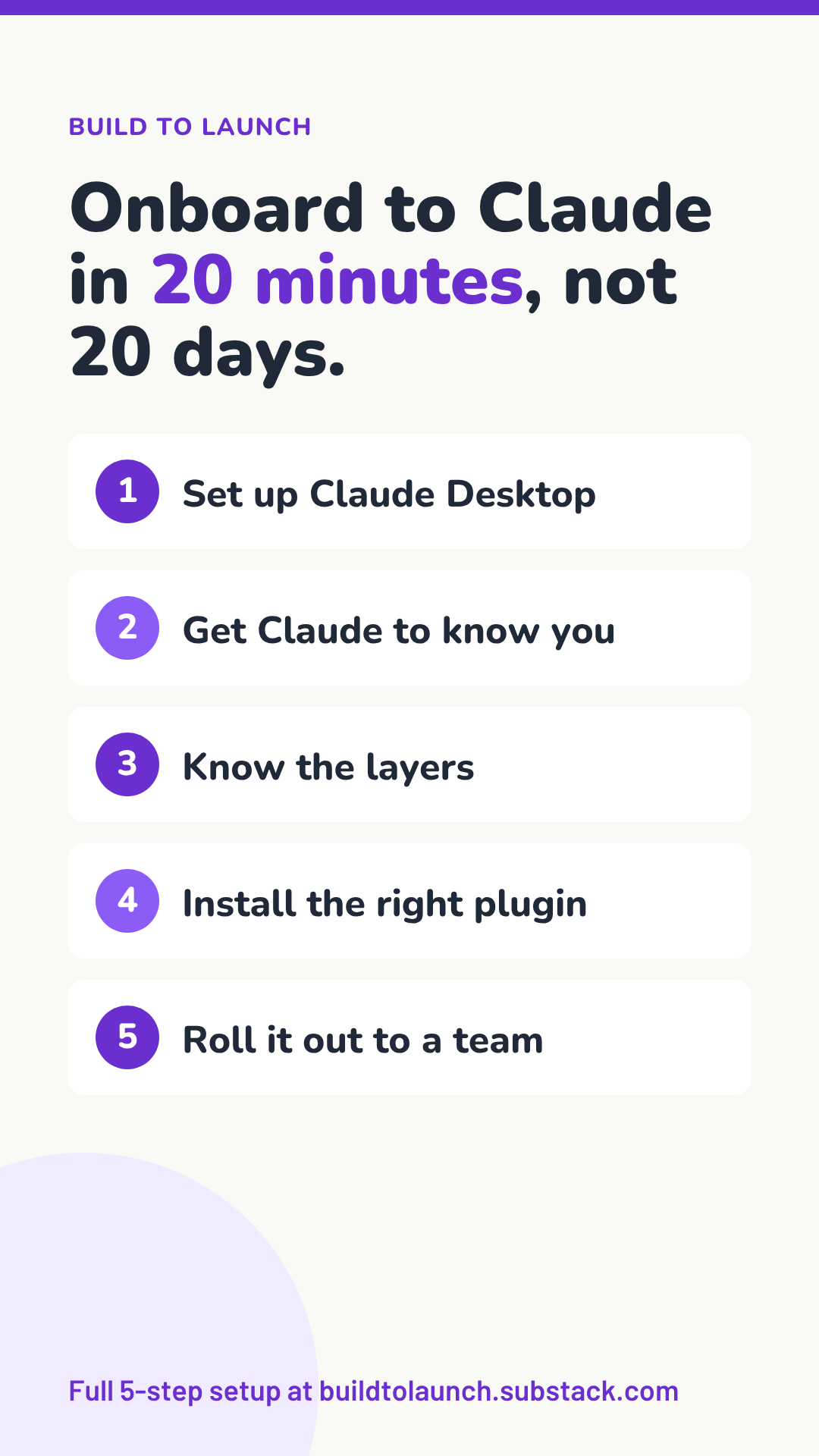
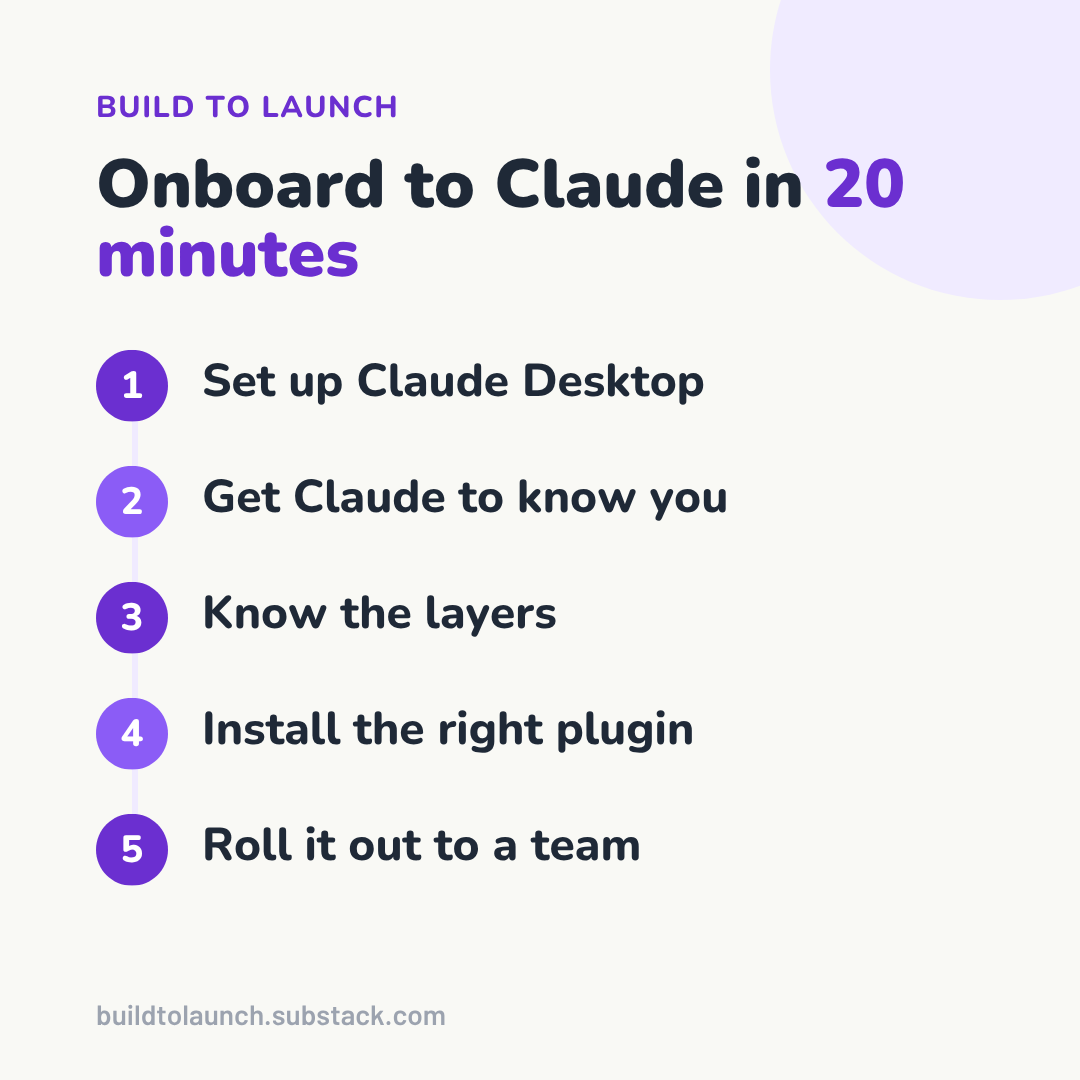
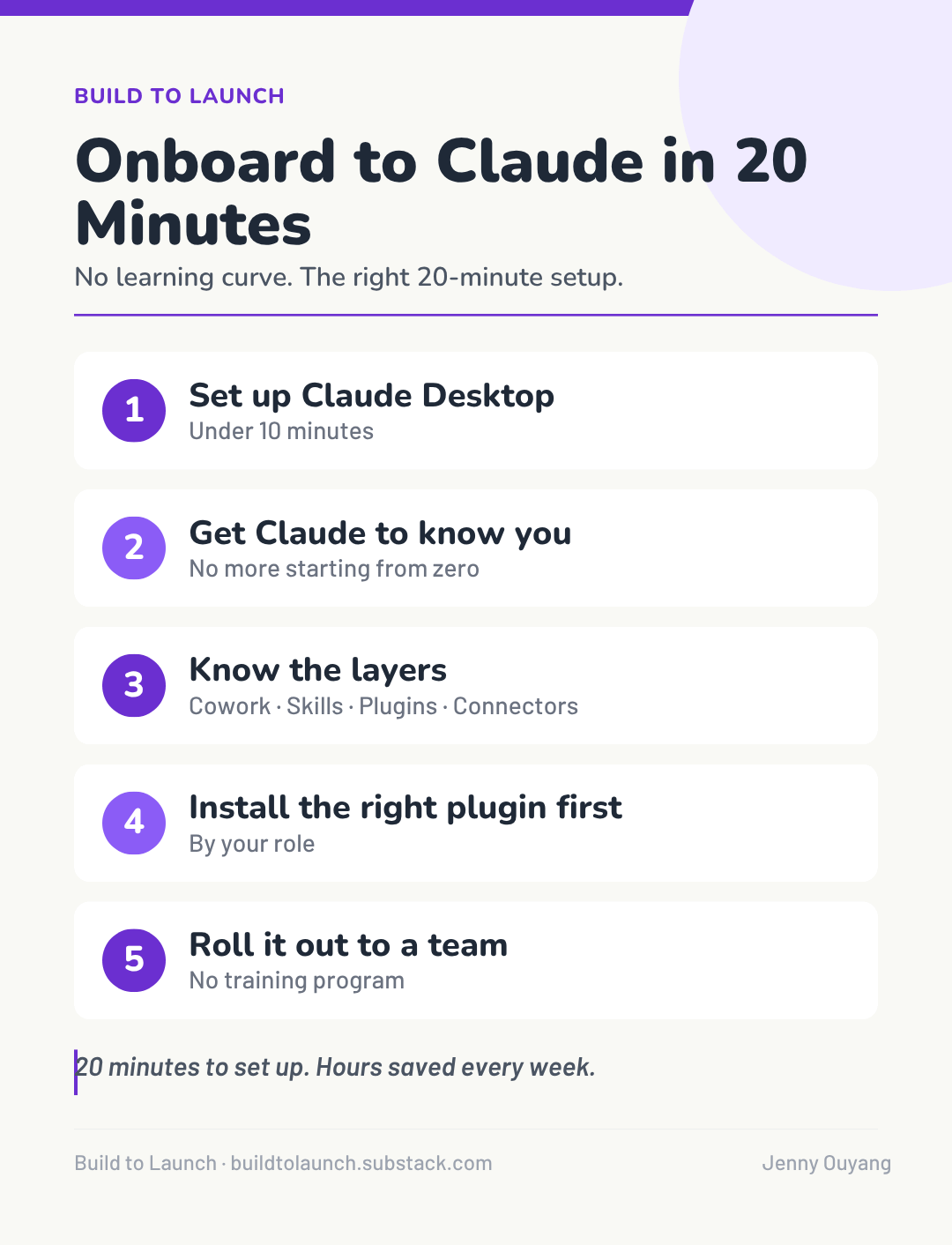
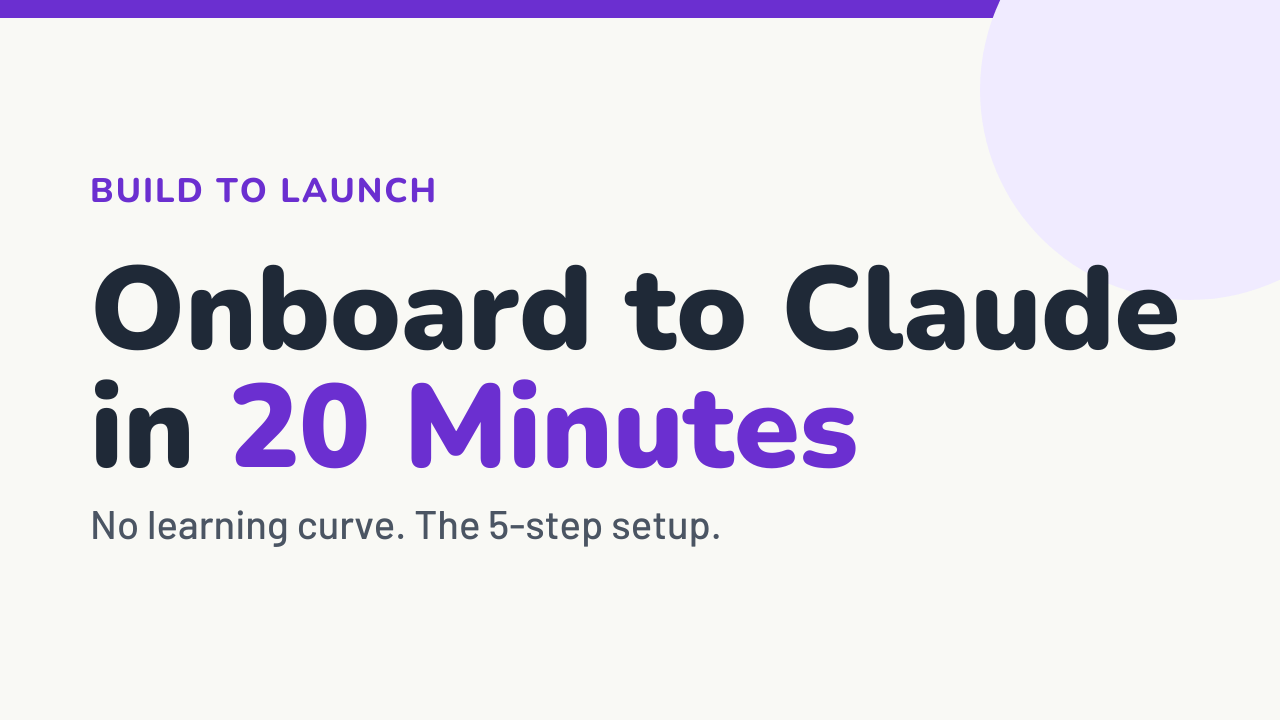
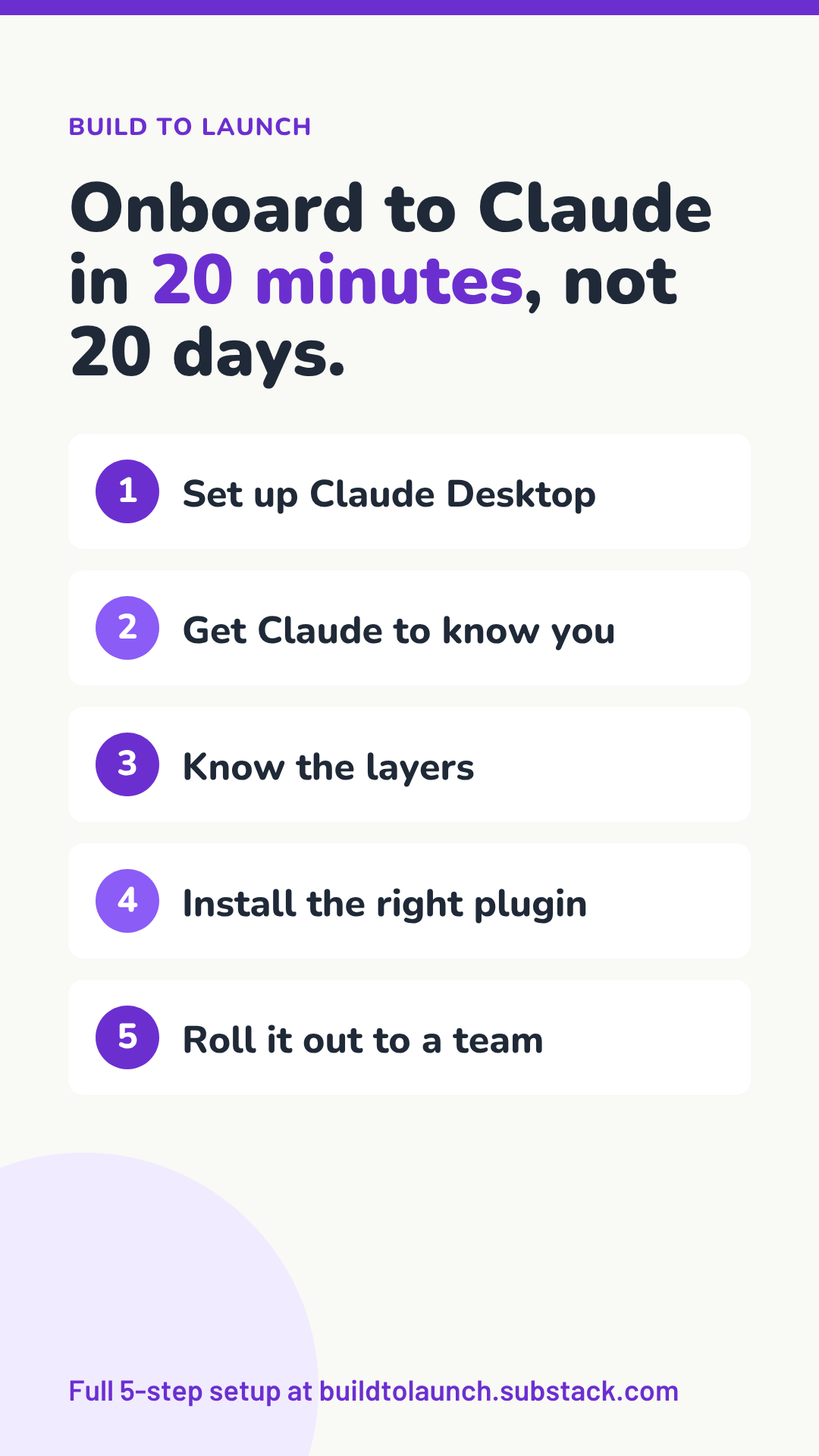
Same content, reshaped for each slot.
Multi-slide carousels
Seven slides from the same article, sequenced, each its own page.
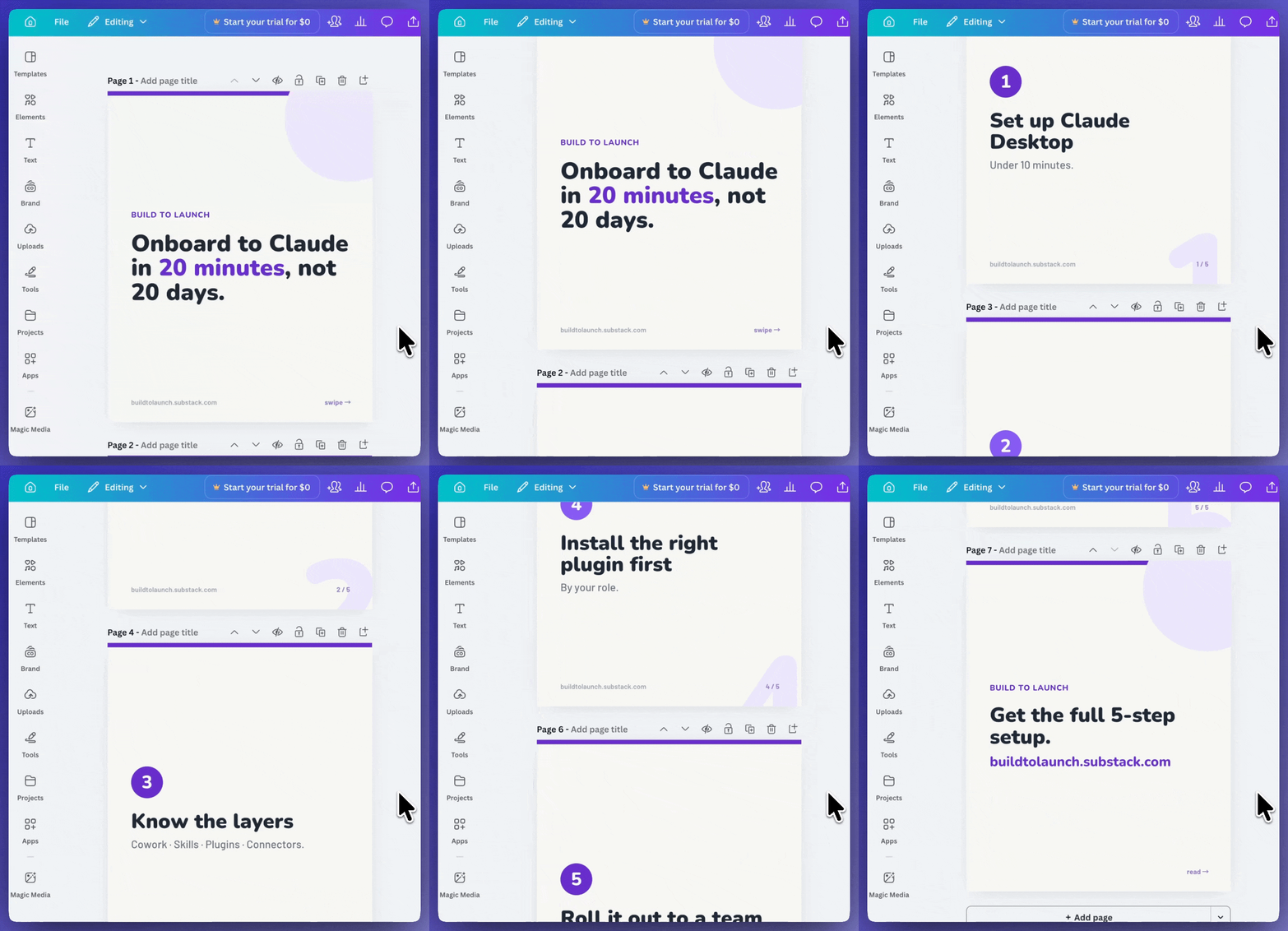
I even used Canva MCP to collage the set into one grid to show the whole sequence at once.
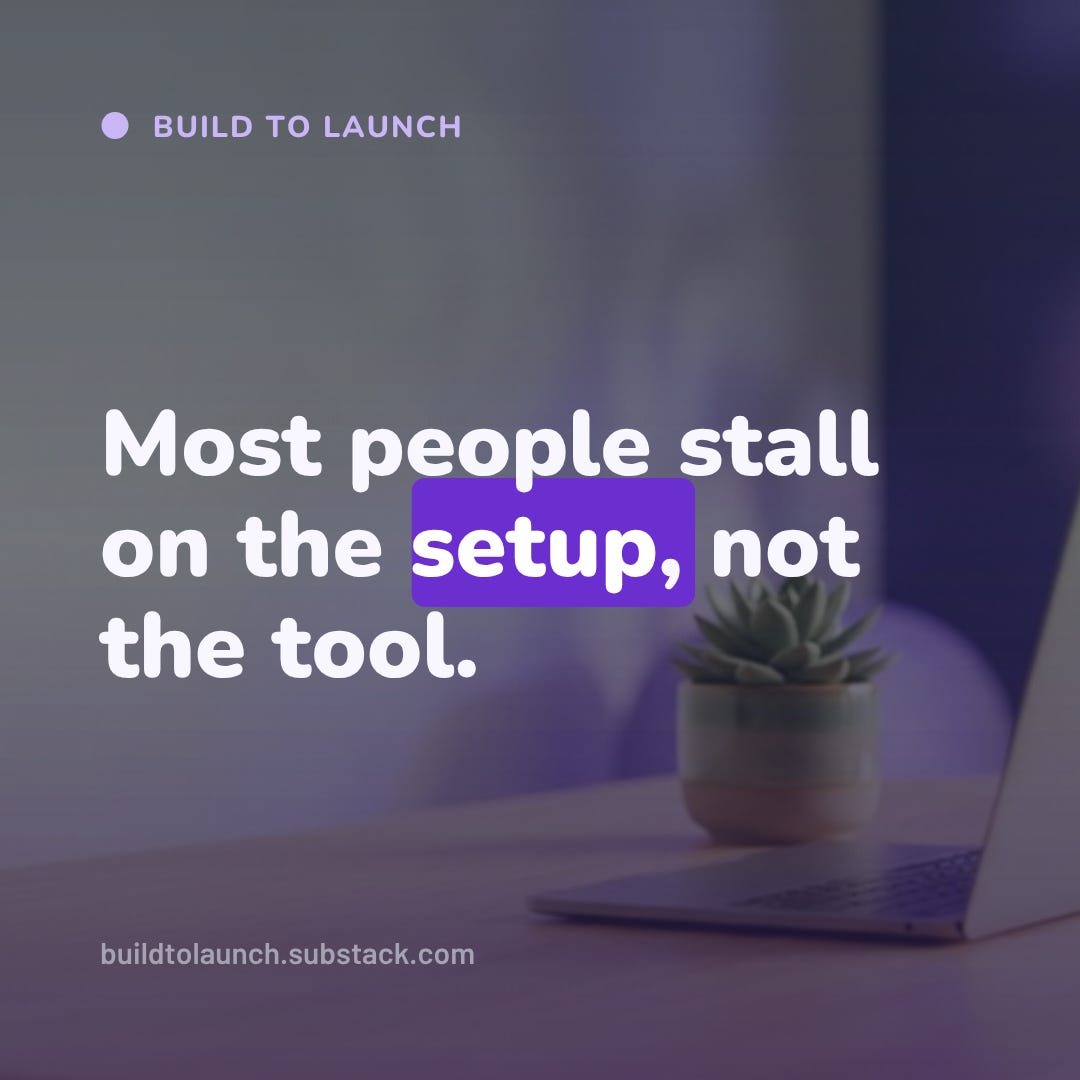
Custom Image Backgrounds
I dropped in a workspace photo and asked for a muted overlay so the text stayed readable. Both came through the import clean.

And I tried more background images, with my own article covers.
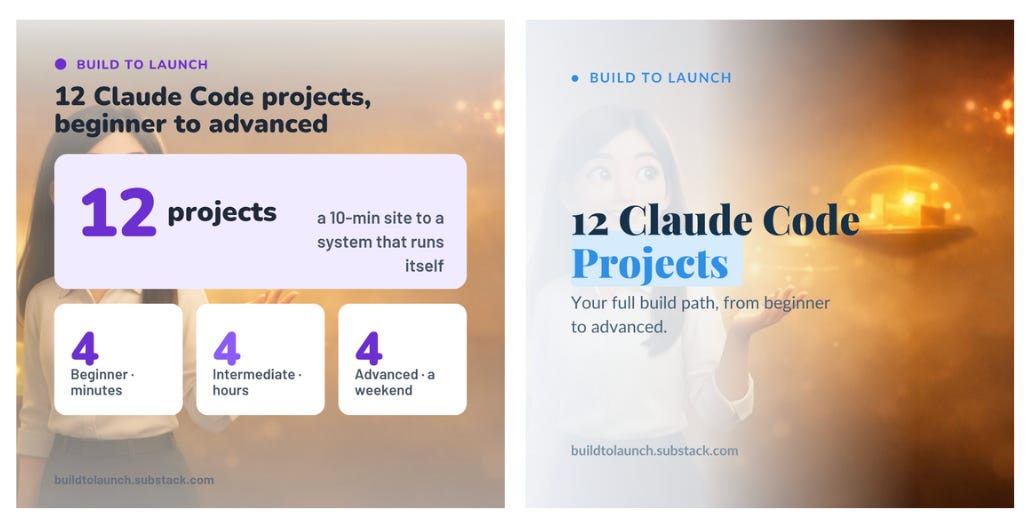
Every file above came out of one article. None of it touched Canva’s UI button.
Different Layouts
How the content is arranged inside any format? I’ve always had a few I’d love to include in my blocks.
I asked for the layouts I reach for when I’m explaining something.
Start with A stat hero.
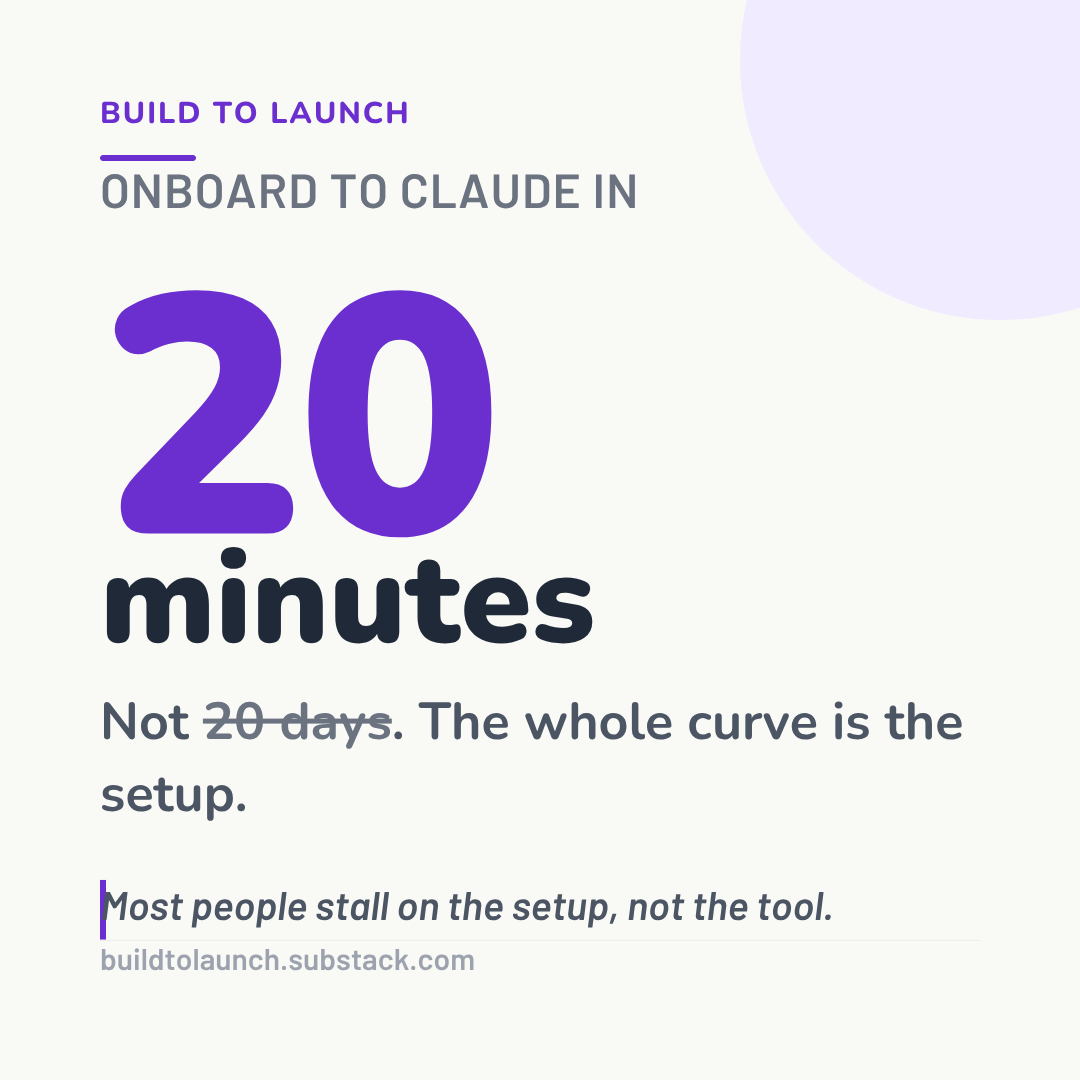
Then the rest, in one pass:
Bar chart
Donut
Comparison table
Checklist
Flowchart
Cycle
Pyramid
Venn
Code card
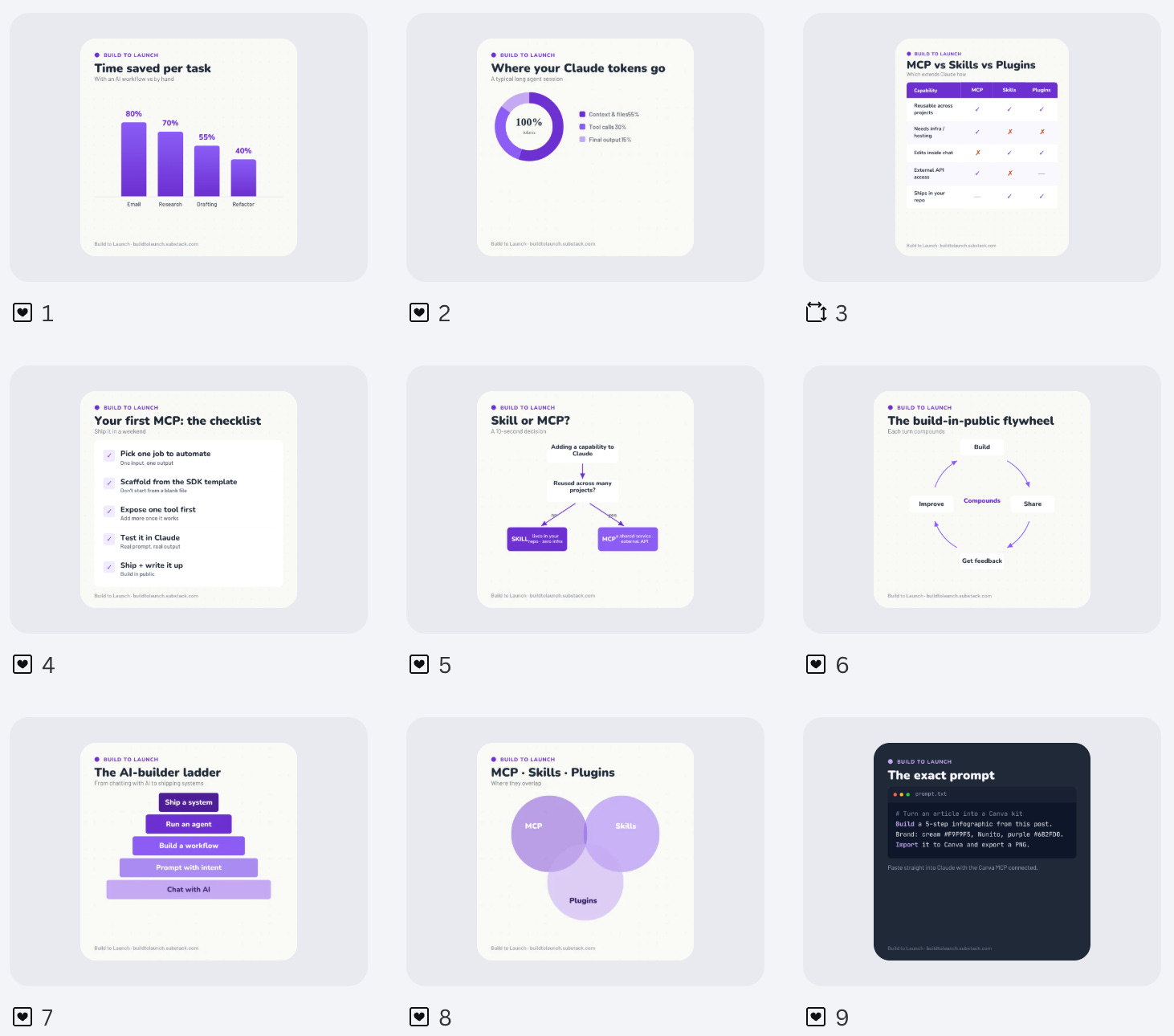
Every one came back clean and on brand. Not a chart widget I had to wrestle into shape. A finished layout I could export or keep editing.
Branded colors and styles
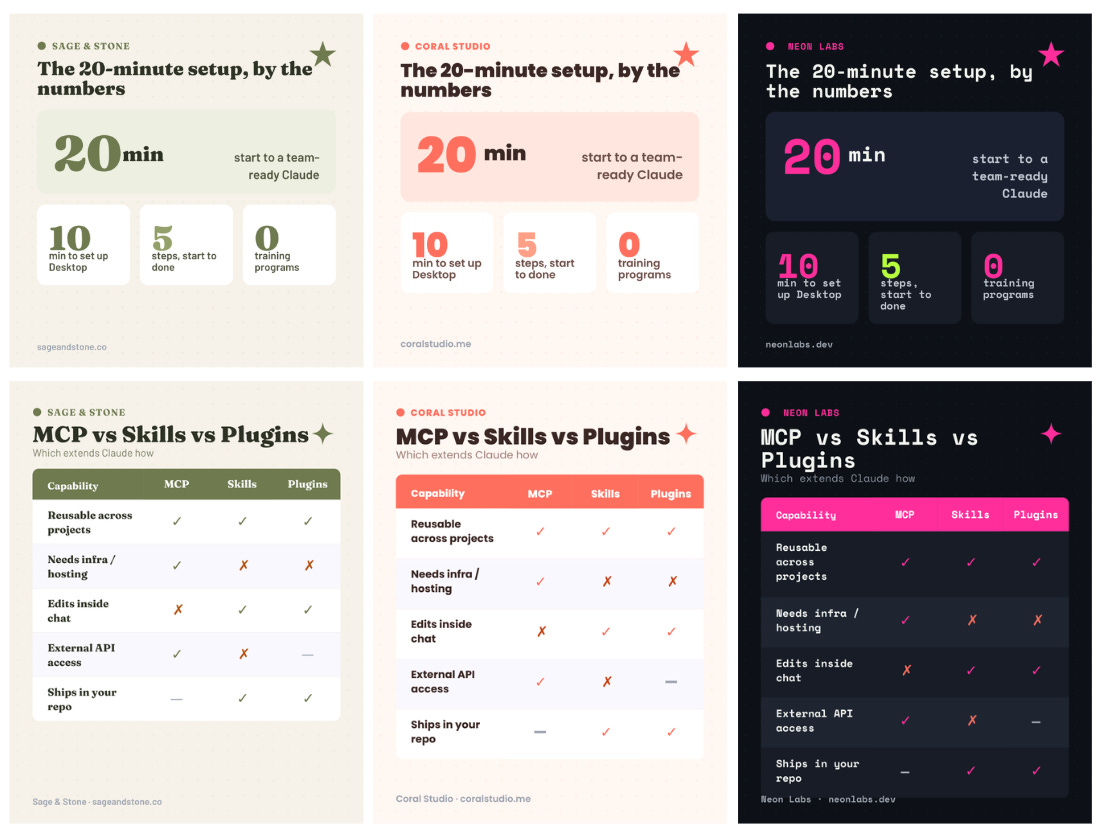
The above are all using my brand color in purple, so I tested different color and styles on the same content:
Different surfaces
Then I tried the thing I’d half given up on:
Whiteboard surfaces.
Chalkboard.
Kraft paper….
I used to make these with AI image tools, and they landed maybe half the time. The text warped, the lines smeared, the same prompt gave a different mess every run.
Canva just made them.
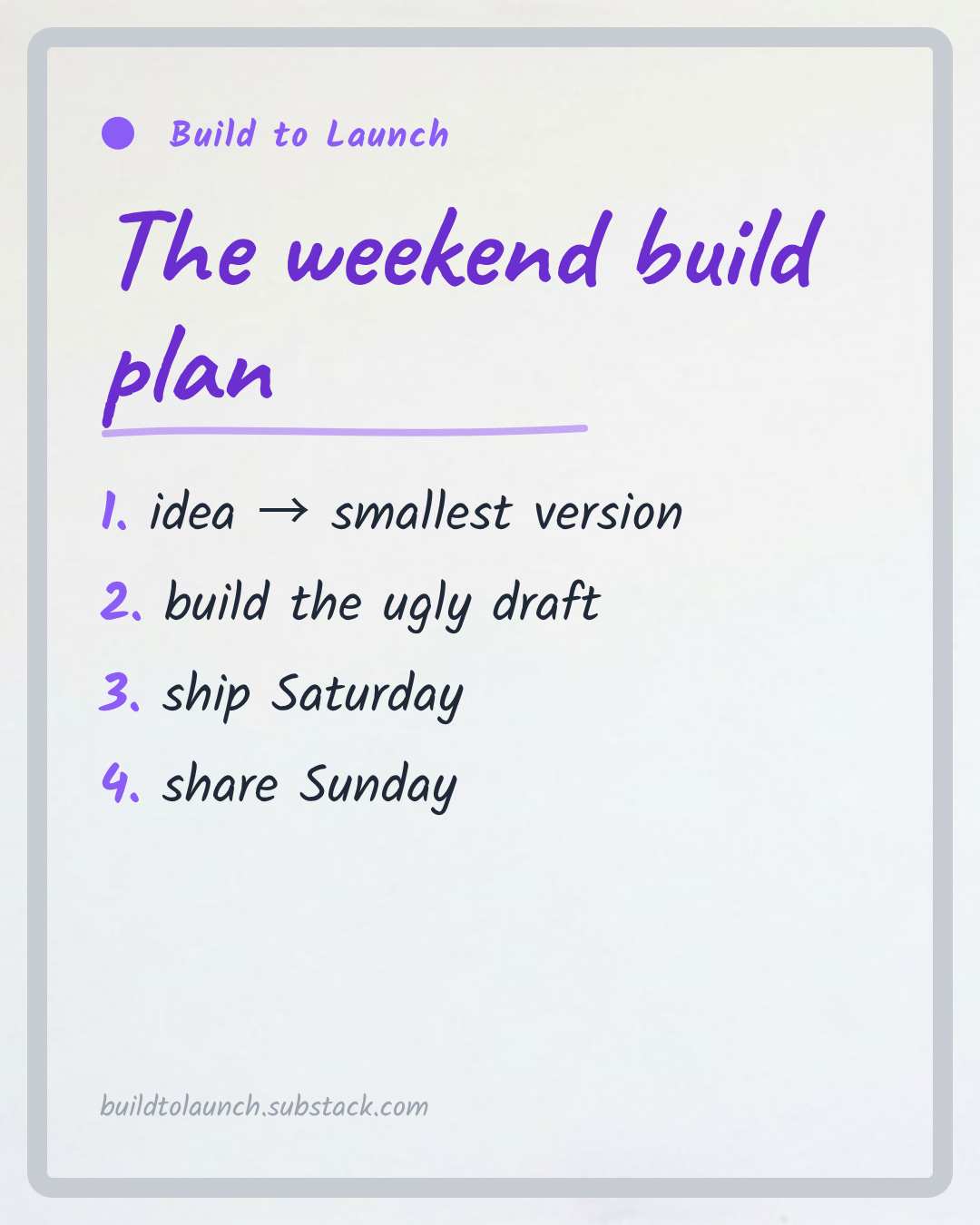
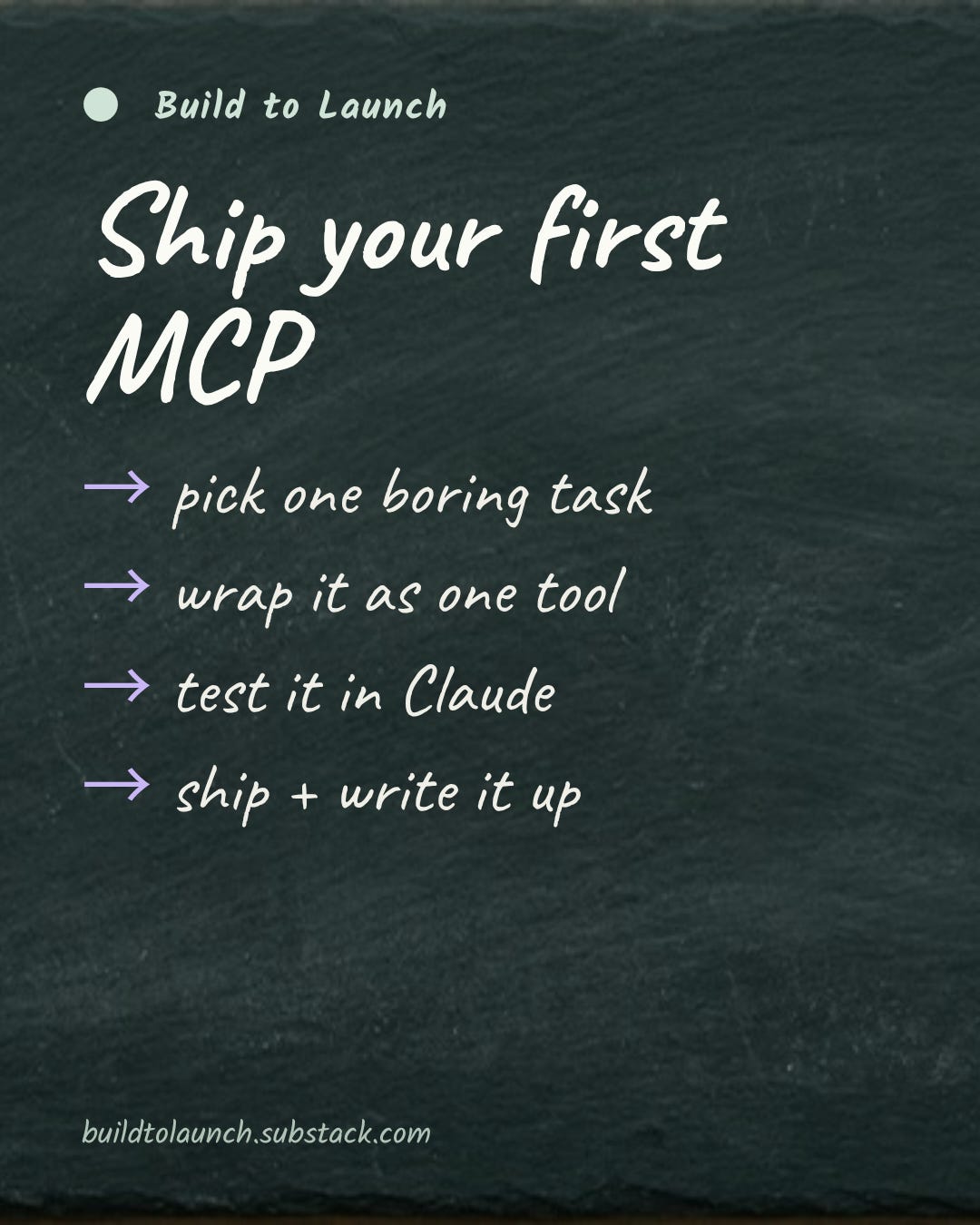
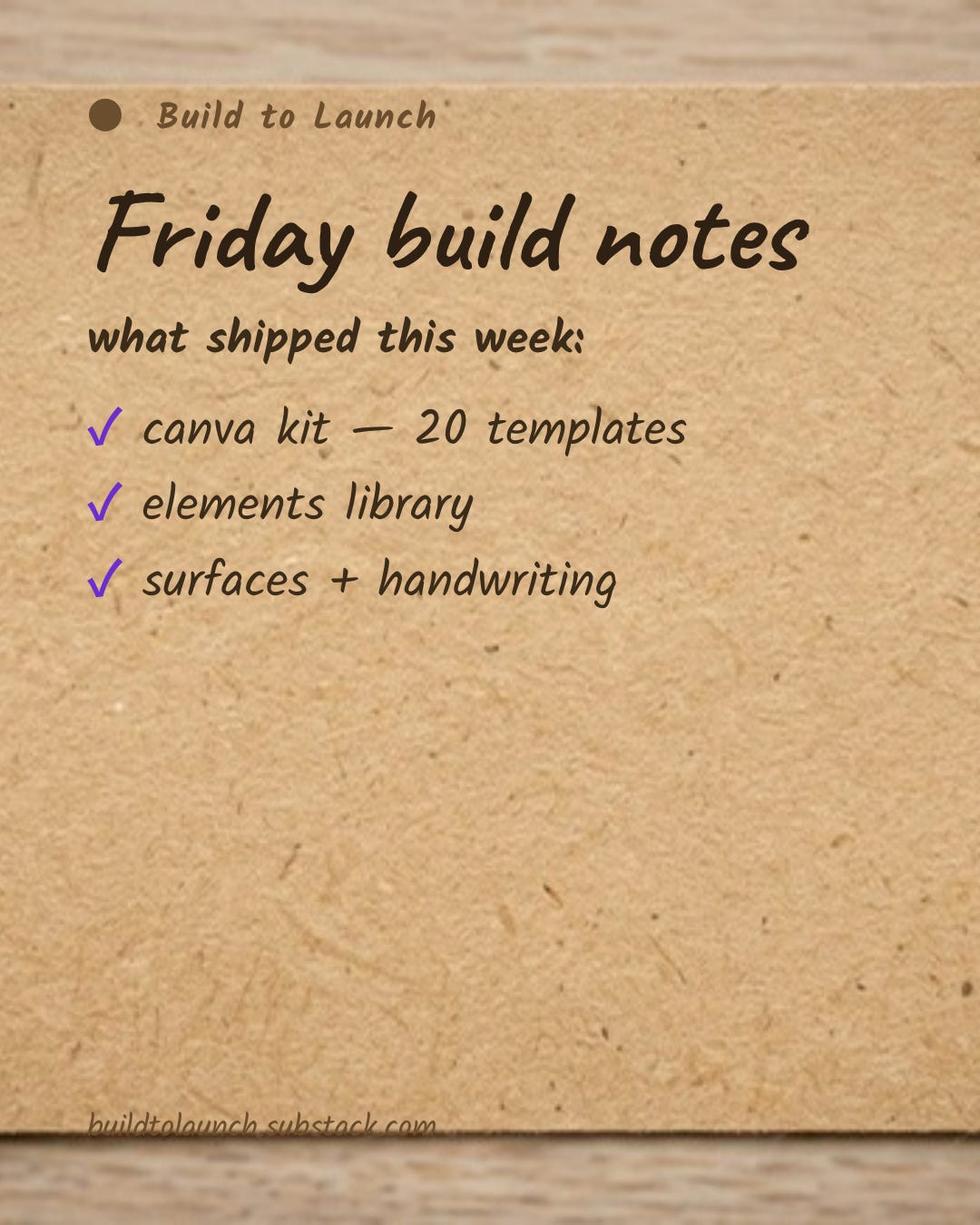
On demand, legible, the same every time.
Elements
Along the way I collected the element styles I kept reaching for, now in one place Claude can pull from.
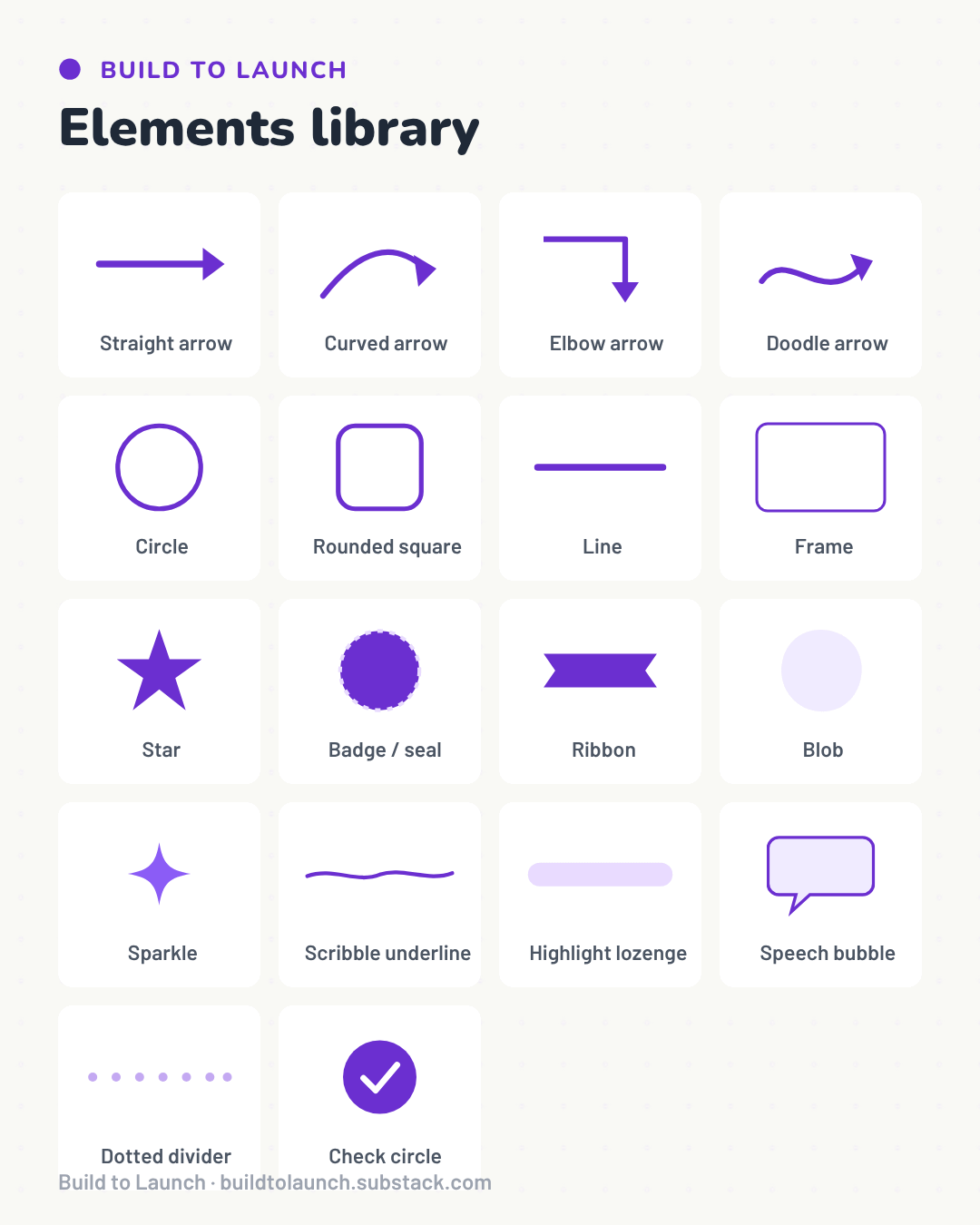
Many of these used to mean half a day in the editor, or paying someone to do it.
This run took one afternoon, all on the free path, and the files can be reused as many times as I want.
The one thing it didn’t solve: making every new design match the last. That, and the rest of the how, is past here.
Claim the skill: the kit I built, plus the exact prompts that drive it.
Run it, step by step: the full walkthrough to your first finished kit, prompt to exported files, in about 20 minutes.
Make it yours: set your colors, fonts, and logo once, so every design after comes out on-brand, design #10 still matching design #1.
Where the free plan stops: which Canva Pro walls are real, and the free path that routes around the ones that aren’t.
It’s all in the Free-Plan Visual Kit. Grab it below.