
The Custom MCPs Included in Your Build to Launch Subscription
The research, writing, Substack, and workflow tools I built for paid members, and how to start using them.

In the first cohort of the Practical AI Builder program, I showed how I use Claude to do research live with the Build to Launch MCP streamlining the workflow.
Then people started asking about it.
What is that MCP? Can we access it too?
Paid members do not just get articles from me.
You also get MCPs I actually use to reduce friction across research, writing, Substack, Gmail, and distribution inside Claude.
That is really what this piece is about.
I had built all of this, people kept seeing parts of it, and I never properly laid it out in one place.
So here it is.
If AI has ever felt helpful in one moment and annoying in the next because you are still tab-switching, copy-pasting, re-explaining context, or rebuilding the same workflow every session, these are the tools meant to make that better.

What’s inside:
Build to Launch MCP — the research and workflow layer that stops you from rebuilding the same process every time you open Claude
Substack Notes MCP — how to brainstorm, schedule, and analyze notes, plus the 3-part setup that makes the whole system actually work
Substack Article MCP — retrieve your own paid articles and the paid newsletters you subscribe to without hunting through tabs for one specific section
Substack Newsletter MCP — use AI to see who is writing in your space and how crowded a topic actually is
Gmail MCP (Multiple Accounts) — the multi-inbox workflow, why it converts, and where to go deeper if this is the pain point you actually have
Postingly MCP — the cross-posting workflow I’m still actively exploring, what’s already useful, and what’s still early
The short version table — every MCP in one place so you can decide what to set up first
If you’re newer to this whole stack, What is an MCP Server? Plain-English Explanation is the cleanest place to start.
For the bigger picture on where MCPs fit into a real working stack, Best MCP Servers for Claude Code and MCP + Connected Intelligence are the two companion reads.

Build to Launch MCP
This is the MCP to start with if you want Claude to do better research and run repeatable workflows without rebuilding the process every time.
What it saves you from: Re-explaining the same research process every session. Re-prompting from scratch every time you want to run a landscape scan, validate an idea, or execute a structured workflow.
Under the hood, it loads the right skills for the job and runs them inside Claude.
That is the win.
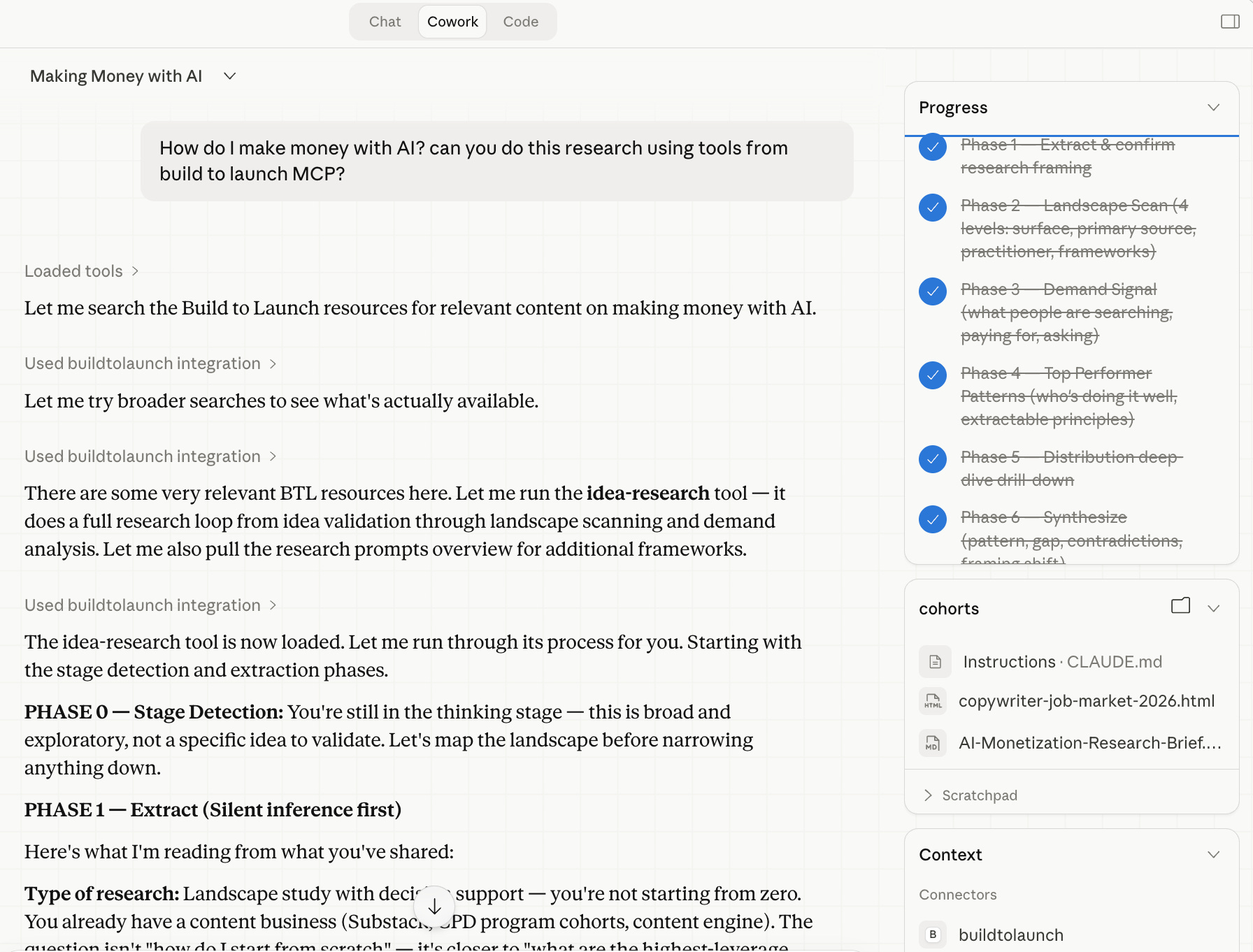
Who it’s for: Anyone using Claude for research, content creation, or repeatable workflows who is tired of rebuilding their process from scratch in every new session.
How to access it: Go to resources.buildtolaunch.ai/mcp and use your Substack subscriber email to get the installation snippet. It does not need to match your Claude account. Use the email your paid subscription is under.
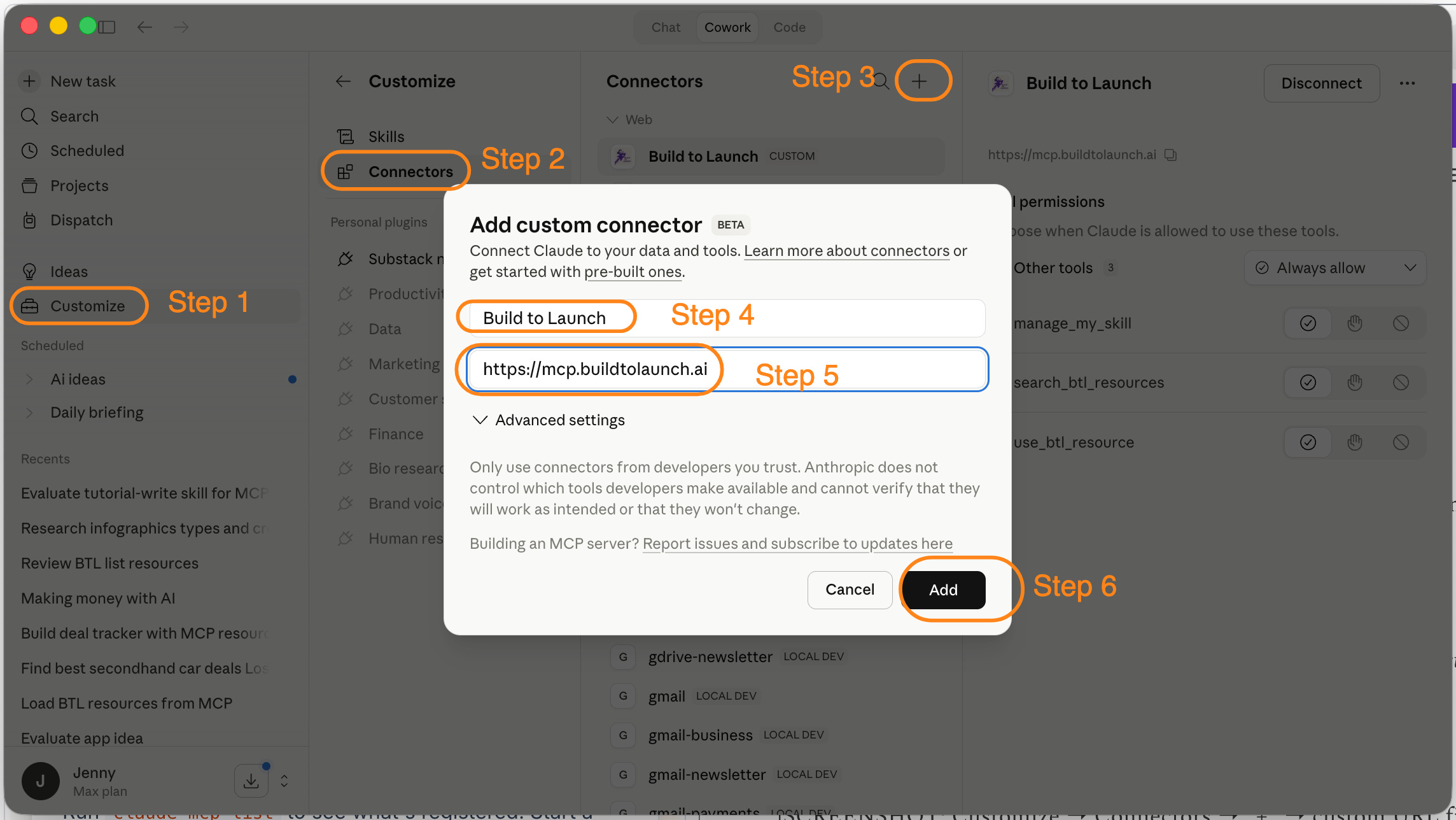
Video walk through on how to install the Build to Launch MCP:
A prompt to try once it’s installed:
“Run a landscape scan on [your topic]. I want top performers, their revenue models, and any patterns showing up across multiple of them. Format it as a comparison table.”
You can see that same research workflow logic in action in the first cohort How to Do Research With AI Effectively and the more implementation-heavy in Claude Code + Chrome + Perplexity MCP research workflow.
I keep adding to this server because I use it myself.
If something slows me down more than once, I usually turn it into a repeatable instruction set so I do not have to rebuild it next time.
That is what you get access to as part of your subscription.
Honest caveat: what is in the MCP today is a starting point, not the full picture.
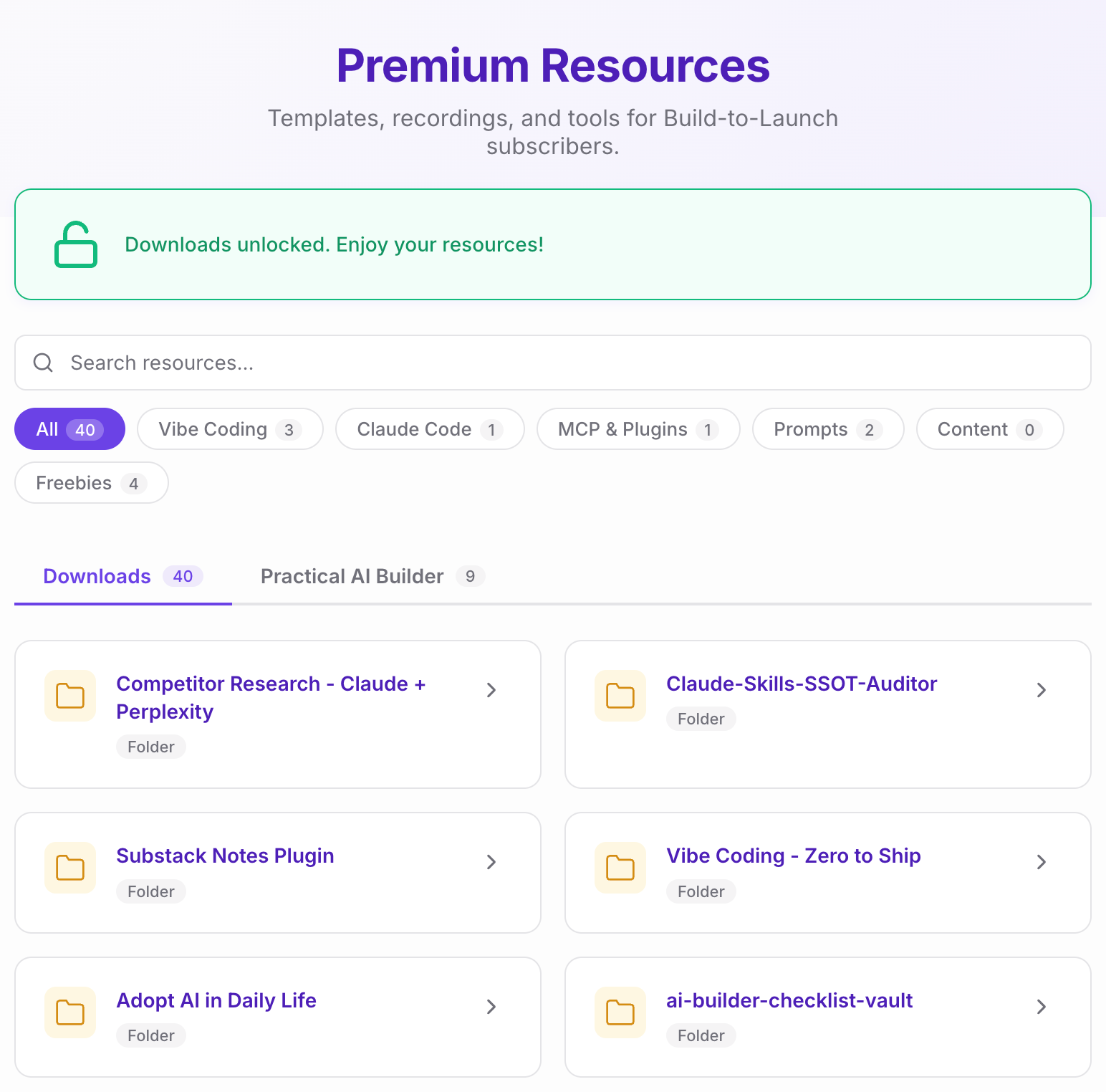
I already have a much larger library of guides, prompts, templates, and instructions at resources.buildtolaunch.ai. Over time, more of that will move into the MCP so you can load what you need during coding, building, and writing without chasing things down manually.
That is the direction.
Substack Notes MCP
This is the best one to start with if your bottleneck is note ideation, note scheduling, or figuring out what is actually working on Substack Notes.
What it saves you from: Switching between Claude and the Substack dashboard to schedule notes. Clicking through creator profiles one note at a time to study patterns. Manually checking your own stats.
This server does three useful jobs:
Schedule notes directly from Claude Desktop, Claude Code, or Cursor
Retrieve published notes from any creator in bulk so you can study patterns without clicking one by one
Pull your own note stats so you can see what is performing without opening Substack
I also baked in the hooks I keep collecting and the note templates that perform consistently across creators I follow.
So you are not starting from a blank box.
This came out of Quick Viral Notes, the app I built to study what makes Substack Notes spread.
It is also already useful at real scale. I used it to analyze 3,000+ notes, and it saved me several days of collecting and sorting by hand.
If you want to see that in practice, this is the article: How I Analyzed 3,000+ Substack Notes With an MCP.
If you want the older build-in-public context for how this product started, Build a Substack Note Generator App With Cursor + Claude Code has that story.
How it works: three parts that need to be in place.
quickviralnotes.xyz — stores your auth and handles the backend logic
Substack Notes Chrome extension — the piece that actually publishes notes to Substack on your behalf
The MCP — connects your AI client to the QVN server
The MCP orchestrates and schedules; the Chrome extension does the actual posting.
Step 1 — Register at QVN and claim your paid member plan
1. Go to quickviralnotes.xyz and create an account.
2. Then go to settings to claim the Build to Launch paid member plan.
3. Add your Substack newsletter link.
Step 2 — Install the Chrome extension
Install Substack Note Scheduler from the Chrome Web Store. Pin it to your toolbar, then make sure you’re logged into substack.com in the same browser, the extension uses your active Substack session to post on your behalf.
Video walkthrough (Step 1 & 2):
Step 3 — Connect your AI client
Open Claude Desktop
→ Customize → Connectors → Add Custom Connector
→ paste this URL : https://mcp.quickviralnotes.xyz
→ sign in with your QVN account → click Allow:
Video walkthrough (Step 3 installation via Claude Desktop):
Prompts to try once connected:
“Use substack-notes MCP, help me brainstorm this note, and schedule it: I thought I’d write faster with AI. Instead, I write slower.”
“Which of my recent Substack notes got the most clicks? Show me the top 5.”
Here’s the the older build-in-public context around this product: Build a Substack Note Generator App With Cursor + Claude Code shows where some of this direction originally started.
Substack Article MCP
This is the MCP for retrieving full paid Substack articles inside Claude without fighting your own paywall or digging through someone else’s archive one tab at a time.
What it saves you from: Hitting the paywall on your own content inside AI tools. Hunting through paid newsletters you subscribe to just to find one section, argument, or example. Copy-pasting content across tabs every time you want to compare, repurpose, or reference something.
It solves two recurring problems.
AI tools often hit the truncated version of your own paid article.
even when you pay for other newsletters, finding one specific section later is still annoying.
This MCP stores your Substack auth locally so Claude can retrieve your own paid articles and the paid newsletters you already subscribe to.
Same content, same credentials, less switching.
That is the win.
How to install:
Step 1 — Save your Substack auth (opens a Chrome login flow):
npx -y substack-article-mcp loginStep 2 — Add to your MCP config:
Claude Desktop (~/Library/Application Support/Claude/claude_desktop_config.json):
"substack": {
  "command": "npx",
  "args": ["-y", "substack-article-mcp"]
}
Then restart Claude Desktop.
Cursor (one command, handles everything):
npx -y substack-article-mcp install --cursorClaude Code:
npx -y substack-article-mcp install --claude-codeSubstack cookies expire every few weeks. When tools start returning auth errors, run npx -y substack-article-mcp login again to refresh.
A prompt to try:
“Can you retrieve my newest paid article at buildtolaunch using substack-article MCP? What are the last 3 sections about?”
Here’s a broader example of where this idea can go, He Built an MCP Server So You Can Talk to AI About Any Substack Author is worth reading alongside this one.
Substack Newsletter MCP
This is the one to use when you want Claude to help you find newsletters in your niche instead of waiting for the algorithm to eventually connect you.
What it saves you from: Clicking through the explore page trying to find people writing in your space, at your pace, before either of you has enough audience to get recommended to each other.
It connects to substackexplorer.com and lets Claude search newsletters by topic, posting frequency, and audience size.
It is especially useful when you are still early and the algorithm is not surfacing the right people yet.
It also pairs well with Substack niche research if you are still figuring out where your angle sits.
The first version of this showed up in my MCP + Connected Intelligence guide.
How to access it: substackexplorer.com, it’s attached to the website, no config file editing needed.
A prompt to try:
“Check substack newsletter MCP, how many newsletters are writing about building with AI?”
A note on the three Substack MCPs:
Yes, three MCPs for one platform is a lot. They ended up separate because I built them at different times to solve different problems. There is a real argument for merging them into one unified Substack MCP.
I am considering it. But I want usage signal before I make that call.
Gmail MCP (Multiple Accounts)
Enough about Substack.
This is the one to use if email is part of your workflow and you are tired of jumping between accounts just to piece together one conversation.
What it saves you from: Switching browser tabs to retrieve emails from different Gmail accounts. Copy-pasting threads across contexts to compare messages or track a conversation.
This one is not paid-only.
But the multi-account use cases, screenshots, and walkthroughs are documented in a way that is useful if this is already your pain point.
I use it because I run multiple Gmail accounts for newsletter, business, and personal workflows.
Now Claude can pull from them in the same conversation.
One conversation. Multiple inboxes.
I wrote the full guide here: Gmail MCP for Claude Code: Multi-Account Setup + 5 Workflows.
It is not one of my flashiest public articles. But it is one of the strongest on conversion, which usually means the pain is real.
How to install: Use the full guide here: Gmail MCP for Claude Code: Multi-Account Setup + 5 Workflows.
That article walks through the multi-account setup, named connections, exact config, and the workflows behind it. I’d rather point you there than squeeze a fragile multi-account setup into one section here.
A prompt to try:
“Check my [newsletter inbox] for any reader replies from this week. Summarize what people are asking about — I want to know if any question is coming up repeatedly.”
Cross Posting MCP
This is the experimental one for pushing one piece of writing to multiple platforms from Claude.
What it saves you from: Opening four different tabs to post the same note to X, Bluesky, LinkedIn, and Threads. Reformatting manually for each platform. Context-switching between your writing environment and your posting apps.
Postingly is the app behind it. You write or generate a post in Claude, then send it to Bluesky, LinkedIn, and Threads in one action.
No copying.
No tab-switching.
Honest caveat: this one is still early.
I am not using it intensively every week yet. I am still testing the workflow, finding rough edges, and improving it incrementally.
The other platforms work.
X is the holdout. OAuth with the X API has been the stubborn part.
So I am including this because it is already useful for some people, and because I want you to know where it is headed.
How to install it:
Create a free account at postingly.io
Connect your social accounts in the dashboard
Generate an API key from
Settings -> API Keys
Then connect it to your AI client:
Claude Code:
claude mcp add -s user crosspost \
  -e CROSSPOST_API_KEY=your-api-key-here \
  -e CROSSPOST_API_URL=https://postingly.io \
  -- npx -y crosspost-mcp
Cursor / manual config:
"crosspost": {
  "command": "npx",
  "args": ["-y", "crosspost-mcp"],
  "env": {
    "CROSSPOST_API_KEY": "your-api-key-here"
  }
}
Claude Desktop can use the .mcpb file or the same manual JSON config.
A prompt to try:
“Post this to Bluesky, LinkedIn, and Threads: [your note text]”
The Short Version
Here’s what you have access to as a paid subscriber, in one place:
Build to Launch MCP — pre-built research and workflow skills for Claude. Get it at resources.buildtolaunch.ai/mcp.
Substack Notes MCP — brainstorm, schedule, and analyze notes. Start at quickviralnotes.xyz, install the Chrome extension, then connect Claude or Cursor.
Substack Article MCP — retrieve your own paywalled articles and the paid newsletters you subscribe to in full. Run
npx -y substack-article-mcp login, then add it to your client config.Substack Newsletter MCP — discover newsletters by topic, frequency, and audience size. Use substackexplorer.com.
Gmail MCP — access multiple Gmail accounts in one Claude session. Use the full setup guide here: Gmail MCP for Claude Code: Multi-Account Setup + 5 Workflows.
Postingly MCP — crosspost to Bluesky, LinkedIn, and Threads from Claude. Start at postingly.io, generate an API key, then install
crosspost-mcp.
Your turn
Pick one MCP and set it up this week.
If you do not know where to start, start with the Build to Launch MCP.
Then use it once.
Run one workflow. Retrieve one article. Schedule one note. Scan one inbox. Cross-post one post.
That is when this stops being a list of perks and starts becoming part of how you work.
With all the MCPs above, which one would you start with?
— Jenny
Jenny I have a question:
The session you offered the past week and this article are helping me build an idea. An MCP server for my consulting work.
But if it is a server I presume the MCP is an active process running somewhere, is it a hosted solution? In that case, where do you host your own MCP Servers?