

Updated for 2026 with the current installer, plan prices, Desktop option, permission behavior, and four first projects.
Claude Code lets you work on files and build small tools by describing the result you want in plain English. This guide takes you from installation to one useful project, with the commands, prompts, and checks you need along the way.

Do you hear your friends talk about Claude Code a lot?
Do you hear some people absolutely loving it while others completely hate it?
It sounds so powerful in someone’s hands, but then you hear others complain that “Claude Code destroyed my entire project.”
What exactly is Claude Code?
When I first tried Claude Code (back at v0.2.9), I’ll be honest, it wasn’t great. Slow responses, more mistakes, and compared to Cursor, it felt clunky.
I remember thinking: “Why use this? Cursor has a clean interface. I can run the same projects there and not be stuck in this black terminal window.”
That mindset was arrogant.
Sure, you can build similar projects in other tools. But here’s what I learned after sticking with Claude Code: it doesn’t just help you write code, it teaches you how to think programmatically.
You learn how to break down problems, organize your work, and understand how pieces of a project fit together. And Claude Code runs anywhere, directly on top of the selected folder, with just raw, portable problem-solving.
After working with Claude Code for months, I’ve finally organized all my confusion, learnings, aha moments, and the real power unlocks I discovered along the way. There’s so much to share about tool decisions, cost management, and the difference between Claude Code and alternatives.
Each lesson feels equally important, so I’ve split this into two articles. This one covers the foundation that makes everything else possible.
What’s Inside:
Hi, I’m Jenny 👋
I believe anyone can thrive with AI, not by mastering the tools, but by building real things with them. I run Build to Launch and the Practical AI Builder program, where we go from experimenting to shipping. Come build with us.
If you’re new to Build to Launch, welcome! Here’s what you might enjoy:
Part I: The 3 Essential Things You Need to Know
Three things separate successful Claude Code users from frustrated ones:
1. Start with the complete problem
Claude Code can read a folder, create files, run commands, and revise its own work. That means you can describe the result instead of translating the result into individual coding tasks first.
You say: “Organize my camera photos by date and event.”
Claude can make: a script that renames the files, creates folders, and builds a simple page for browsing them.
You say: “Review these published articles and show me the patterns in my writing.”
Claude can make: a report with repeated phrases, structural patterns, and examples pulled from the files.
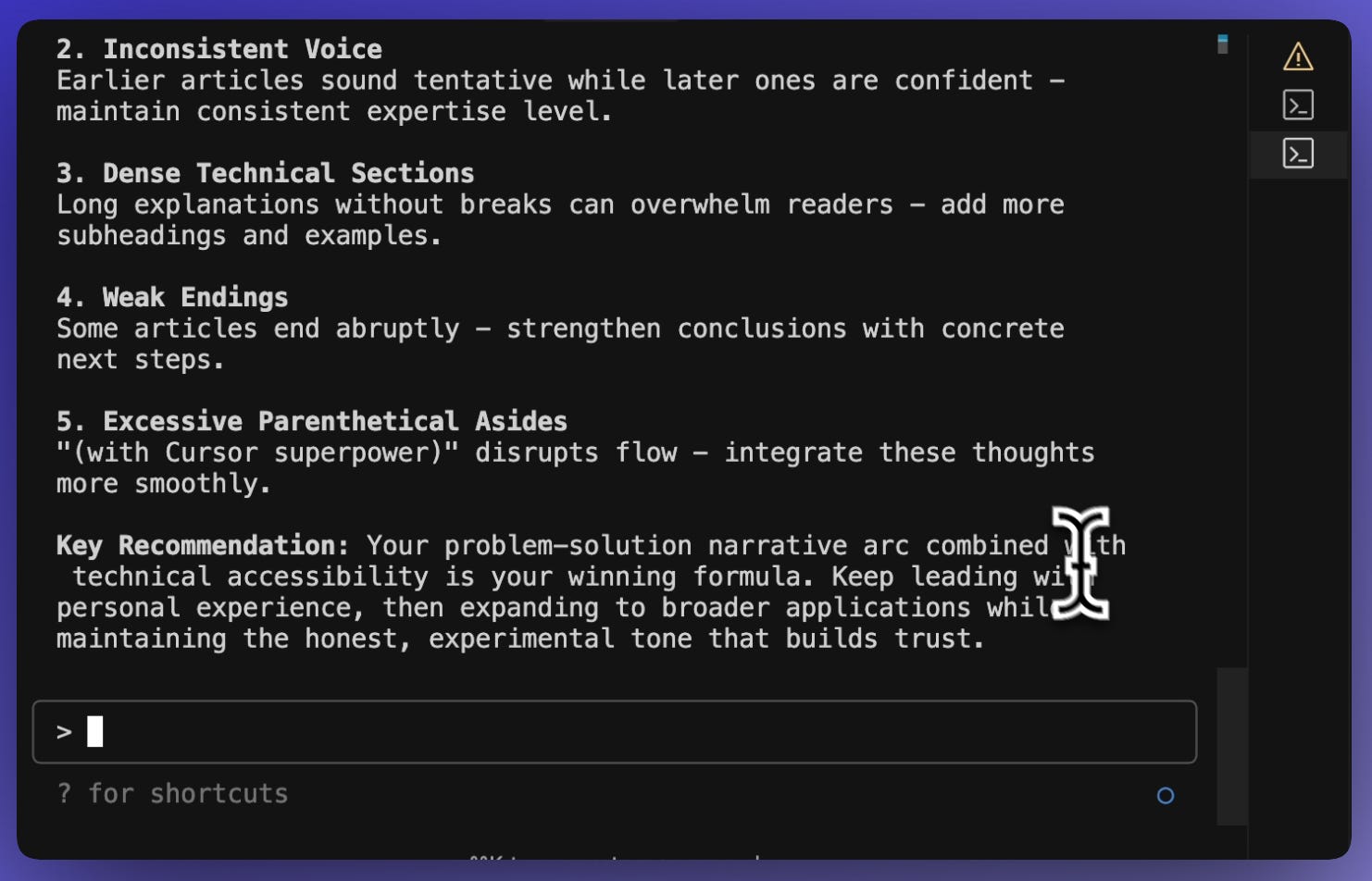
The clearer you are about the input and the result, the less Claude has to guess.
2. Talk to Claude in plain English
You do not need to translate every request into a command. Tell Claude what you want to make, what the result should include, and what constraints matter.
For a personal website, you could say:
Create a clean website with my name, a short introduction, my contact information, and two photos. Make it work well on phones. Ask me questions before you start if any important detail is missing.
Claude will still write code. Your job is to describe the result, answer its questions, and check what it made.
3. Know how you are paying
Claude Code runs on Anthropic’s platform. Three plan tiers:
Pro ($20/month): Includes Claude Code with usage limits — plenty for beginners working through these projects
Max 5x ($100/month): Higher usage limits for daily builders
Max 20x ($200/month): Highest limits for heavy, all-day usage
API credits (pay-as-you-go): If you prefer not to subscribe, you can buy API credits directly and pay per use
What projects actually cost on pay-as-you-go:
Simple website: $2-10
Data analysis: $10-25
Complex project: $25+
The comparison:
Hire a contractor: $500-2000
Your time doing it manually: Hours of frustration
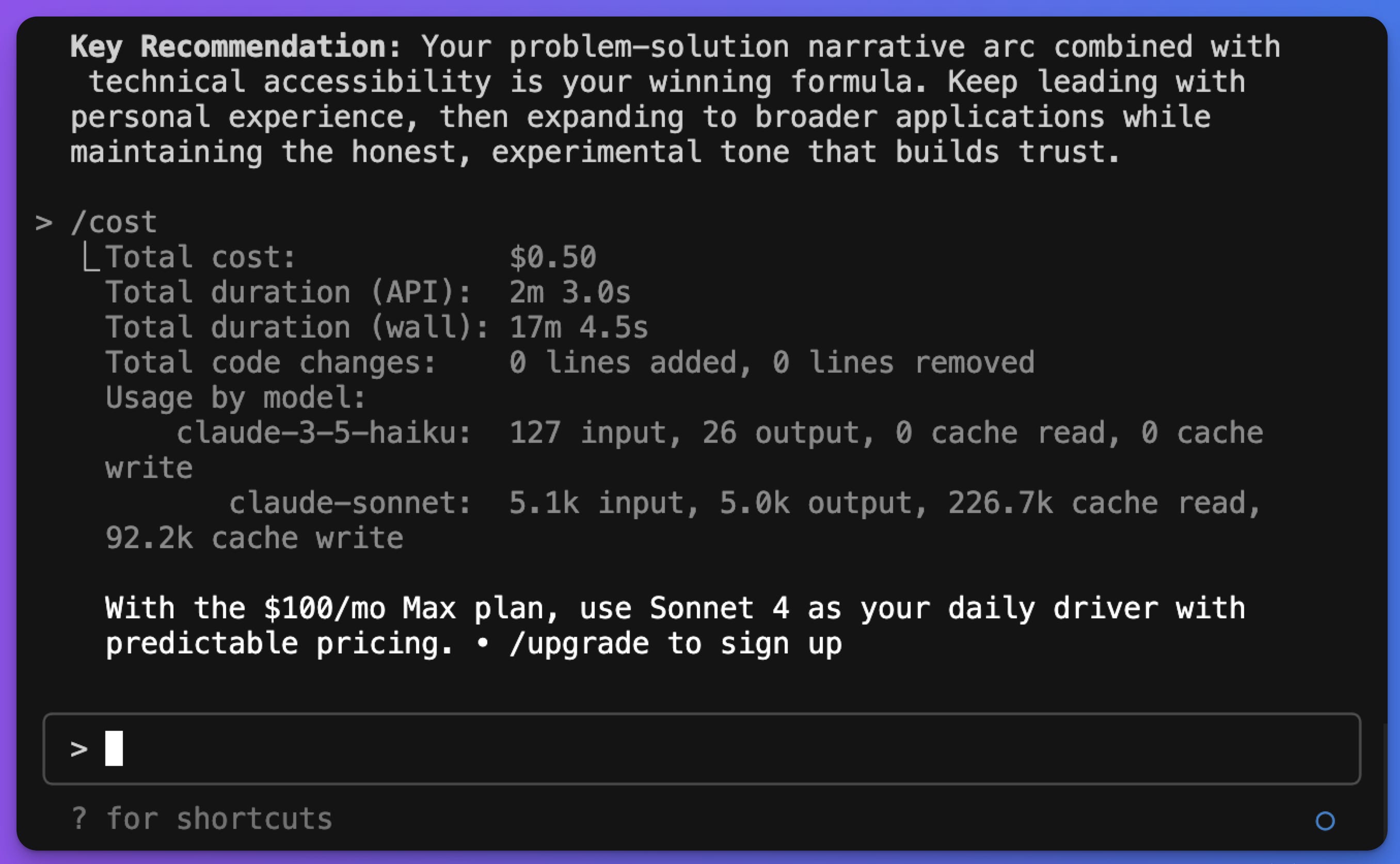
Bottom line: For these beginner projects, the Pro plan is more than enough. Use /usage to monitor spending if you're on pay-as-you-go.
If you need to reduce Claude Code costs, this guide explains the controls I use when a project starts consuming more context than expected.
Part II: How to Install Claude Code and Run Your First Command (15 Minutes)
1. Understanding the Command Line (5 Minutes)
Your computer has two faces:
The familiar one: Windows, icons, menus you click with your mouse.
The other face: The command line - same computer, controlled with words instead of clicks.
Why learn this "other face"? It's actually simpler once you try it. Instead of clicking through multiple menus to create a folder, you just type mkdir my-project and it's done instantly.
The Commands You Really Need
Don't try to memorize these now. Just know they exist. We'll use them naturally as the project goes.
Finding Your Way Around:
pwd— "Where am I right now?"ls(Mac) ordir(Windows) — "What's in this folder?"cd foldername— "Go into this folder"cd ..— "Go back up one level"
Creating Things:
mkdir projectname- "Make a new folder"
How it feels in practice:
pwd                    # Computer says: /Users/yourname
ls                     # Computer shows: Documents, Downloads, Desktop
cd Documents           # You go into Documents folder
mkdir my-first-project # You create a new folder
cd my-first-project    # You go into that new folder
It's like giving directions to someone: "Go to Documents, make a new folder called my-first-project, then go inside it."
Smart Naming Saves Headaches Later:
✅ Use lowercase: copenhagen
✅ Use hyphens: photo-organizer
❌ No spaces: My Cool Project breaks commands
❌ No weird characters: project@#$% causes errors
2. Install Claude Code (5 Minutes)
Step 1: Open Terminal
Mac: Press
Cmd + Space, type “Terminal”, press EnterWindows: Press
Windows + R, type “cmd”, press Enter
A black or white window opens — this is your command line interface.
Step 2: Install Claude Code
Copy and paste this one command, then press Enter:
Mac:
curl -fsSL https://claude.ai/install.sh | bashWindows (PowerShell):
irm https://claude.ai/install.ps1 | iexThat’s it. No extra software needed — no Node.js, no package managers. The installer handles everything and auto-updates in the background.
Step 3: Test Your Installation
Type this to confirm everything worked:
claude --versionIf you see a version number, you’re all set!
Prefer not to use the terminal? Claude Code now has a Desktop app — download it for Mac or Windows and skip the command line entirely. You can always switch to the terminal version later.
3. Your Magical First Conversation (5 Minutes)
Create your workspace
cd Documents
mkdir my-projects
cd my-projects
Start Claude Code
claudeThen ask:
I’m in a new project folder. Show me what files are here, suggest three small projects that fit this empty folder, and ask me which one I want to build.
Claude will: Explain its capabilities, suggest project ideas based on your folder location, and ask what problems you're trying to solve.
This isn't just a test, it's your first glimpse of having an AI partner who actually understands context and can think through problems with you.
Here’s what a conversation session looks like:
When you're done: Type /exit
Pro tip: Create a CLAUDE.md file in your project folder with a few lines about what you’re building. Claude reads it automatically every session — think of it as a cheat sheet so Claude remembers your project context.
Pro pro tip: Don’t worry about “doing it right”. Claude is designed for complete beginners. Ask questions, experiment, see what happens. You can’t break anything.
Part III: Four Claude Code Projects to Build Today (Exact Prompts Included)
Pick the one that solves a real problem in your life, follow the exact steps, and you'll have something working in 15 minutes.
Project 1: Professional Website
Create the folder and start Claude:
cd Documents/my-projects
mkdir portfolio-site
cd portfolio-site
claude
Copy this prompt and change the details:
I need a simple, clean website for myself. Include sections for: my name and what I do, a short about me paragraph, my contact information, and maybe 2-3 photos. Keep it professional but not boring. Make it work well on phones too. You should ask me clarifying questions until you are 90% confident about the task before you start.
What happens next:
Claude asks clarifying questions like "What's your profession?" and "What style do you prefer?" Answer naturally, be comfortable to say “I don’t know” or “not sure”, don't overthink it.
When Claude shows you the result:
Open the HTML file in your browser. If you don't love something, just tell Claude: "Make the header bigger" or "Change the colors to something more blue" or "This feels too fancy, make it simpler."
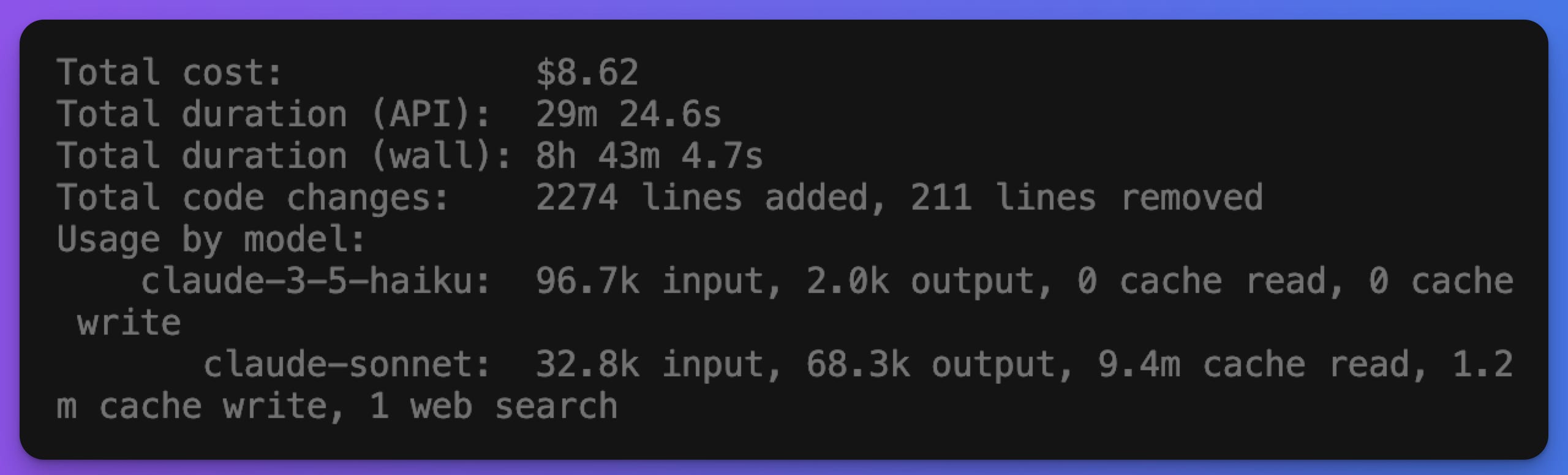
The cost:
Expect about $10 at the end of the the project.
If you want to keep improving this project, the personal website guide shows the next revision steps and the details that make a generated first draft feel like your site.
Project 2: Simple Expense Tracker
Start with sample data or a redacted export. Remove account numbers, addresses, and any fields the project does not need.
cd Documents/my-projects
mkdir expense-tracker
cd expense-tracker
claude
Then ask:
I have bank statements in this folder. Create a something where I can see spending by month, day, and categories like food, transport, entertainment. Include a weekly summary of patterns. Anything you are not sure of midway, just ask me.
What Claude builds:
Usually a simple web page where it has processed your existing data, categorized expenses automatically, and created charts showing spending patterns you never noticed.
How to improve it:
After it's working, try: "Can you analyze my spending patterns and suggest where I could be more mindful?" or "Give me your honest review on my spending."
Why start here:
It's simple enough that you'll definitely get something working, but useful enough to actually solve a problem.
Project 3: Smart Purchase Decision Tool
Claude can organize the evidence you give it into a repeatable comparison.
cd Documents/my-projects
mkdir car-purchase
cd car-purchase
claude
Use this prompt:
I want to buy a reliable, affordable family car within my budget of $X. My location is [your area]. I've heard good things about these dealerships and I'm interested in these specific models. Help me research the details, compare advantages and disadvantages, and create a decision framework based on my budget and preferences.
What Happens:
Claude creates a comprehensive research tool that pulls together reliability ratings, pricing data, dealer reviews, and financing options. It builds comparison charts and helps you identify the best deals in your area.
The Result:
What would take days of scattered research across multiple websites becomes an organized, actionable analysis.
If you do this kind of research often, How to Do Research with AI goes much deeper on the method.
Project 4: a Data Dashboard with Claude Code
Pick a CSV you already understand. Familiar data makes it easier to notice a wrong total or missing category.
cd Documents/my-projects
mkdir data-dashboard
cd data-dashboard
claude
What You Say to Claude
Copy this prompt and fill in the brackets:
I have a CSV file called [filename.csv] in this folder. Build a simple web dashboard that shows: the total and average of [main column], a bar chart breaking it down by [category column], and a filter to view by [date or category]. Use plain HTML, CSS, and JavaScript — no frameworks. The entire output should be a single file I can open directly in my browser.
If you don’t have a dataset handy, create a test file first:
Create a sample CSV file called expenses.csv with 20 rows of fictional monthly expenses — include columns for date, category (food/transport/entertainment), and amount. Then build the dashboard from it.
What to Expect
Claude will ask 1-2 clarifying questions about your data, then generate an index.html file. Open it by double-clicking — no server, no setup, no extra installs.
If the chart is hard to read: Say “Make the chart taller and switch to a cleaner color palette — navy and light gray.”
If a number looks wrong: Say “The total doesn’t match my spreadsheet. Here’s a sample row: [paste one row]. Find and fix the calculation.”
If you want to expand it: Say “Add a second chart showing the trend over time” or “Let me type in a custom date range to filter.”
What This Demonstrates
Total cost: $5-15 depending on dataset size. What you just did: described an input, described an output, iterated on what wasn’t right. That’s the same pattern used for every Claude Code project — a personal tool, a business dashboard, a client report. The complexity scales. The method doesn’t change.
Your 30-Minute Action Plan
Minutes 1-10: Pick the project that solves your biggest current problem
Minutes 11-15: Follow the setup steps exactly as written
Minutes 16-25: Have the conversation with Claude, ask for changes you want
Minutes 26-30: Test your result, make one small improvement
Important: Don't try to build all four projects today. Pick one, make it work, feel proud of what you built. Tomorrow you can try another one.
The goal isn't perfection, it's proving to yourself that you can actually build useful things without knowing how to code.
Part IV: What Goes Wrong in Claude Code and How to Fix It
Working with Claude Code means describing a result, inspecting the output, and asking for a better version. You can do that before you understand every line of code.
Four habits make the first project easier:
Name the result. “Make a website” leaves most decisions open. “Make a one-page dog-walking website with services, prices, and a contact form” gives Claude a target.
Ask about anything you cannot check. Claude can explain a file, a command, or a calculation before you approve it.
Keep the work inside one project folder. Back up important files and review the permission mode before allowing edits.
Respond to the first result. I once told Claude that a website looked like it was built in 2005. That was enough direction for a much better second version.
The first result is a draft you can react to.
Five problems you can expect
1. Spending grows while you iterate. Use /usage during pay-as-you-go sessions and set a stopping point before a long run. Narrow the task when Claude keeps rereading the same large files.
2. File changes depend on your permission mode. Manual mode asks before first use. Accept Edits can change files in the working folder automatically. Keep the folder backed up or use Git so you can inspect and reverse changes.
3. Claude may report completion too early. Ask it to search for TODO, placeholder functions, mock data, and skipped tests. Then open the result yourself.
4. Your first design may feel generic. Give Claude a direct reaction and one concrete change. My first website took three rounds before the visual direction felt right.
5. Claude will miss preferences you never wrote down. Put stable project rules in CLAUDE.md. Keep the file short enough that you will maintain it.
The guide to eight first-build mistakes covers the larger failures that appear when a small experiment becomes something you plan to ship. Use it before adding logins, payments, private data, or other production concerns.
What’s Next: From Beginner to Power User
The gap between “I tried Claude Code once” and “I build with Claude Code daily” comes down to one thing: having a real project, not a tutorial.
Don’t start with hello world.
Start with the thing you’ve been putting off because it felt too technical.
I have 15 Claude Code projects ranked by technical difficulty and what you’ll learn from building them. Use that as the guide map.
If you’ve never opened a terminal
Start with Project 1 from the 15 Claude Code projects list.
Build a personal website entirely from a conversation. No setup beyond what’s in Part II above.
That one session will teach you more about Claude Code than any tutorial.
When you’re ready to connect Claude to external tools, Every Way to Build an MCP Server is the complete guide to what’s possible.
If you’re comfortable with the basics
Move to Project 5 or 6 from the list. That’s where Claude Code starts connecting to the real world: APIs, databases, external data.
Watch your spend with /cost as you go. The cost-effective building guide shows how to cut spending by 70% once you’re building regularly.
When tasks get complex, Claude Code Subagents Explained shows how to delegate parallel work without compounding context costs.
For running automated workflows that work while you sleep, OpenClaw, Claude, n8n AI Automation shows how to wire Claude into a real automation stack.
If you want to build something real
Validate the idea first. The 3-question check takes 10 minutes and has saved me from building the wrong thing more than once.
For the complete implementation files (project guides, pre-deploy checklists, and architecture docs organized by tier) the Claude Code Project Starter Pack has everything ready to go.
Your ideas deserve to exist in the world, not just in your head.
The follow-ups with every question you might encounter is documented in the Claude Hub. But the foundation you have now is enough to build something real.
If any of this was useful, share it with one person who’s been staring at Claude Code’s blinking cursor wondering what to build.
Until then, start building.
What’s the first project you’d build with Claude Code — the practical one you’ve been putting off?
— Jenny
Thanks Jenny. Are you using CC by API or an account subscription?
Love my new site! Thank you. :-)