
Make the Most of Claude Code: 15 Projects From Your First Prompt to an AI System That Runs Itself
Difficulty levels, time estimates, and the exact first prompt for each, whether you've never opened a terminal or you're ready for your fifth app.

Not sure what to build with Claude Code? Here are 15 real projects, from a 10-minute personal website to an autonomous research pipeline, with difficulty levels, time estimates, and the exact first prompt for each. Whether you've never opened a terminal or you're ready for your fifth app, this is the progression that turns Claude Code from a novelty into your daily operating system.

You installed Claude Code. You ran through the basics. Maybe you even built a small project.
And now you’re staring at a blinking cursor thinking… what should I actually build?
I’ve been there. And after publishing my beginner guide to Claude Code, I found out most other people are too. The most common question I got wasn’t about installation or pricing. It was this:
“OK, I get it. But what do I build with it?”
So I put together 15 projects that go somewhere. A progression. You start with a 10-minute personal website, and by Project 15 you’re sitting in one place while content publishes itself, research runs automatically, and your knowledge system grows in the background.
Each project is useful the day you build it. But they all point in the same direction, and the confidence from one makes the next feel obvious.
What You’ll Go Through
Where to start before committing to code
Tier 1: Beginner — 4 local builds, zero setup, zero cost
Project 1: Personal Website
Project 2: Expense Tracker
Project 3: Daily Inspiration Generator
Project 4: Photo Organization Helper
Tier 2: Intermediate — APIs, databases, shipping to real users
Project 5: Information Digest Builder
Project 6: Full-Stack Personal Site
Project 7: Data Intelligence Dashboard
Project 8: Ship a Public App with Payments
Tier 3: Advanced Systems — from apps to autonomous personal infrastructure
Project 9: Personal Command Center
Project 10: Living Knowledge System
Project 11: Autonomous Research Pipeline
Project 12: One-Center Ecosystem
Tier 4: Expand Beyond — 3 projects inside tools you already use
Project 13: No-Code AI Agents Inside Notion
Project 14: Multi-Tool Automation Pipeline
Project 15: Creator Intelligence Agent
1-12 Claude Code Project Ideas Cheat Sheet — grab it at the end
Hi, I’m Jenny 👋
I build AI systems and tools, then share how I did it. I run the Practical AI Builder program, for people who already use AI and want to build real things with it. Check it out if that sounds like you.
If you’re new to Build to Launch, welcome! Here’s what you might enjoy:
How to Use Claude Code for Real Problems, Not Just App Ideas — the sibling article for when you don’t want to build apps

How to Use This Guide
Every project gives you five things:
Difficulty:
🟢 Beginner (local builds, no coding needed)
🟡 Intermediate (APIs, databases, deployment)
🔴 Advanced (systems that grow with you)Time — How long from
claudeto a working resultWhat you’ll learn — The 2-3 skills this project teaches you
The prompt — Copy-paste this as your first message to Claude Code
Why it matters — The real-world problem this solves
If you’ve never used Claude Code before, my complete beginner guide covers installation, the command line, and your first conversation.
Once you’re set up, check out 15 best Claude Code prompts to learn how to talk to it effectively.
If you’re comfortable with the basics, start at Project 1 and work down.
If you’ve already built a few things, jump straight to Tier 2 or Tier 3.
If you’re brand new to building with AI, this is where to start your first vibe coding project. It covers the full path before you write your first prompt.
As your systems grow, you can extend Claude Code with OpenClaw to run jobs autonomously in the background. The two work together, not instead of each other.
One rule before you start: the Tier 1 projects are not optional warmups.
Each one teaches a different reflex: file creation, data visualization, text processing, batch automation. Do at least two before jumping to Tier 2.
Working in Cursor or Windsurf? The prompts and skills transfer, the Complete Cursor Setup Guide covers the setup layer.
What Should You Build First? (Pick by Goal, Not Just Skill)
The tiers organize by difficulty. But what you actually want matters more than your current skill level. Here’s where to start based on your goal:
“I need something to show for myself online” → Project 1 (Personal Website), then extend with Project 6
“I’m drowning in newsletters and tabs” → Project 5 (Digest Builder), or jump to Project 10 (Knowledge System) if you’re comfortable with databases
“I want to ship something people pay for” → Build Projects 5–7 first, then Project 8. Don’t skip straight to payments.
“I want to automate my content workflow” → Start at Project 9 (Command Center), then connect to Project 12
“I just want to see if Claude Code is real” → Project 4 (Photo Organization). Fastest proof that it does something you couldn’t do yourself in 30 seconds.
“I’m already shipping apps and want compounding systems” → Skip to Tier 3, start at Project 9
Tier 1: Beginner — Build With What You Already Have
These projects work with what you already have on your machine. No external services, no API keys, no accounts to create. Just Claude Code and your local files.
1. Your Personal Website
Difficulty: 🟢 Beginner
Time: 10-15 minutes
What you’ll learn: File creation, HTML/CSS basics, how Claude structures a project
Best for: Anyone who needs an online presence, whether it’s a simple landing page for business contacts or the foundation for something much bigger
The prompt:
I need a clean, professional personal website. In this folder [point to a folder with your resume, bio, or any notes about yourself], you’ll find information about me — my background, what I do, and what I care about. Based on what you learn about me and my values, design a single-page website that includes my name, a photo placeholder, an about me section, and my contact information. Make it modern but not flashy. Keep it simple enough that I can update the text myself later.
Why this is Project 1: It’s the easiest possible starting point, and the result is something you’ll actually use. A personal website works for job applications, freelance clients, social media bios. Anywhere you need a “home” on the internet.
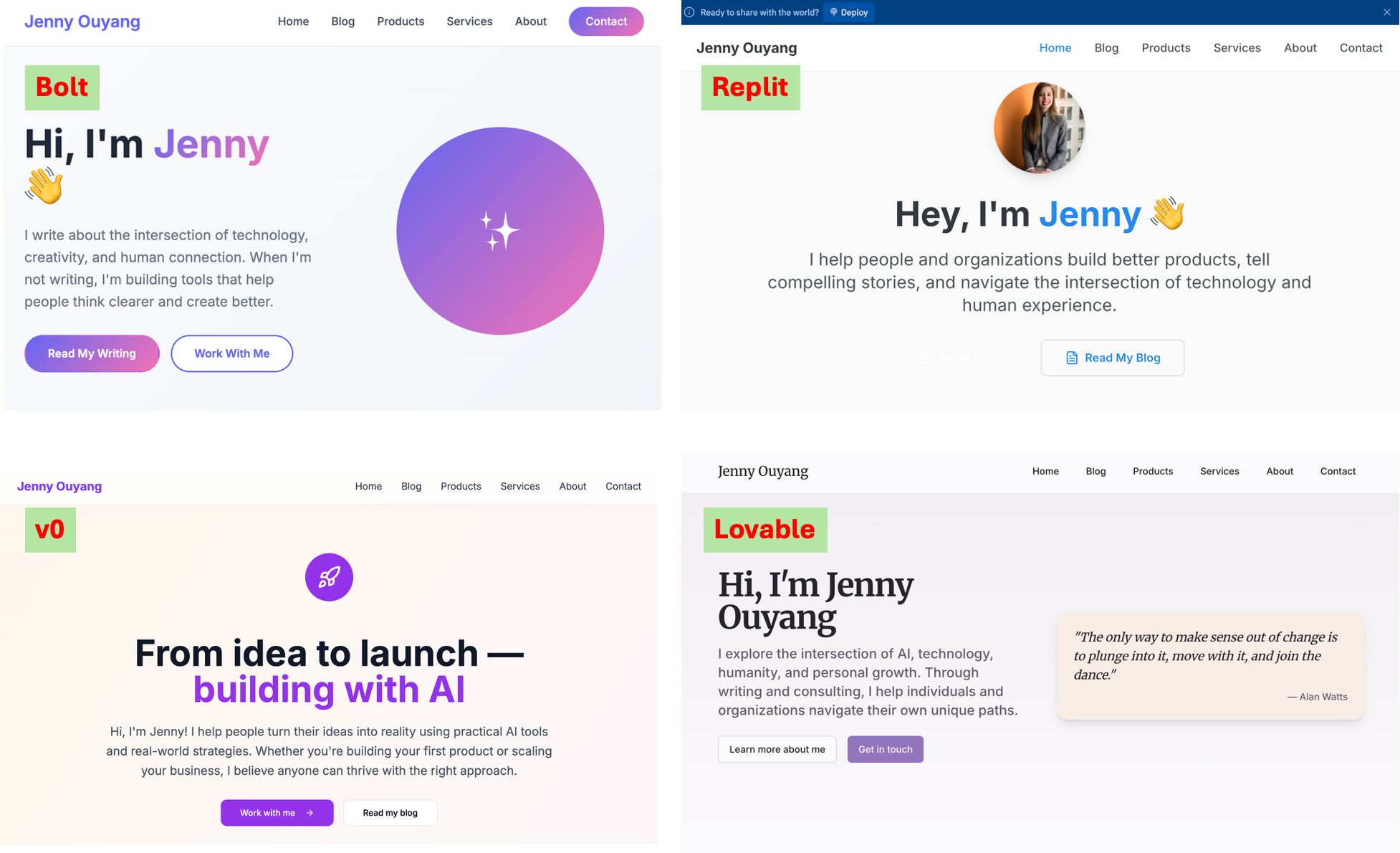
The beauty is how far this can go. Start with a simple landing page, then stack on features over time: payments, a calendar for bookings, event listings, automation. The foundation stays the same. I’ve rebuilt my own personal website multiple times just to test different vibe coding tools, and what used to take weeks now takes minutes.
I walked through this exact progression when building my personal website for the first time, where I showed how the website itself is just the starting point.
2. Expense Tracker
Difficulty: 🟢 Beginner
Time: 15-20 minutes
What you’ll learn: Data visualization, working with personal files, interactive web apps
Best for: Anyone who wants spending insights without trusting a third-party app with their financial data
The prompt:
I have bank and credit card statements saved in this folder. Help me create a simple interface where I can visually see how much I’ve spent each month, broken down by category — food, transport, entertainment, subscriptions, and anything else you can identify from the data. Include interactive charts I can hover over, a weekly spending summary, and a way to filter by date range. Make the visualizations clean and colorful — I want to actually enjoy looking at this.
Why visualization matters: Most of us are visual thinkers, even if we don’t realize it. Raw numbers in a spreadsheet tell you nothing at a glance. But a colorful bar chart showing your food spending tripling in December? That hits instantly. The combination of visual and interactive (being able to hover, filter, click into details) is what makes a tool feel like something you built for yourself, not something generic you downloaded.
Why this stays local: Your financial data never leaves your machine. No subscription, no account, no data sharing with a company you’ve never heard of. And because you built it, you can customize the categories to match how you think about money, not how some product designer in San Francisco decided you should.
This is also a natural first lesson in making data decisions before your build gets complex. A pattern I cover in the engineering practices every AI builder needs. The expense tracker is simple enough that you can see those decisions clearly before they turn into technical debt.
3. Daily Inspiration Generator
Difficulty: 🟢 Beginner
Time: 15-20 minutes
What you’ll learn: Text processing, template generation, working with personal content
Best for: Anyone who journals, takes notes, collects quotes, or wants a personalized morning ritual
The prompt:
I have a collection of personal notes, quotes I’ve saved, journal entries, and ideas in this folder. Build me a “daily inspiration” app that picks something meaningful from my own collection each day — a quote that resonated, a memory worth revisiting, a goal I wrote down, or an idea I forgot about. Display it beautifully with the date and source. Include a “show me another” button and a way to mark favorites.
Why this works: This is the kind of app that sounds small but becomes something you open every morning. It turns your scattered notes and bookmarks into a personal daily ritual. Instead of reading someone else’s motivational quotes, you’re reconnecting with your own thoughts and experiences.
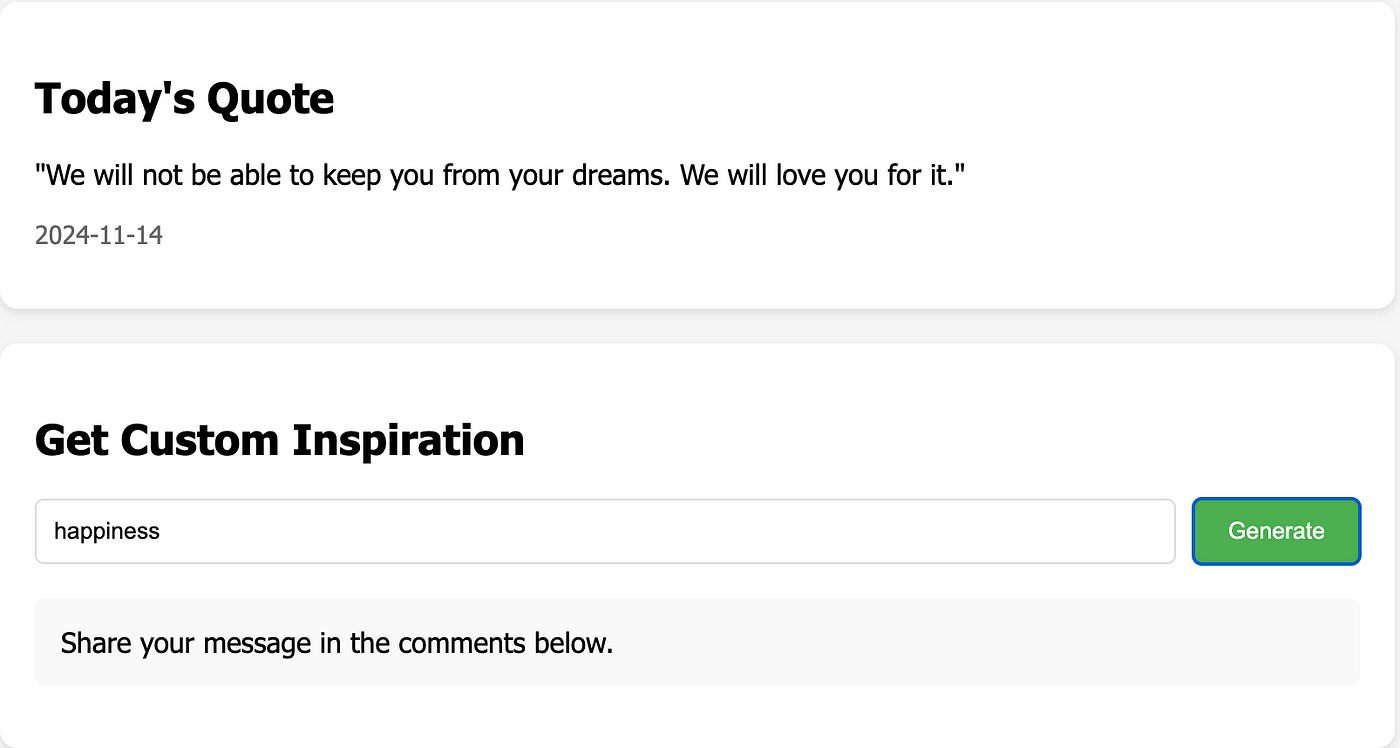
I built my own version of this, a daily quotes generator that pulls from things I’ve personally collected over time. It’s still one of my favorite projects because it takes 15 minutes to build and I use it every single day.
4. Photo Organization Helper
Difficulty: 🟢 Beginner
Time: 20-30 minutes
What you’ll learn: File manipulation, automation scripts, batch processing
Best for: Anyone with a camera roll full of IMG_4857.jpg and no idea what’s in it
The prompt:
I have hundreds of photos in this folder, all named things like IMG_1234.jpg and DSC_5678.png. I want them renamed and organized automatically — sorted into folders by month, renamed with the date and a description like 2025-08-vacation-001.jpg. Read the photo metadata to get the dates. For photos without metadata, group them by file creation date. Show me a preview of what you’ll do before making changes.
Why this is here: This is the project that makes automation click. You realize Claude Code isn’t just for building apps — it’s for eliminating tedious tasks you’ve been putting off for years. What would take you an entire afternoon of manual renaming, Claude finishes in 30 seconds.
I’ve gone much deeper with photo projects. I built a full AI-powered photo search system that finds photos by describing what’s in them (“show me the sunset photos from our trip”). That project taught me that some builds are better as personal tools than public products. As a local tool on your own machine, it’s incredible. And with Claude Code, the basic version (organizing and renaming) is a 20-minute build.
Why These Four Come First
Notice the pattern: every beginner project works with files already on your machine.
Your resume, your bank statements, your notes, your photos.
The biggest barrier for new builders isn’t skill, it’s the fear of breaking something or setting up something wrong.
When everything is local, there’s nothing to break. The worst that happens is you delete a folder and start over.
If you can build these four projects, you have everything you need to tackle what comes next.
In Tier 2, we start connecting to the outside world: RSS feeds, web APIs, databases, and deployment.
One Thing I Got Wrong in Tier 1
The mistake most builders make here is treating these four projects as warmups and rushing through them. Each one teaches a different reflex: file creation, data visualization, text processing, batch automation.
Build them slowly enough to notice what each one does. The confidence you carry into Tier 2 depends on whether Tier 1 felt like you built something or Claude built something and you watched.
Before you build for real users: validate first. Tier 2 is where you start spending real time and real money. Three resources worth reading before you go in:
Research with Claude Code: Validate Any App Idea in 70 Minutes — the exact research pipeline I ran to check whether 16 sites were worth building before writing a line of code
How to Do Research With AI Effectively — the methodology behind running parallel agents, cross-referencing sources, and getting to a real answer fast
Perplexity MCP + Claude: Competitive Research in 2 Hours — how to scan 177 competitors before your next launch, with the exact prompt and board setup
For the bigger picture: The Roadmap Nobody Gave You maps out the full vibe coding journey.
For the full hand-held experience: my Vibe Coding: Zero to Ship guide walks you through an entire project step by step in about an hour.
Tier 2: Intermediate — Connect to the Real World
In Tier 1, everything stayed on your machine. Now we’re breaking out: fetching data from the internet, calling AI APIs for summarization, storing things in databases, and deploying to where others can use it.
5. Information Digest Builder
Difficulty: 🟡 Intermediate
Time: 2-4 hours
What you’ll learn: API basics, AI summarization, data storage, scheduled fetching
Best for: Anyone drowning in subscriptions (newsletters, blogs, RSS feeds, YouTube channels) and can’t keep up
Before building aggregators or digest tools, validate your data sources first. My validation guide walks through researching 16 sites in 70 minutes to check which have accessible RSS feeds, APIs, or are blocking scrapers—before you write any code.
The prompt:
I subscribe to way too many information sources. Here are the URLs of blogs, RSS feeds, and newsletters I follow: [paste URLs]. Build me a digest app that fetches new content from each source, uses AI to summarize each piece in 2-3 sentences, groups them by topic, and generates a clean page I can read over morning coffee. Store what I’ve already seen so I don’t get duplicates tomorrow. Make it look like a minimal, well-designed newsletter.
What makes this Tier 2: This is your first project that reaches outside your machine. You’re calling external APIs to fetch content, and here’s the important part: if you want AI to summarize and compare what it finds, that requires an AI API key (Claude, OpenAI, etc.). That’s your introduction to API authentication: giving your app credentials to use an external service.
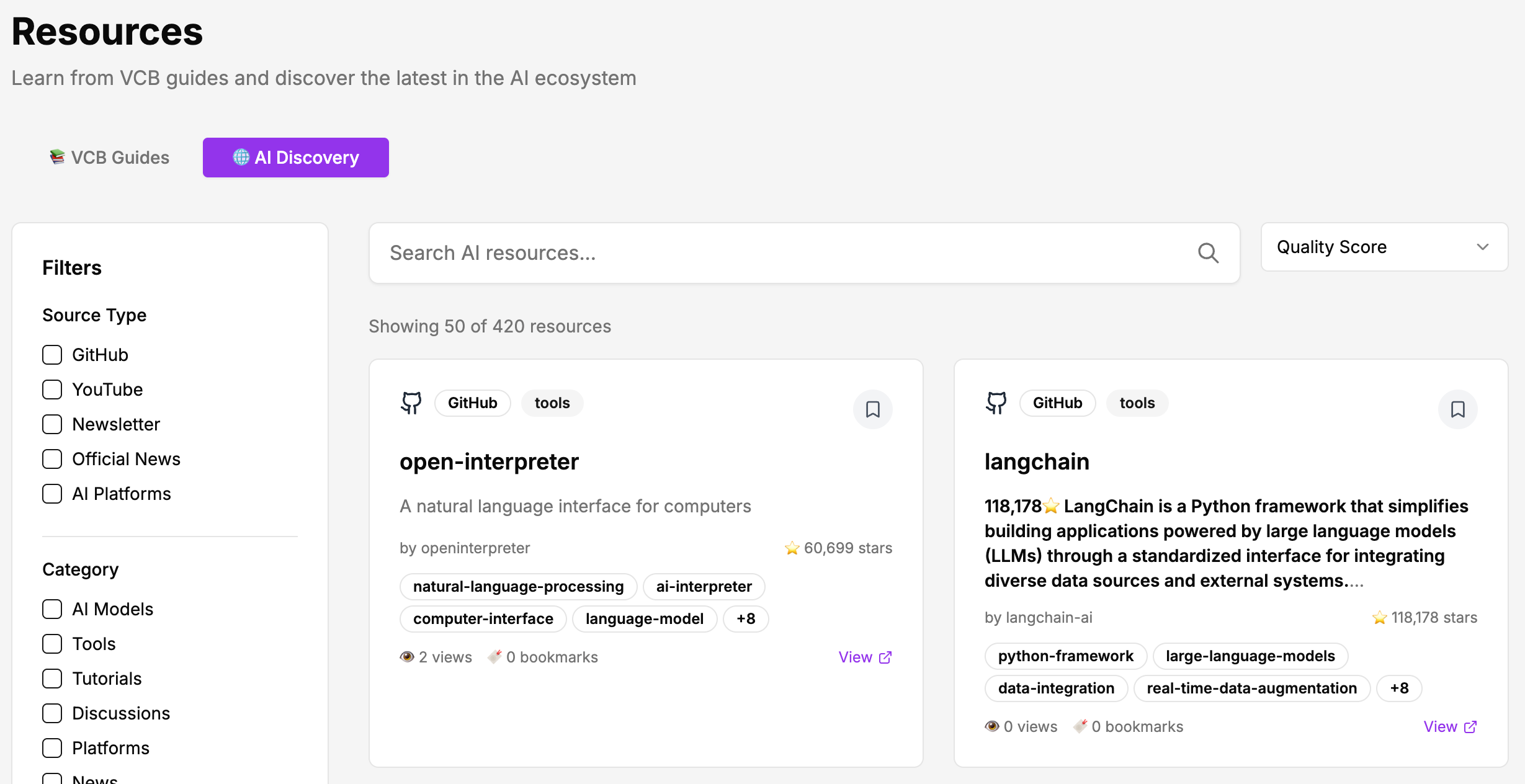
This is exactly what I built as my AI Daily Digest. It started as a weekend project and became something I use every morning. The full journey from idea to production, including every mistake and the deployment process, is documented in my Production-Ready Playbook.
6. Extend Your Personal Website Into a Full-Stack App
Difficulty: 🟡 Intermediate
Time: 4-6 hours
What you’ll learn: API integration, database setup, AI features, payment processing, auto-updating content
Best for: Anyone who built the simple landing page in Tier 1 and is ready to turn it into something that actually runs a business
The prompt:
Remember the personal website we built earlier? I want to extend it. Add these capabilities: (1) Connect to my newsletter RSS feed so new articles appear on the site automatically, no manual updates, (2) Set up a database so the site stores and organizes my content properly, and AI always has the latest information to work with, (3) Add an AI-powered assistant that can answer visitor questions about my work based on what’s in the database, (4) Integrate Stripe so visitors can book a consultation or subscribe to a paid tier, (5) Add a calendar booking link so people can schedule time with me directly from the site. Keep the clean design from before, but now it should feel like a living, working business hub, not just a static page.
What makes this Tier 2: In Tier 1, your personal website was a static landing page. Beautiful, but frozen in time. Now you’re connecting it to the real world. Your newsletter content flows in automatically through an API. A database keeps everything organized. Stripe handles money. A calendar handles bookings. The page you built in 10 minutes becomes a full-stack application that runs part of your business.
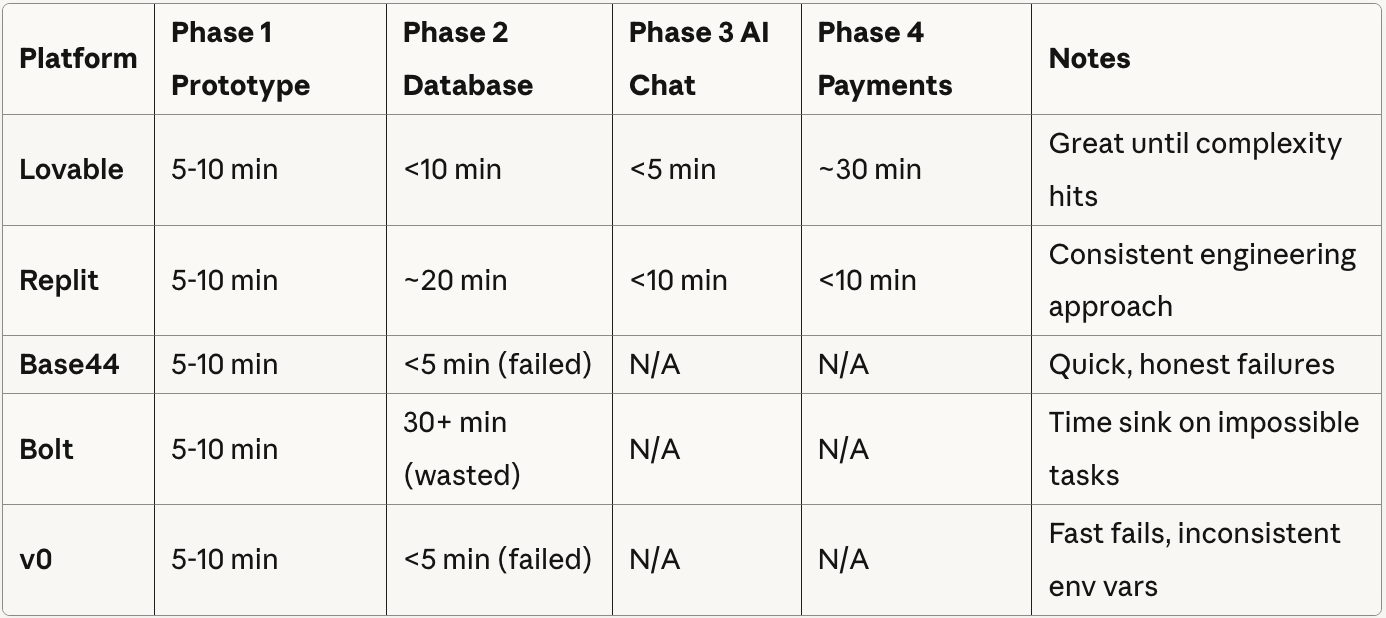
This is the exact progression I tested in 5 AI Coding Platforms With One Universal Prompt, where I took the same personal portfolio site through four phases: prototype → automation and APIs → AI integration → payment processing. It’s a useful reference for understanding where different platforms handle each phase well and where they break.
7. Data Intelligence Dashboard
Difficulty: 🟡 Intermediate
Time: 4-6 hours
What you’ll learn: Multi-source data collection, API integration, database design, data analysis, interactive visualization
Best for: Anyone curious about a landscape, whether it’s AI tools, competitors, content trends, or market data
The prompt:
I want to build a system that collects and analyzes data from multiple sources about [your topic — e.g., “the AI tools landscape”]. Help me: (1) pull data from GitHub — trending repos, star counts, descriptions, (2) pull from Reddit — top posts and discussions from relevant subreddits, (3) pull from YouTube — popular tutorials and their view counts, (4) pull from newsletters — recent articles from sources I follow. Store everything in a database with categories, quality scores, and source metadata. Build a dashboard that shows: distribution by source type, trending topics, quality breakdown, and a timeline of what’s new. I want to be able to filter by category and search across everything.
What makes this Tier 2: This is data engineering in miniature. You’re calling multiple APIs, normalizing data from different formats (GitHub’s JSON is nothing like Reddit’s), designing a schema that makes sense across all sources, and building a visualization layer on top. It’s the kind of system that feels like it should take a team and a month. Claude Code handles the plumbing while you focus on what questions to ask.
I’ve done this at two different scales.
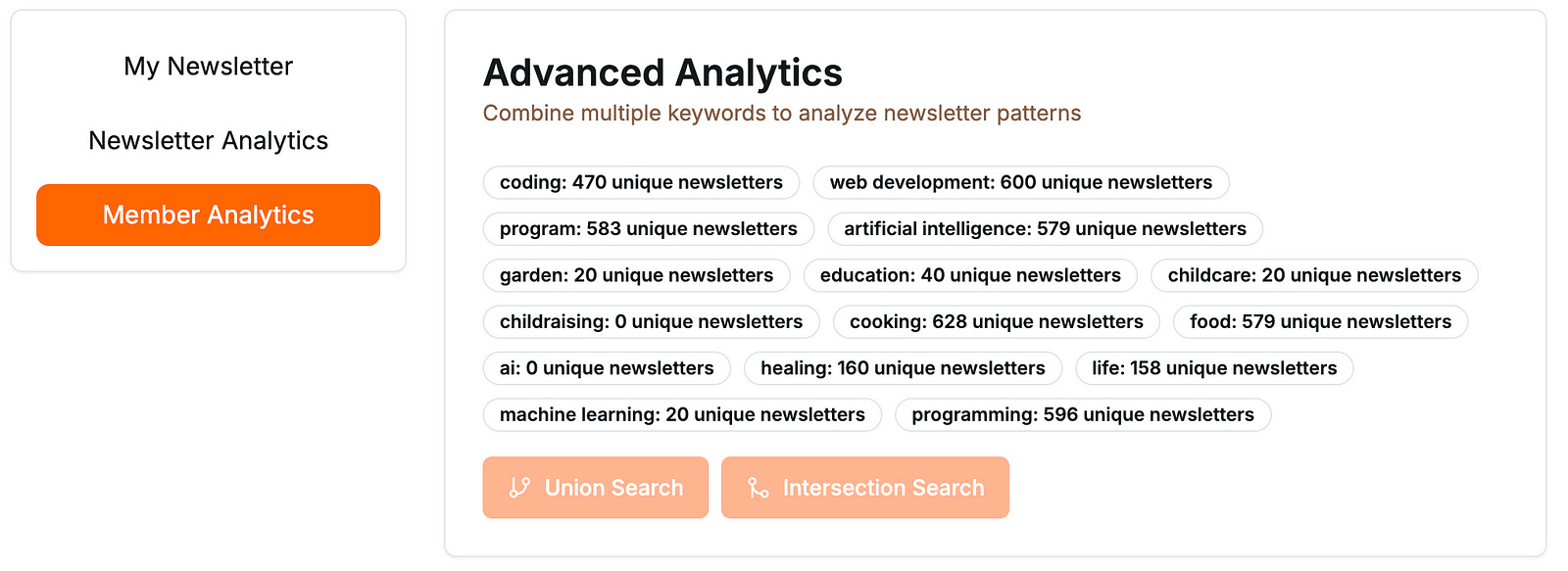
The first was a one-time analysis: in Inside the Minds of Top AI Writers: What 3,000+ Articles Reveal, I scraped archives from 13 top AI newsletters and ran similarity analysis, clustering, and opinion evolution tracking across thousands of articles.
I also built a Substack Niche Analyzer for discovering newsletters across specific niches. The build log covers the Python script, the Next.js dashboard, and the Vercel deployment bug that broke it on first deploy.
From there, I’m not just analyzing data once, but building a system that keeps collecting and stays current.
8. The Complete Loop: Ship a Public App with Payments
Difficulty: 🟡 Intermediate (but the hardest in this tier)
Time: Full weekend (8-12 hours)
What you’ll learn: Authentication (Google sign-in, email/password), payment integration (Stripe), AI integration, external databases, hosting, the complete cycle of building a public product
Best for: Anyone ready to go from “I built something for myself” to “I built something other people pay for”
The prompt:
I want to build and ship a public app. Here’s the concept: [describe your app — e.g., “a tool that generates social media content from my writing”]. It needs: (1) user authentication — Google sign-in and email/password options, (2) Stripe payment integration for a subscription tier, (3) AI-powered content generation using the Claude or OpenAI API, (4) a database to store user data and generated content, (5) an admin dashboard where I can see users and manage invites. Deploy it publicly so anyone can sign up and use it.
What makes this the Tier 2 finale: This is every intermediate skill combined into one project. Authentication. Payments. AI. Database. Hosting. Admin tools. It’s the complete loop of actually publishing and putting a product into the world. The moment you go from builder to maker.
I built my Quick Viral Notes app this way. It was my second public-facing project, and it completed every step of this loop: Google sign-in, custom invitations, admin controls, Stripe payments, AI content generation, external database, and live hosting. It earned hundreds of paying users.
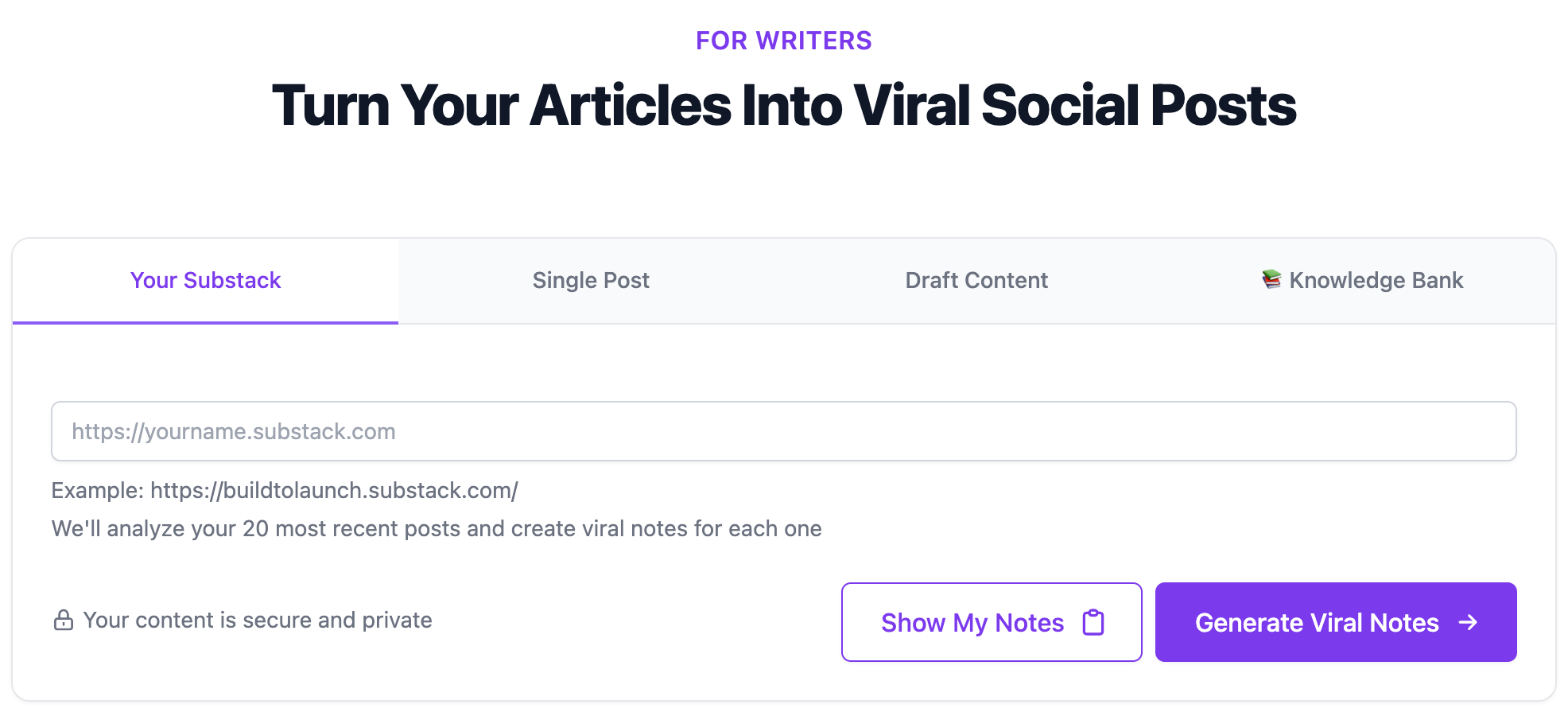
Here’s the honest part: I’m likely sunsetting that project. AI moves fast. The models that generated great results six months ago no longer produce the same quality.
The ground shifts underneath your product, and what worked yesterday might not work tomorrow. (Yes, I’m feeling so sad about GPT-4o being deprecated.)
But that’s not a reason to avoid building. It’s a reason to build knowing that your next project will be better.
One Thing I Got Wrong in Tier 2
Project 8 is where most builders stall. They start adding features before the core loop works, spend two weeks on it, and never ship.
My rule: launch the worst version that actually runs, then iterate.
The point of Project 8 is completing the loop: auth, payments, AI, database, deploy. Not perfecting any single piece.
If you’ve been stuck on Project 8 for more than two weeks, strip it back to one feature and ship that.
Now that you’re shipping: production readiness is a separate skill. Most vibe coding guides stop at “it works.” These cover what happens after:
How to Make Vibe Coding Production Ready — from “it works on my machine” to deployed, testable, and maintainable
Smoke Testing for Vibe Coders — 75 checks to run before real users see your app
SEO for AI and LLM Discoverability — how to make your shipped app findable by both search engines and AI answers
The Two Prompting Strategies That Kept My Production Apps From Drifting — what to do when Claude keeps changing things it shouldn’t
Why Tier 2 Is the Turning Point
Tier 1 proved you can build things. Tier 2 proved you can build things that live in the real world. Notice the progression:
Project 5 teaches you to fetch and process external data with AI
Project 6 takes your Tier 1 landing page and turns it into a full-stack business hub
Project 7 teaches you to collect and analyze data at scale from multiple sources
Project 8 teaches you to ship a complete product with auth, payments, and real users
If you’re shipping something publicly from Tier 2, two resources will save you hours of post-launch pain: the Production-Ready Playbook (the planning system that prevents architectural mistakes before they happen) and the Smoke Testing Checklist (75 items to check before users see your app).
Once you’ve done these, Tier 3 isn’t a leap. It’s a natural next step: from building tools you use to building systems that run themselves. And the project I’m most excited about next? That’s where we’re heading.
Tier 3: Advanced — Build Systems, Not Apps
After Tier 1 and Tier 2, you might be wondering: what’s left?
You’ve built local apps. You’ve connected to APIs, databases, and payment systems. You’ve shipped a product that other people use.
Tier 3 must be... harder versions of that?
No. And this is what I think the use of AI actually is.
The purpose of using AI is not to solve increasingly difficult problems. It’s to solve the most relevant problems. Relevant to you, your work, your life. The projects in Tier 3 aren’t here because they’re technically harder. They’re here because they’re the most valuable ones I’ve personally built. The ones I use every single day. The ones that changed how I work, not just what I built.
These are AI agent systems — tools that operate autonomously, improve over time, and compound your efforts while you focus elsewhere. Connect them to your real tools and data with best MCP servers.
And here’s why that matters beyond today: if you can set up Tier 3 well, it benefits you not just during this AI hype period, but in the next 2 years, 5 years, 10 years.
Models will change. Platforms will come and go. But a personal system built around your workflow, your knowledge, and your priorities? That compounds.
9. Your Personal Command Center
Difficulty: 🔴 Advanced (but not in the way you think)
Time: 4-8 hours to set up, then ongoing
What you’ll learn: Custom commands, workflow design, prompt engineering for your own patterns
Best for: Anyone who does the same 5-10 tasks every week and wants to turn them into one-line instructions
The prompt:
Here’s how I work every week: [describe your actual workflow]. I want to create custom commands that I can run in one line for my most common tasks. Let’s start with one: [pick your most repetitive workflow]. Walk me through what this command should do, step by step, and help me write it. Once that one works, we’ll build the next.
Start with one command. Get it right. Then build the next one based on what you actually needed that week. Your command center will look completely different in three months than it does today. And that’s the point.
What makes this Tier 3: You’re not building an app. You’re encoding how you think. And unlike a one-shot project, this is a living system. Every time you create or refine a command, you’re capturing a workflow that used to live only in your head. The value isn’t in the code. It’s in the fact that your best process becomes your default process, every single time, without you having to remember the steps.
This is how my own content-engine works.
I have commands for article creation, SEO audits, content scheduling, and product management. When I start writing, I don’t think about format, hero image creation, or internal linking strategy. That’s already encoded. I just write (or more precisely, speak).
The commands handle the structure so I can focus on the ideas. Over time, persistent memory and custom instructions turned Claude Code from a coding assistant into something closer to a personal operating system.
10. Your Living Knowledge System
Difficulty: 🔴 Advanced
Time: 6-10 hours to set up, then it grows with you
What you’ll learn: Building custom tools, data collection, knowledge indexing, structured vs. unstructured storage
Best for: Anyone who consumes a lot of content (newsletters, articles, courses, podcasts) and wants all of it organized and searchable instead of forgotten
How this is different from the Data Intelligence Dashboard in Tier 2: In Tier 2, you pulled from public APIs (GitHub repos, Reddit threads, YouTube videos) to study a topic. That’s outward-facing research about a landscape. This project is inward-facing.
You’re organizing the content you consume and have legitimate access to: the newsletters you’re subscribed to, the premium articles from writers who gave you access, the courses you’ve enrolled in.
And here’s the technical difference: platforms like Substack, Medium, Skool, and Circle don’t have public APIs that hand you your subscribed content. You have to build custom tools to work with what you already have access to.
The prompt:
I subscribe to [list your platforms, e.g., Substack newsletters, Medium publications, etc.] and I’m constantly reading great content that I forget exists a week later. I want to build a tool that pulls my subscribed content and saves it locally. Let’s start with one platform: [pick one]. Help me build a Chrome extension (or local script) that can extract the articles I have access to and save them to my system. We’ll figure out storage after. First I just want to capture the content reliably.
Start with one platform. Get the extraction working. Then decide what goes into a structured database (key findings, quotes, source metadata) and what goes into a simpler local vault (full articles, notes, things you might want later but don’t need to categorize yet).
Don’t try to organize everything at once. Capture first, organize as patterns emerge.
What makes this Tier 3: The technical skill here is building custom tools that interact with platforms. Not just calling a public API, but creating something like a Chrome extension or mcp that works within the platform’s actual interface.
I built my own Substack extension that pulls articles directly, including premium content from writers who generously gave me access to their paid tiers, so everything lands in my system without me having to manually copy anything.
Structured data goes to Supabase. Less structured content goes to my local vault.
This applies to any platform where you consume content: Medium, Skool, Circle, and many others.
The key principle is that you’re organizing content you already have legitimate access to, not circumventing anyone’s paywall.
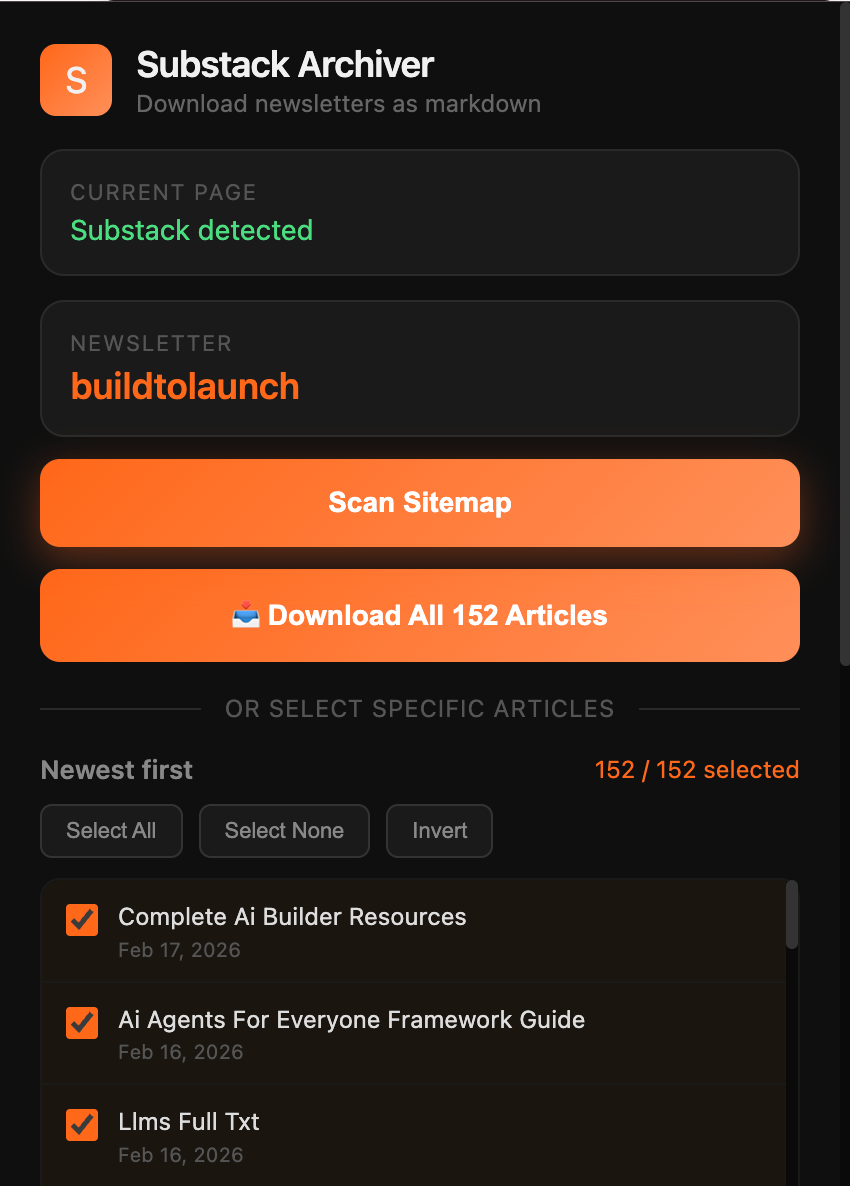
The result is that six months from now, you’ll search for something and find an insight from an article you read once and would have completely forgotten. That’s when the system pays for itself.
My AI Second Brain guide covers the RAG architecture behind making AI reason over your personal knowledge, and the Connected Intelligence sequel shows how MCP takes it further by letting AI query your knowledge base directly.
11. Your Autonomous Research Pipeline
Difficulty: 🔴 Advanced
Time: 8-12 hours (full weekend)
What you’ll learn: MCP integration, multi-step pipelines, data processing, automated research workflows
Best for: Anyone whose work involves regular research: market analysis, content creation, competitive intelligence, trend tracking
The prompt:
I want to build a complete research pipeline that runs from data collection to finished output. Here’s what I need: (1) connect to Perplexity via MCP for real-time web research on a topic I specify, (2) connect to my knowledge system from Project 10 to cross-reference what I already know, (3) pull the collected data into a processing step that organizes, ranks, and formats the findings, (4) output a clean, structured report I can use for an article I’m writing, a decision I’m making, or a trend I’m tracking. I want the full pipeline: pull, organize, rank, format, output. And I want to be able to run it again next week on a different topic.
What makes this Tier 3: This is where MCP (Model Context Protocol) enters the picture.
If you haven’t set up MCP yet, my 15 best MCP servers for Claude Code covers which ones to install first, and my Complete Cursor Setup Guide covers the configuration.
MCP lets Claude Code talk directly to external tools: Perplexity for research, your database for context, your file system for output. You’re not building an app with a UI. You’re building a pipeline that takes a topic in and produces structured intelligence out.
The entire flow from raw data to polished output happens without you copy-pasting between tools.
This is what I built for my own work: a complete pipeline from pulling data to organizing it to ranking and formatting it into a proper output. I wrote about the architecture in my Guide to Building Domain-Specific AI Research Agents.
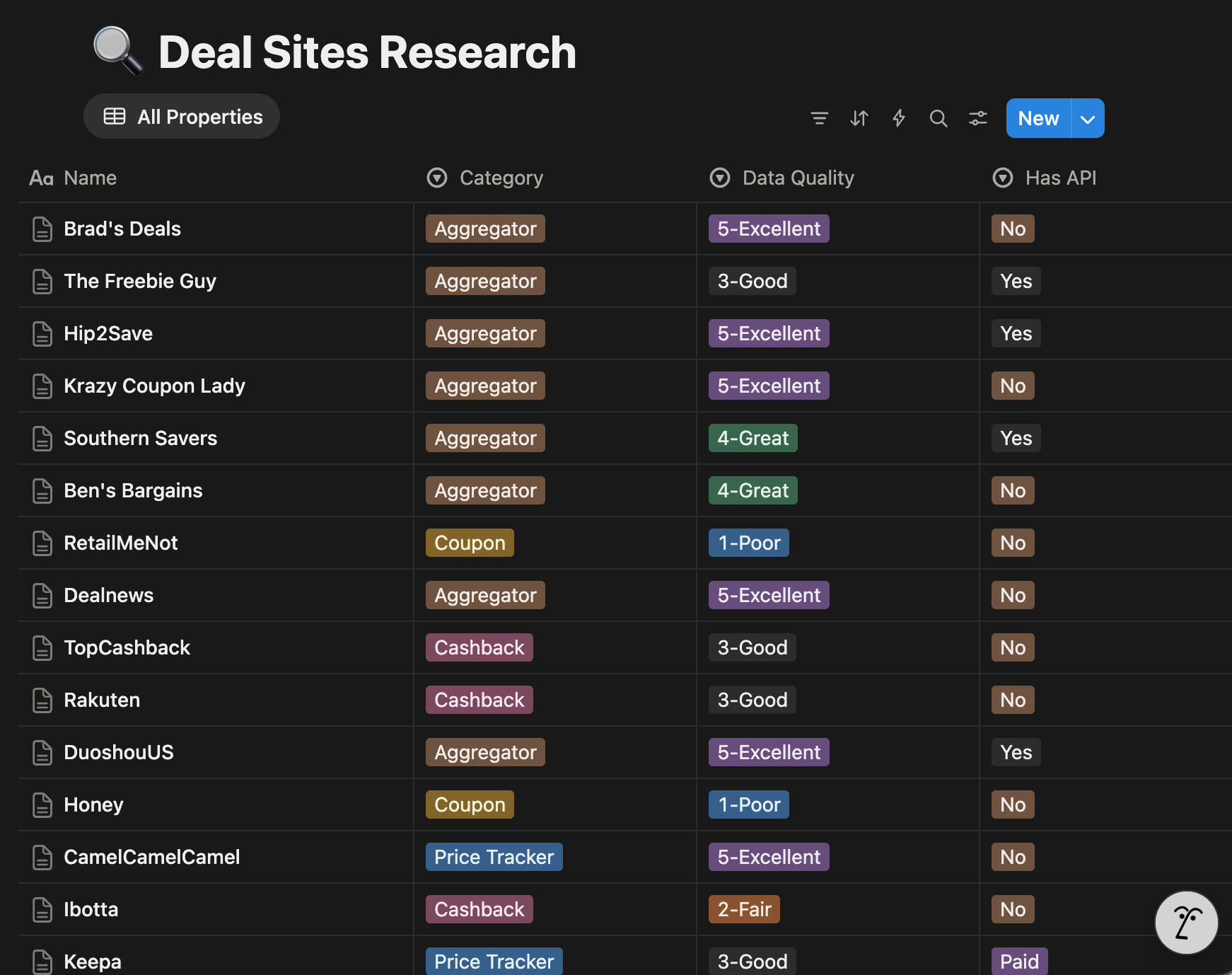
For a live walkthrough of Perplexity + Claude in Chrome running this exact kind of pipeline — from MCP connection to structured output in under 2 hours — this is the one to read next.
For a ready-made version with copy-paste prompts, the App Idea Validation Kit uses exactly this pattern: Perplexity + Claude Code running parallel research agents to validate any idea in under 2 hours.
12. Your One-Center Ecosystem
Difficulty: 🔴 Advanced
Time: Full weekend (8-12 hours), then ongoing refinement
What you’ll learn: Multi-tool orchestration, MCP ecosystem design, cross-platform automation, the art of living in one place
Best for: Anyone who’s tired of switching between 8 different apps and wants everything to flow from one center
The prompt:
I’m tired of context-switching. Right now I jump between [list your tools, e.g., “my community platform, my content scheduler, my newsletter, my social media accounts, my analytics, my database”]. I want to build an ecosystem where I sit in Claude Code and everything flows from here. Help me: (1) connect to my community platform via MCP so I can analyze member activity, feedback, and engagement without opening the dashboard, (2) connect to my content scheduler so I can draft, format, and schedule posts from here, (3) hook up an automation so that when I schedule a post, it gets published without me going to the browser, (4) connect to my social media platforms so one piece of content gets cross-posted everywhere (X, Bluesky, Threads, Instagram) with platform-appropriate formatting. One center. Everything amplified.
What makes this Tier 3, and the whole article’s finale: This is everything combined into a philosophy. You sit in one place. Your effort gets amplified everywhere.
My version:
I talk to my community platform (Vibe Coding Builders) via MCP to analyze who’s joined, what feedback they’ve given on each other’s projects, what’s working in our testing rounds.
I brainstorm with the database about what to do next. From there, I consolidate the insights and talk to my content scheduler (Quick Viral Notes) via MCP. It drafts notes using templates from my Viral Social Posts System, formats them, and queues them for publishing. A custom Chrome extension hooks into Substack and publishes automatically when the scheduled time arrives. I never open a scheduling page.
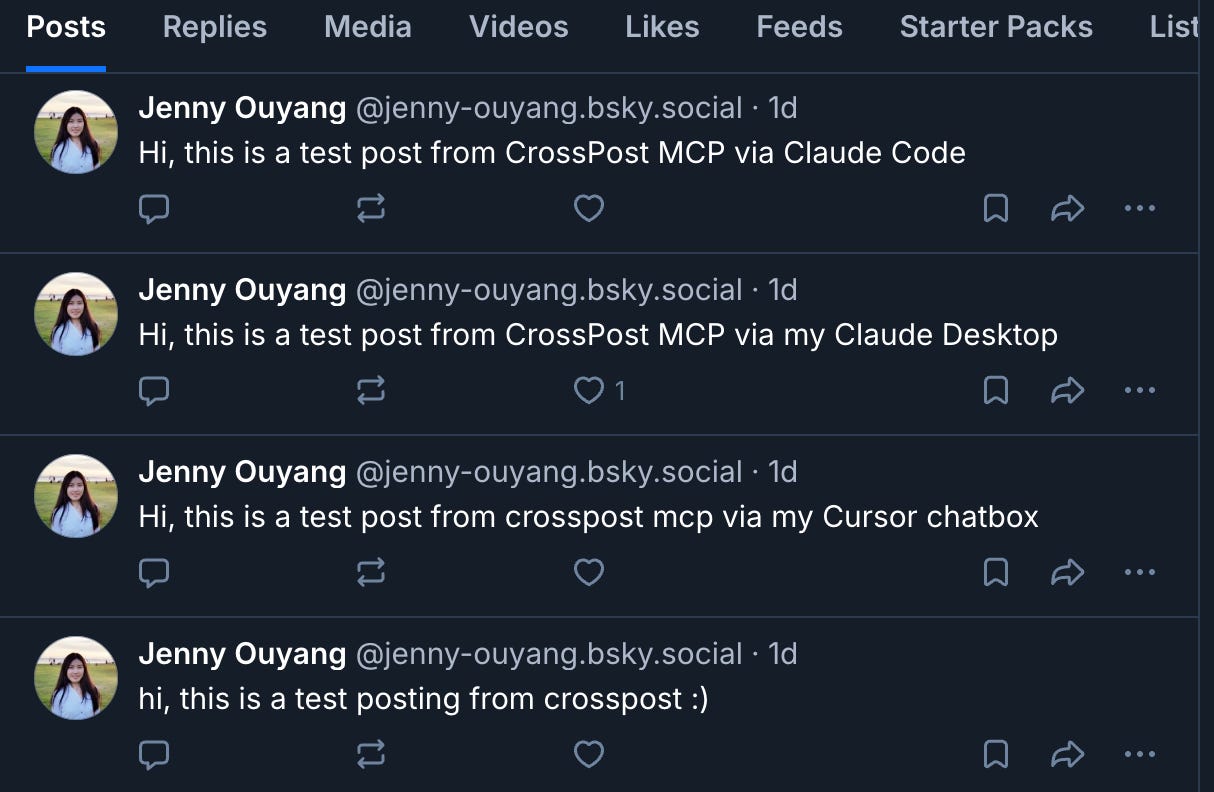
And right now, I’m testing custom MCPs for cross-posting to X, Bluesky, Threads, and Instagram simultaneously. If you follow me on any of those platforms, you might have seen some oddly formatted test posts slip through. That’s this system being built in real time.
If you're building the custom MCP layer for cross-posting, Every Way to Build an MCP Server documents every approach I've actually shipped.
The vision is simple: build an ecosystem where you live in the center, without switching contexts, without losing focus. You work on one thing and that effort amplifies to its fullest reach. That’s not a project. That’s a way of working.
One Thing I Got Wrong in Tier 3
I tried to automate workflows I’d only done a handful of times. The systems that actually compound are built around something you do repeatedly, not something you aspire to do.
Do the workflow manually at least 10 times. Then encode it. If you can’t describe the exact steps in plain language, Claude Code can’t automate them reliably.
Clarity first. Automation second.
Why Tier 3 Is Where the Real Value Lives
Most of the apps you build in Tier 1 and Tier 2 will eventually be replaced. A better tool will come along. The AI model will change. The platform will sunset a feature you depend on. I’ve already sunset one of my own apps for exactly this reason.
But your command center? Your knowledge system? Your research pipeline? Your one-center ecosystem? Those aren’t apps. They’re infrastructure. They evolve with you. They get more valuable over time, not less.
The specific tools might change (today it’s MCP and Claude Code, tomorrow it might be something else), but the patterns stay: how you organize your knowledge, how you automate your workflows, how you connect your tools. Those are permanent skills.
Tier 1 taught you to build. Tier 2 taught you to ship. Tier 3 teaches you to compound.
When Claude Code alone isn’t enough: here’s how the stack expands. Tier 4 is where Claude connects to tools, agents, and automation layers beyond the terminal. Two articles that map the full landscape:
4 Levels of AI Automation: When Claude, n8n, and OpenClaw Each Win — the decision map from chatbox to autonomous agent, with the same use case run through all four levels so you can see exactly where the boundaries fall
I Tested Claude Code Against 7 AI Coding Tools on the Same Build — where Claude Code wins, where it doesn’t, and which tool handles which tier better
Tier 4: Expand Beyond — Connect Claude to Tools You Already Live In
Tiers 1 through 3 are all about building things you own: local tools, apps, systems that run themselves. Tier 4 is different.
These three projects don’t start with a blank project folder. They start inside tools and ecosystems you already use every day: Notion, n8n, the creator communities you participate in. The skill here isn’t building from scratch. It’s making Claude work within someone else’s system and getting leverage from infrastructure that already exists.
If Tier 3 is where you build systems that compound your own work, Tier 4 is where you connect those systems to everything around you. It’s the difference between a flywheel that spins in isolation and one that’s wired into a larger machine.
AI agents truly shine in Tier 4 where those patterns apply at full scale.
13. No-Code AI Agents Inside Notion
Difficulty: 🟡 Intermediate
Time: 30 min–2 hrs
What you’ll learn: AI properties, automation triggers, building agents inside your existing workspace — no terminal required
Best for: Anyone who already lives in Notion and wants AI doing work without building an app from scratch
The prompt:
I use Notion as my primary workspace. I want to build an AI agent inside Notion — not an external app — that can automatically summarize meeting notes, extract action items, and update my project database without me doing it manually. Start with one: I’ll paste a meeting transcript and I want it to appear as a structured Notion entry with summary, owner, and due dates filled in automatically. Walk me through building this as a Notion AI property or automation.
What makes this different from the other projects: Everything so far has been built with Claude Code. A terminal, a project folder, code that runs on your machine. This project lives entirely inside Notion. No terminal. No code. Just AI properties and automations wired to your existing workspace. It’s the entry point for anyone who wants AI doing work without ever opening a code editor.
Notion AI agents work best within Notion’s context: summarization, extraction, structured data. But Notion also connects as an MCP server, which opens up a different configuration entirely.
Instead of AI running inside Notion, Claude Code runs the agent and uses Notion as its memory and output layer. That means your notes, databases, and project boards become live context for Claude Code, not just a place to paste results.
My best MCP servers guide covers the Notion MCP setup specifically; it’s one of the most useful connections in the whole ecosystem. For workflows that need to touch other apps beyond Notion, Project 14 takes it further.
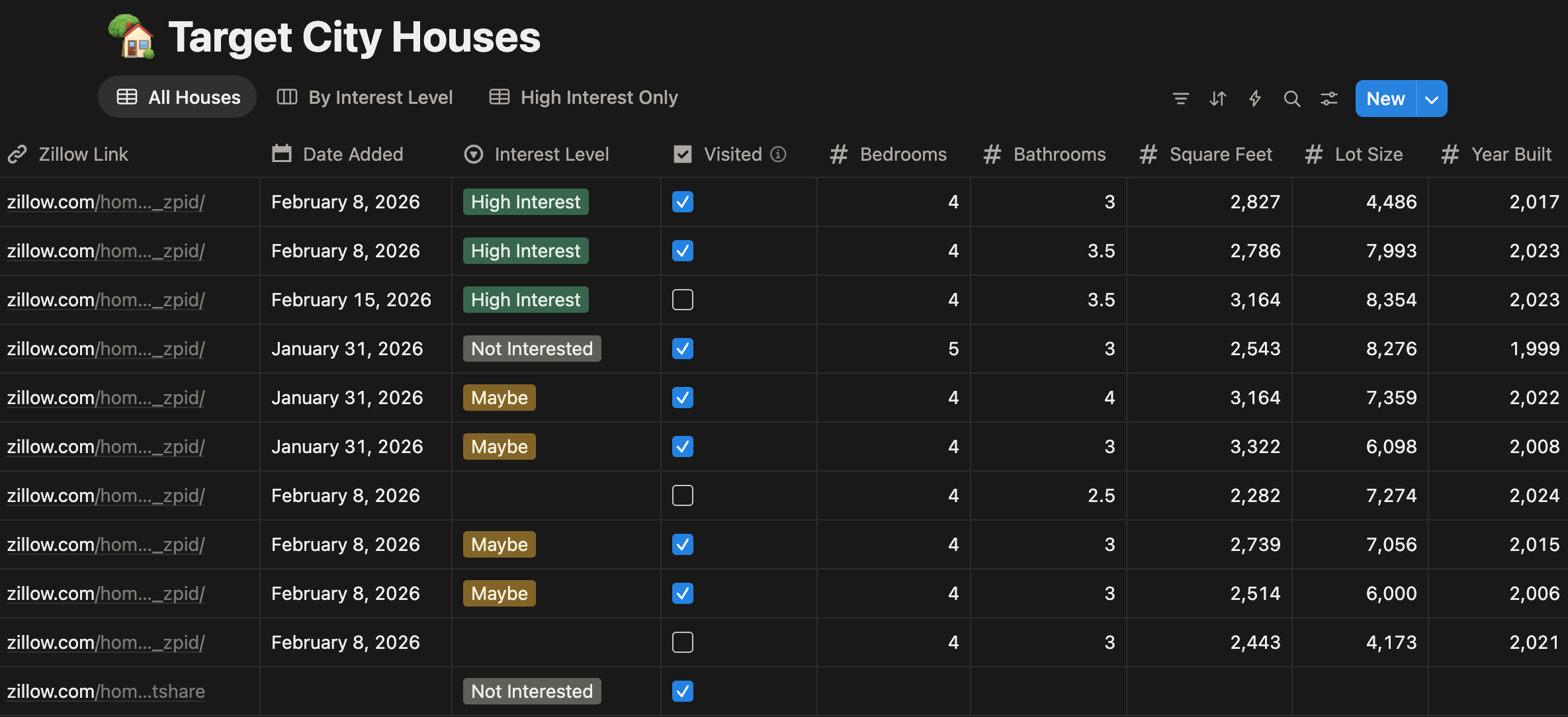
I wrote about what Notion AI agents actually do, where they fail, and how to build one after building five that saved me 30 hours. The guide includes a kit with 5 ready-made agents you can copy into your workspace in under 30 minutes.
14. Your Multi-Tool Automation Pipeline
Difficulty: 🔴 Advanced
Time: 3–5 hours
What you’ll learn: n8n workflow design, connecting Claude to automation tools via MCP or API, and the exact boundary between when AI should make decisions vs. when automation should route data
Best for: Anyone with a recurring multi-step workflow across different apps — inbox, CRM, spreadsheet, Slack — that they want running automatically without babysitting
The prompt:
I have a recurring workflow that touches multiple tools: [describe your workflow, e.g., “Leads come in via email, I need them sorted, qualified, and added to my CRM with a draft follow-up message”]. I want to build a pipeline where n8n handles the routing and triggering, and Claude handles the judgment calls — deciding what’s a real lead, drafting personalized messages, flagging edge cases. Help me design the architecture first: what should n8n own, what should Claude own, and what should happen automatically vs. require my input.
A tighter option with MCP: n8n has an MCP server, which means Claude Code can talk to n8n directly, triggering workflows, reading execution logs, and adjusting runs without leaving your terminal. Instead of designing a separate architecture where n8n and Claude operate as parallel systems, you can have Claude Code orchestrate n8n as one of its tools. My best MCP servers guide covers the n8n MCP setup if you want to start there instead.
What makes this Tier 4: This is the project that makes the difference between automation and AI finally click. n8n routes data and triggers actions reliably. Claude reads context and makes judgment calls. When you wire them together correctly, the pipeline is more reliable than pure AI (which hallucinates on simple routing) and smarter than pure automation (which breaks on edge cases).
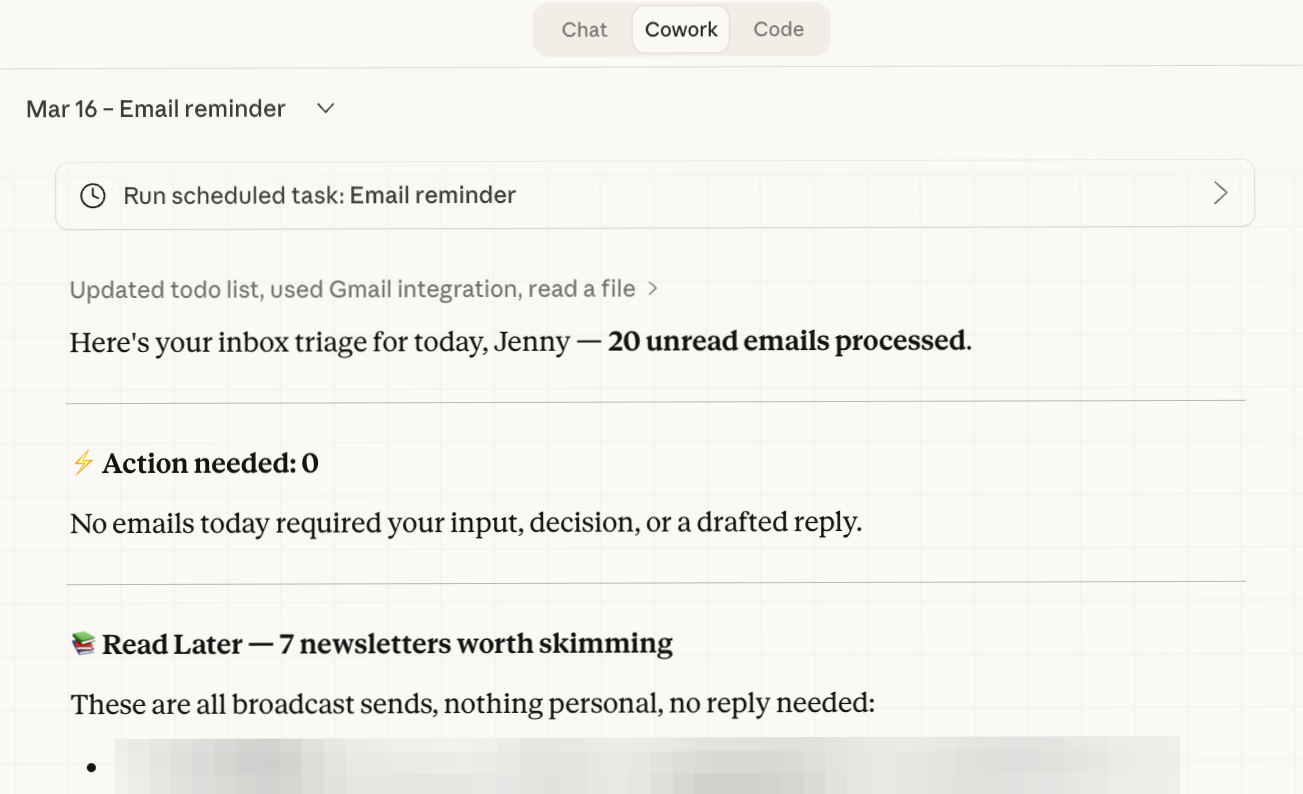
The mistake most people make is using Claude for everything or using n8n for everything. The art is knowing which layer handles what. I mapped this across four levels — chatbox, workflow engine, agent, self-improving system — in 4 Levels of AI Automation: When Claude, n8n, and OpenClaw Each Win. The same inbox use case runs through all four so you can see exactly where the boundaries are.
For the Claude side of that boundary specifically: which of Claude’s five execution modes fits which job, Claude Dispatch: The 80% the Demos Don’t Show is the clearest breakdown I’ve written.
When your pipeline matures to the point where you want it running autonomously, even when you’re not actively directing it from Claude Code, OpenClaw is the orchestration layer that runs those jobs on a server 24/7.
15. Your Creator Intelligence Agent
Difficulty: 🔴 Advanced
Time: 4–6 hours
What you’ll learn: MCP + Claude for content analysis at scale, engagement pattern recognition, classifying unstructured data into structured insight
Best for: Content creators, newsletter writers, or anyone who wants to understand what actually works across their niche — based on data, not intuition
The prompt:
I want to analyze [5–10 creators I admire] across their content — specifically their [Substack notes / LinkedIn posts / X threads]. Pull the data via MCP, then run three structured passes with Claude: (1) classify each piece by format type (text-only, image, link, quote), (2) rank by engagement metrics, (3) surface the patterns that hold across all creators — which formats consistently outperform, which topics spike, and which intuitions the data contradicts. Give me a structured report, not just raw data.
What makes this different from Project 7 (Data Intelligence Dashboard): Project 7 pulls from public APIs, such as GitHub stars, Reddit threads, YouTube views, to understand a topic or market landscape. This project analyzes creators: how they write, what resonates at the note or post level, and what the engagement data shows vs. what they claim works. The analysis is more interpretive, the data is messier, and the output is strategic creative insight rather than a market dashboard.
I ran this exact analysis on nine Substack creators, pulling 3,230 notes, and the results genuinely surprised me. The most-posted format was the worst performer. The highest-liked note in the cohort was 53 words of plain text.
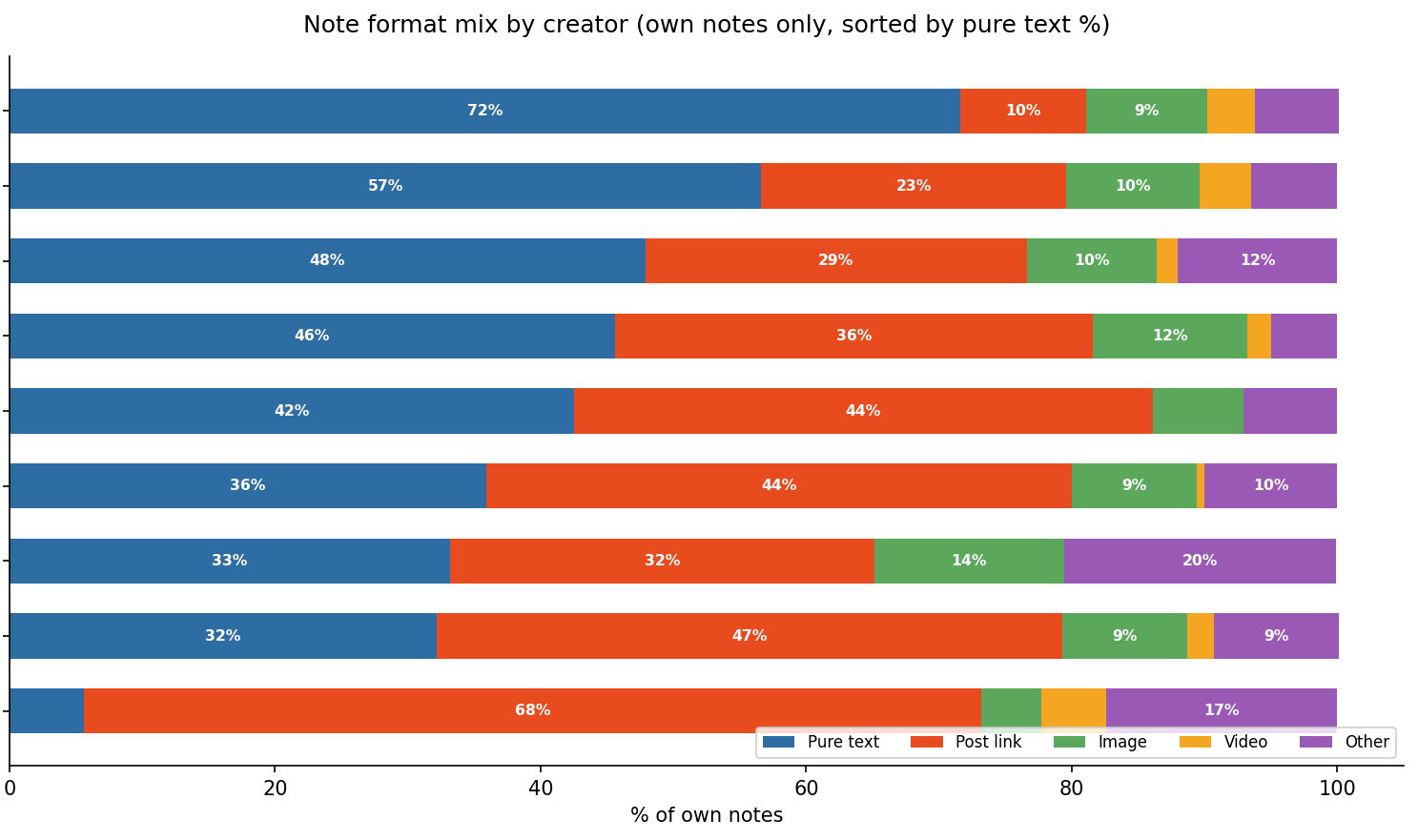
The full breakdown, the MCP setup, and the three-pass Claude structure are all there, including the exact queries I used so you can replicate it on whoever you want to study.
If you want to understand the three-pass research methodology before building the pipeline, How to Do Research With AI Effectively walks through that structure live with real questions.
Once the data tells you what's worth creating more of, The Viral Substack Notes System is the creation framework that makes acting on those insights repeatable.
One Thing I Got Wrong in Tier 4
I kept trying to build everything from scratch when what I needed already existed inside a tool I was paying for. Notion, n8n, Substack… all of them have more surface area than most people ever touch.
Tier 4 taught me to audit what I already have before building something new. The integration you need is often one API call or one MCP connection away from a tool you already own.
Why Tier 4 Is Where Leverage Compounds
Tiers 1–3 taught you to build things you own. Tier 4 teaches you to extend into things you don’t have to build, platforms, tools, and ecosystems that already exist and already have users.
The distinction matters. A Tier 3 system compounds your output over time. A Tier 4 system plugs your output into networks that already have reach, infrastructure, and momentum. You stop building in isolation and start operating as part of something larger.
This is what practical AI building looks like at full expression: not more apps, but fewer tools you’re fighting against — and more leverage from the ones you’re already in.
Start Building
You don’t need to do all 15 this week. But if this article lands the way I intended, you’ll want to do more than one.
Start wherever the goal list pointed you.
If you’re brand new, Project 1 takes 10 minutes.
If you’re already shipping apps, go straight to Project 9, that’s where you stop building tools and start building your operating system.
My beginner guide covers installation if you haven’t set up Claude Code yet, and the Claude onboarding guide walks through Cowork, plugins, skills, and connectors before your first project.
Want a structured path through all 15? The Practical AI Builder Program gives you a guided sequence: weekly implementation prompts, config files, and a framework for going from your first local build to a full Tier 4 integration. It comes together with a paid Build to Launch membership.
Want the implementation files? The Claude Code Project Starter Pack picks up where this article leaves off — the next five prompts, config files, schemas, and checklists for each project.
If any of this sparked a project idea, share it with one builder friend who’s stuck on “what should I build?”
Frequently Asked Questions
Does Claude Code work with other AI coding tools like Cursor or Windsurf?
Yes. Every project, prompt, and skill in this guide transfers to Cursor, Windsurf, Bolt, Replit, or any AI coding environment. The concepts are tool-agnostic, I’ve built these same projects across multiple platforms.
Do I need coding experience to start with Tier 1?
No. Tier 1 projects work entirely on your local machine with no coding prerequisites. Claude Code handles the code generation. You describe what you want in plain English, and it builds it.
How much does Claude Code cost?
Claude Code requires a Claude Pro subscription ($20/month) or pay-as-you-go API usage. The projects themselves don’t require additional paid services until Tier 2, where you’ll need API keys for external services.
Can I skip tiers and jump straight to advanced projects?
You can. The tiers help you understand the concepts and build on each other. Tier 1 teaches local file manipulation, Tier 2 adds APIs and deployment, and Tier 3 combines everything into systems. Each tier’s confidence and skills make the next tier more approachable.
What if I get stuck on a project?
Start smaller. Every project prompt is a starting point, not a rigid script. Tell Claude Code what’s not working and ask it to simplify. The beginner guide covers troubleshooting basics, my 15 best Claude Code prompts includes a hands-free debugging prompt that reads error logs and fixes issues autonomously, and the Build to Launch community is full of people working through these same projects.
Which project are you starting with, and what’s your first prompt going to be?
— Jenny
Why Upgrade · Practical AI Builder Program · Claude Hub · Vibe Coding
The progression here is exactly what's been missing from most Claude content. Everything else online is either "here's how to write a prompt" or "here's a 10-minute demo." This is the first time I've seen someone map the actual skill ladder, from file creation reflexes in Tier 1 to encoding your own workflows in Tier 3, with honest time estimates attached.
The Kieran Healy-style note about doing Tier 1 slowly enough to actually learn the reflexes, not just watch Claude do it, is the kind of thing that only comes from having seen people rush past it and stall later. The "do the workflow manually 10 times before automating it" rule in Tier 3 is going to save a lot of people from building systems around habits they don't actually have yet.
We're building a course called "Master Claude in the Real World" that covers a similar progression: Claude chat and prompting fundamentals, Claude Code for agentic workflows, Cowork for desktop automation, and integrations with real tools. The gap between casual Claude users and people running it across their entire stack is exactly what we're trying to close. Just launched on Kickstarter for anyone who wants a structured path through this: https://shorturl.at/ZrG8p
Project 9 is where I'm pointing everyone who asks where to start.
This is super cool and a good guide to understanding level of difficulties. I have yet to play with APIs, so this is a good push for me to do it next!