
Your Vibe-Coded App Isn’t Production-Ready — Until You Smoke Test It
How to catch brutal bugs, skip the unit test rabbit hole, and ship with real confidence.

Have you ever launched an app and watched it break in ways you never imagined?
I have, more times than I can count.
My first app, an AI image search tool, only worked on my computer. I had to kill it a year later.
App #2 reached hundreds of users before crashing in production.
App #3 broke just before I announced it, caught it in time, barely.
Apps 4, 5, and 6? Each found new ways to fail. Different bugs. Different user complaints. Different moments of panic.
Here’s what surprised me: none of them failed because I skipped unit tests.
Some had unit tests. Some didn’t. But that wasn’t the issue.
They failed because I hadn’t systematically walked through what real users would do. I didn’t test flows on real devices. I didn’t try to break things. I trusted code that “worked” in isolation, without verifying that the entire system held up in the wild.
AI made it easy to ship features. But I had no way to know if what I shipped actually worked.
Most testing advice assumes you’re writing code line-by-line, with full control, or that you have time to set up automated pipelines. But when you’re building fast with AI, you need a low-overhead, high-leverage system to catch obvious problems, before users do.
That’s what this guide is.

What You’ll Learn
What is smoke testing - Addressing common objections (unit tests, automation)
The Three-Phase System - Complete testing framework
Phase 1: Pre-Deployment Testing - 6 tests before launch
Phase 2: Post-Deployment Testing - 3 tests before announcing
Phase 3: Feature Update Testing - Ongoing testing loop
Testing Mindset & When to Ship - Decision frameworks
Next Steps & Resources - Tools, community, further reading
This is Part 1 of 3 in the complete smoke testing system:
→ You’re here: Free Article - Why systematic testing matters (with real failure stories)
→ Free Checklist: 75-Item Master Checklist - What to test (downloadable checklist)
→ Premium: Complete Smoke Testing System - How to test (step-by-step execution guide)
What Is Smoke Testing And Why You Need It
Smoke testing comes from hardware. Turn on the machine. If smoke comes out, something’s wrong. If not, keep going.
Same idea here. You’re checking if the core experience works before you move on.
For AI-built apps, that means:
Manually testing the main flows
Trying to break them on purpose
Using real devices, not just mobile view
Letting someone else try it and watching what breaks
You’re not testing everything. You’re testing what actually matters.
Here’s what I wish someone told me earlier:
AI writes code that works right now. On your machine. With your test data. But it doesn’t handle:
Slow networks
Old phones
Users pasting weird characters
People who click buttons ten times
What happens when someone adds 100 items instead of 3
You don’t need to be technical to catch this. You need to be thorough.
Why You Need It (Even If You Know Unit Test and AI Automation)
Unit tests are helpful when you write the logic yourself.
But when AI generates most of your code, that logic usually works fine. What breaks is everything around it.
The layout collapses on mobile.
The API key is missing in production.
The form works once, then crashes on the second try.
None of that shows up in unit tests. These are system-level problems. You only find them by testing like a real user.
You can also use automated testing tools.
I’ve written about Playwright with MCP and automated browser testing in Cursor 2.0. They work great, when you’re ready for them.
But they take setup, maintenance, and time. Most of the time, you’re fixing the test instead of fixing the bug.
Manual smoke testing catches the stuff that matters right now. It’s fast. It’s cheap. It builds your instinct for where things break. And you don’t need special tools. Just a browser, a phone, and a checklist.
You can always layer on tests later. You can automate later. But if you don’t know what to test, automation just helps you miss things faster.
Smoke testing teaches you to see your product the way users will. That’s what makes it powerful.
The Three-Phase System (How I Test Everything Now)
After breaking my own apps countless times in public, I finally settled with a simple, repeatable system that catches the kinds of bugs AI builders actually face.
Phase 1: Before You Deploy
Test locally before anyone sees it. 30-45 minutes. Six specific tests that catch obvious problems before you put your app into the world.
This is where I catch “the button doesn’t work” bugs while I can still fix them in private.
Phase 2: After You Deploy (But Before You Tell Anyone)
Test in production before announcing. 20-30 minutes. This catches the bugs that only appear in the real world: broken API connections, missing environment variables, authentication failures.
This is where I discovered VibeCodingBuilders’ authentication system worked perfectly on my machine but broke for everyone else in production.
Phase 3: When You Add New Features
Every time you ship something new, test it. 15-30 minutes. Make sure the new feature works AND didn’t break old features.
This is ongoing. Every update. Every feature. Every time.
This is what keeps you shipping without shipping fear.
This Isn’t Just About Apps
Smoke testing is written here for AI-built apps, but the mindset applies to anything you ship.
Building a course? Watch someone take the first module with no context.
Creating a Notion template? Try using it from scratch with the instructions removed.
Writing a newsletter? Open it on an old Android. Does it still look readable?
The principle is the same: Don’t just test if you can use it. Test whether it works for someone else, under realistic conditions, at the edge of what the system can handle.
Smoke testing is structured empathy. It’s how you protect trust before you ask for attention.
Let me walk you through what I actually do.
Phase 1: Before You Deploy
This is where testing begins, before users ever see a login screen, before your first tweet or launch post. Phase 1 is your private lab. No pressure. No real stakes yet.
The goal here is simple: catch the bugs you’ll be embarrassed by later, while you still have complete control. These are the tests I run locally, on my own devices, before anyone else touches the app.
Here’s exactly what I test, no code required.
Test 1: The Happy Path Test
Test your main user journey three times in a row. Not once. Three times.
With Quick Viral Notes, that’s the complete flow from signup to logout—sign up, log in, paste article URL, generate notes, copy result, edit template, delete notes, log out. Then I do it again. Then a third time.
Why three times? Because my first test always worked. Second test? The app created duplicates. Third test? It crashed.
Bugs hide in state. AI forgot to clear the form state between submissions. One test wouldn’t have caught it. Three tests revealed the state management bug before any user saw it.
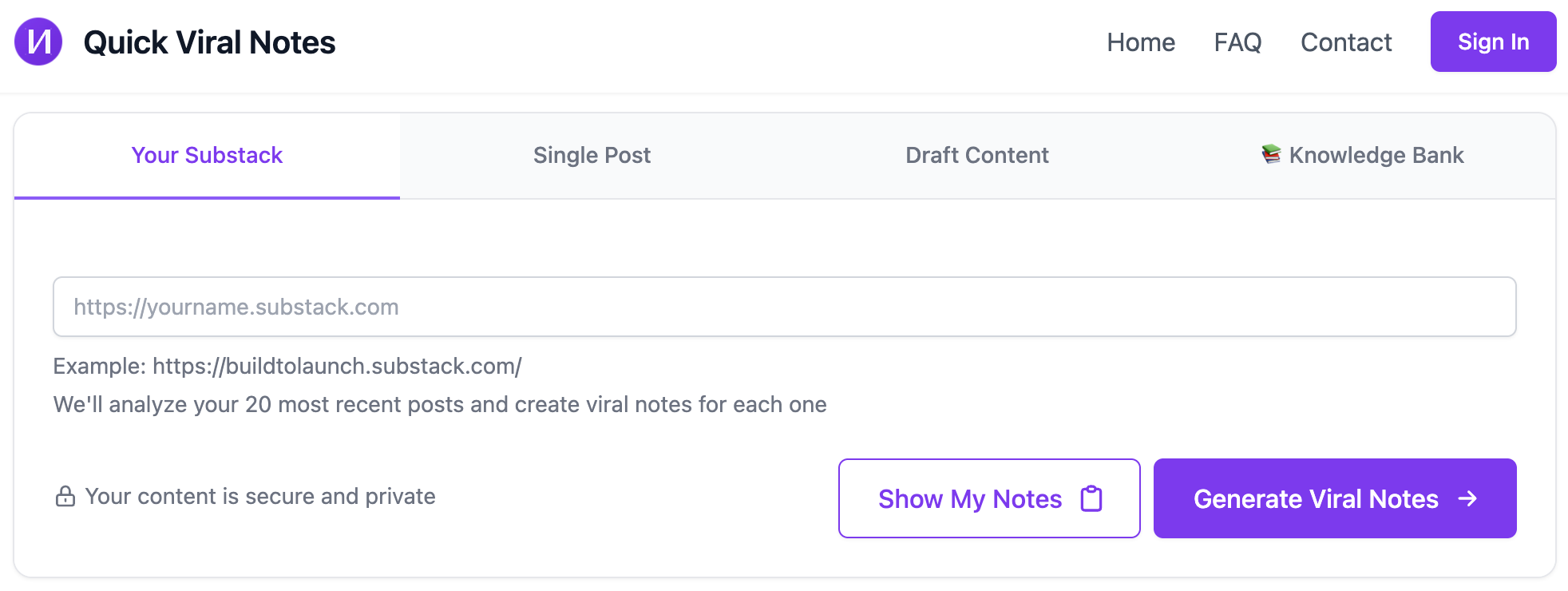
What I’m checking:
Does each step work without errors?
Do confirmation messages appear?
Does the UI update correctly after actions?
If it breaks on the 2nd or 3rd run, you’ve found a state bug. Fix it before anyone else sees it.
Test 2: The “What If I’m Dumb?” Test
Pretend you’re a confused user who doesn’t read instructions. Try to break it.
Things I try:
Leave all form fields empty and hit submit
Type weird characters:
emoji, `,’, &, éClick the submit button 10 times rapidly
Press the back button at random times
Refresh the page in the middle of an action
Try to access protected pages without logging in (manually type
/dashboardin the URL while logged out)
What I’m checking:
Do I get helpful error messages? (Not “Error 500” or undefined errors)
Does the app crash or handle it gracefully?
Can I get stuck in a broken flow?
Real example: I tried submitting a form without a URL. Quick Viral Notes crashed with “undefined is not a function.” Not helpful. I had AI add validation: “Please enter a URL or fill out this field.” Much better.
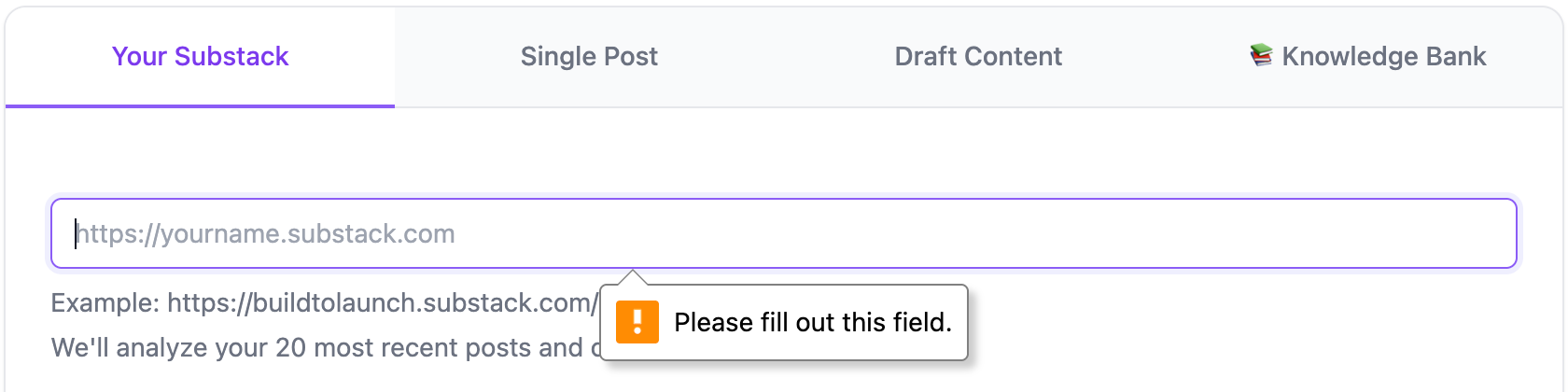
Users will absolutely do all these things. Test them first.
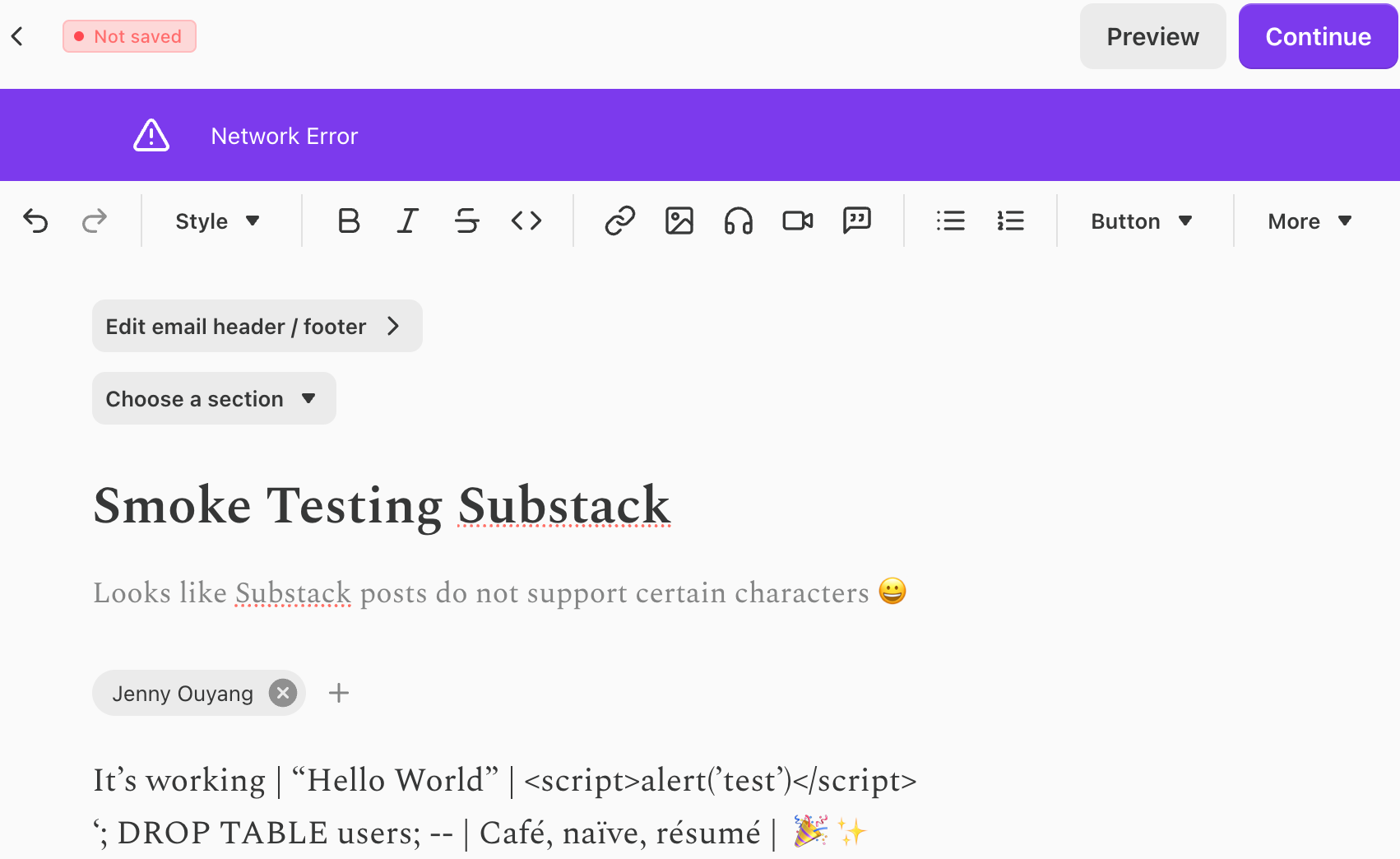
One funny thing: As I was writing this article, I accidentally hit the “Network Error” with Substack, showing that some special characters are not supported by Substack, knowing platform as big as Substack not covering everything does make me feel less guilty for not testing everything.
Test 3: The Multi-Device Test (Where I Keep Getting Burned)
This is where I mess up most often.
Desktop works. Chrome DevTools mobile view looks good. I ship it. Real people on real phones tell me it’s broken.
What I test now:
Desktop Chrome
Desktop Safari or Firefox
My actual mobile phone (not dev tools “mobile view”)
Tablet if I have one
What I’m checking:
Does the layout look broken on mobile?
Are buttons actually tappable? (Buttons under 44 pixels are frustrating)
Can I type into form fields with my phone keyboard?
Do images load or are they broken?
The painful lesson: Quick Viral Notes looked perfect on desktop. Clean layout, good spacing, professional. I tested it in Chrome DevTools mobile view. Looked good. Shipped it.
On actual mobile phones? Everything was cramped. No responsive design. No hamburger menu for navigation. Buttons were hard to tap. Users complained weeks later.
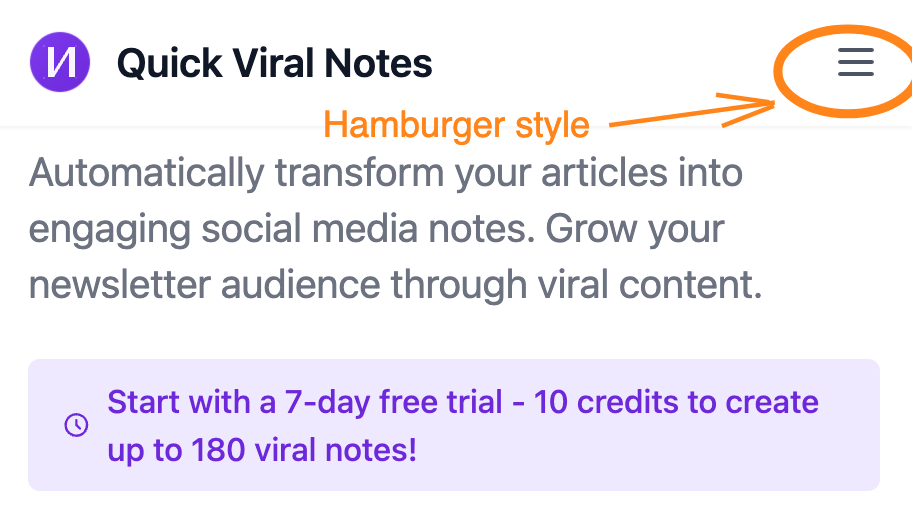
I had to completely redesign for mobile responsiveness.
Another painful story I wish I’d caught earlier:
I released VibeCodingBuilders thinking the mobile layout was solid. Tested in DevTools, looked fine.
A user messaged: “I can’t submit anything. The button is hidden.”
I tested on my iPhone. Worked fine for me. Then they sent a screenshot from their Android phone.
The mobile keyboard covered the submit button completely. They couldn’t scroll down to reach it. The form was usable on my iPhone because iOS handles keyboard differently than Android.
Testing on just ONE phone isn’t enough. You need to test on at least two devices—ideally one iOS, one Android. Or at minimum, test with the keyboard open AND closed.
Fixed it in 20 minutes by adjusting the layout. Would have lost every Android user otherwise.
Desktop perfect ≠ mobile works.
Chrome DevTools mobile view ≠ real device.
Always test on actual phones.
That’s the lesson.
Test 4: The Slow Internet Test
See how your app behaves when the internet is slow. Because not everyone has fiber internet in San Francisco.
How I do it:
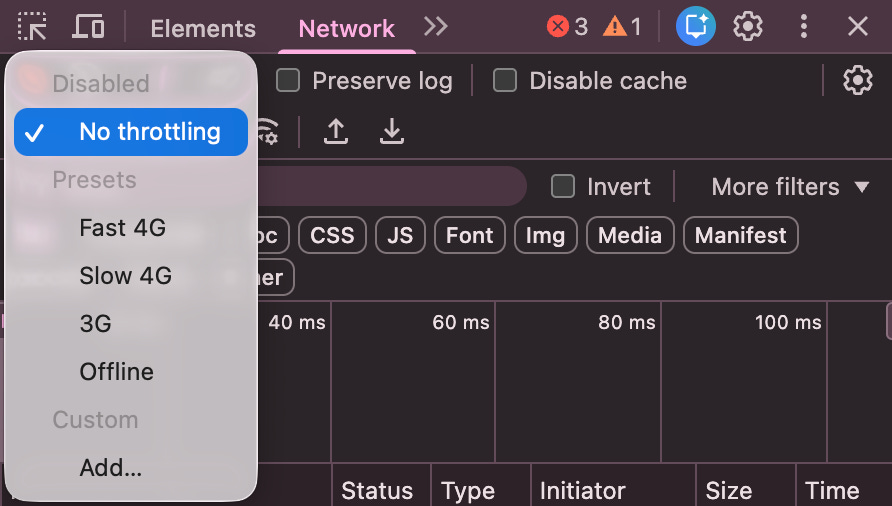
Open Chrome DevTools (F12), go to Network tab, change “Throttling” dropdown from “No throttling” to “Slow 4G” to “3G”, then try using my app.
Alternative: Use your phone on weak wifi. Walk around outside while using the app.
What I’m checking:
Do I see loading states (spinners, skeleton screens)?
Or does it look frozen with no feedback?
Do I get timeout errors?
Can I still navigate or does everything feel broken?
If users see a blank screen for more than 3 seconds with no loading indicator, they’ll think it’s broken and leave.
Test 5: The Data Test (The One That Embarrassed Me Most)
Test with realistic amounts of data. Most bugs hide in the 100th item, not the 3rd.
The concept: Test with realistic messy data, not clean examples.
I generate 100+ notes instead of 3. I use ridiculously long titles. I copy-paste content with apostrophes, accents (é, ñ), quotes, emojis—all the messy real-world characters that break things.
What I’m checking:
Does the UI still look good with lots of data?
Do lists scroll properly?
Does search/filter still work fast?
Are there pagination issues?
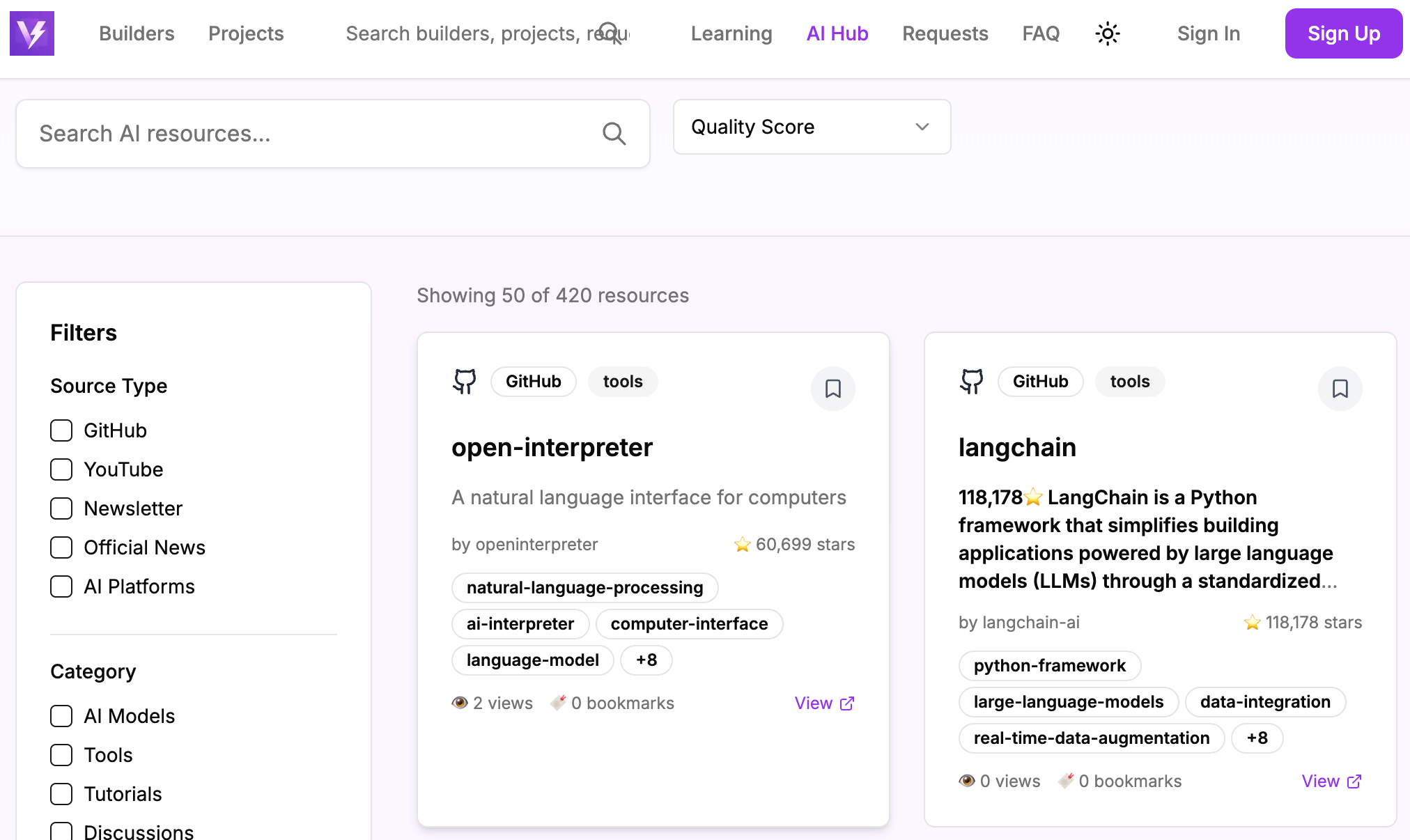
The painful story: I built VibeCodingBuilders’ AI resource hub. The page displays hundreds of AI tools and resources that I fetch from various sources.
Tested it with 10 clean resources: “resource 1”, “resource 2”… Worked great. Fast loading. Clean display.
Launched it with real data. 150+ AI resources. The page loaded slowly. Then users started reporting: “Page 6 shows nothing. Pagination is broken.”
I checked. Pages 1-5 worked fine. Page 6 and beyond? Empty. Broken.
The pagination offset calculation was wrong. It worked perfectly for pages 1-5 (50 items). Failed for page 6+ because the database query had an off-by-one error that only appeared with 100+ items.
Spent 2 hours debugging pagination math. 10 minutes of realistic data testing would have caught it before launch.
Another data story that still makes me cringe:
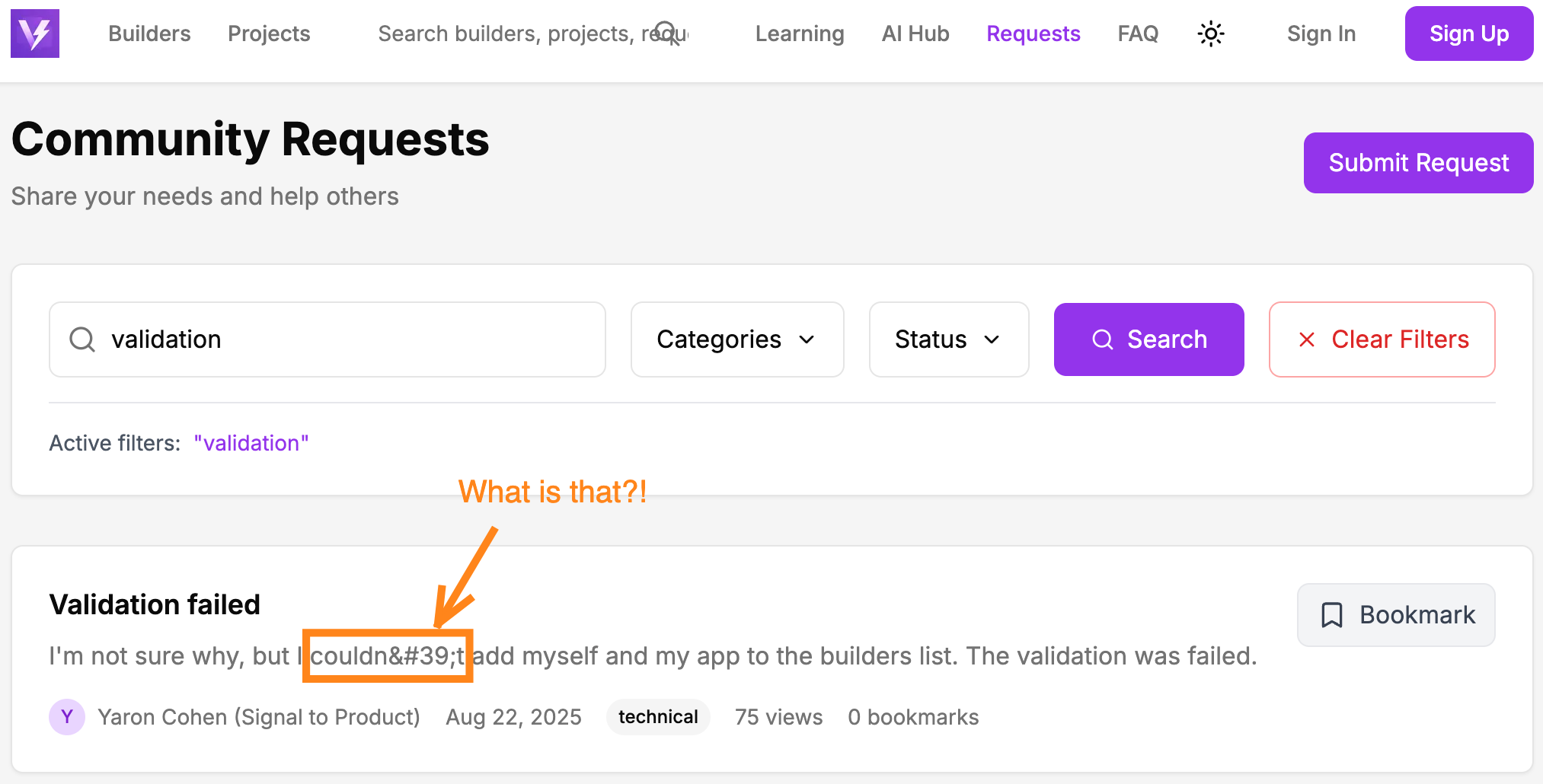
I added Requests page to Vibe Coding Builders. Tested it with clean data: “Test Article 1”, “Sample Post 2”…
A user tried titles like “It’s Jenny’s App—Works Great!” with apostrophes, accented characters (é, ñ), quotes (” “), and special symbols.
The backend exploded.
Apostrophes broke SQL queries because I wasn’t using parameterized queries. Accents corrupted data because the database encoding wasn’t UTF-8. Quotes broke JSON parsing.
I spent 3 hours fixing character encoding and SQL injection vulnerabilities that 10 minutes of messy-data testing would have caught.
Test with messy real-world data. Not clean examples. Copy-paste from actual articles with weird formatting.
Test 6: The Security Basics Test
Make sure you’re not exposing anything dangerous. Non-technical checks anyone can do.
Simple security checklist:
Passwords don’t show up in the browser URL bar
You can’t access other people’s data by changing numbers in the URL
Logged-out users can’t see private content
File uploads reject dangerous file types (.exe, .sh)
Forms have some basic spam protection
How I test this: Log in to Quick Viral Notes. Notice the URL is something like /dashboard/user123. Log out. Log in as a different user. Manually change the URL to /dashboard/user123. Can I see the first user’s generated notes?
If yes, security problem.
I also ask AI to audit code. Paste a section and say: “Check this code for obvious security issues.” AI is actually good at catching common vulnerabilities.
Before You Deploy: What This Phase Catches
At this point, you’ve tested what most builders don’t:
Happy path runs reliably, even multiple times
Forms don’t crash when left empty or spammed
Your app doesn’t fall apart on mobile
Loading states work on slow connections
Real-world data doesn’t break your backend
Basic security holes are closed
That’s already 80% of what breaks most AI-built apps.
→ Download the complete 75-item master checklist for free
→ For detailed how-to for each test, get the premium guide with step-by-step instructions, troubleshooting, and templates
You haven’t made it bulletproof, but you’ve made it solid. You’ve cleared out the obvious traps while the stakes are still low.
Now, it’s time to put it in the wild, and see what breaks when real infrastructure kicks in.
Phase 2: After You Deploy (But Before You Tell Anyone)
You’ve deployed the app. It’s live. But no one knows yet.
This is the most dangerous and deceptive phase, because everything feels done. It works on your screen. It’s on the internet. You’re tempted to announce.
Don’t.
Phase 1 tested what breaks in your controlled world. Phase 2 tests what breaks in the real one:
Broken API keys
Missing environment variables
Auth flows that silently fail
Features that worked in dev, but collapse in production
This is your last line of defense before real users arrive. The bugs here are harder to spot, but more damaging if missed.
Here’s what I do every time I ship to production, before telling anyone it exists.
Test 7: The Real Environment Test
Test the actual deployed URL. Not localhost.
What I do:
Go to the actual URL (e.g., quickviralnotes.xyz), create a brand new account (don’t use my development test account), go through the full happy path again, check that emails send, verify data saves to production storage, make sure external API calls work.
What I’m checking:
Does everything still work in production?
Are there red errors in the browser console?
Do emails arrive in my inbox?
Do API integrations work correctly?
Common production problems:
CORS errors: API calls that worked locally get blocked
Email not configured: Welcome emails never arrive
Database connection fails: Different credentials in production
Environment variables missing: API keys aren’t set
The painful lesson: VibeCodingBuilders tested perfectly on my machine. Authentication worked. I could log in. Everything functioned. Deployed to production.
Users started reporting they couldn’t access features.
The authentication system broke silently in production. Environment variables weren’t properly set in deployment. It worked perfectly in development. Failed in production.
I spent 2 hours debugging middleware configuration that Phase 2 testing would have caught in 10 minutes.
My face was hot. I was embarrassed. Users were waiting. I’d rushed to announce without testing the deployed version first.
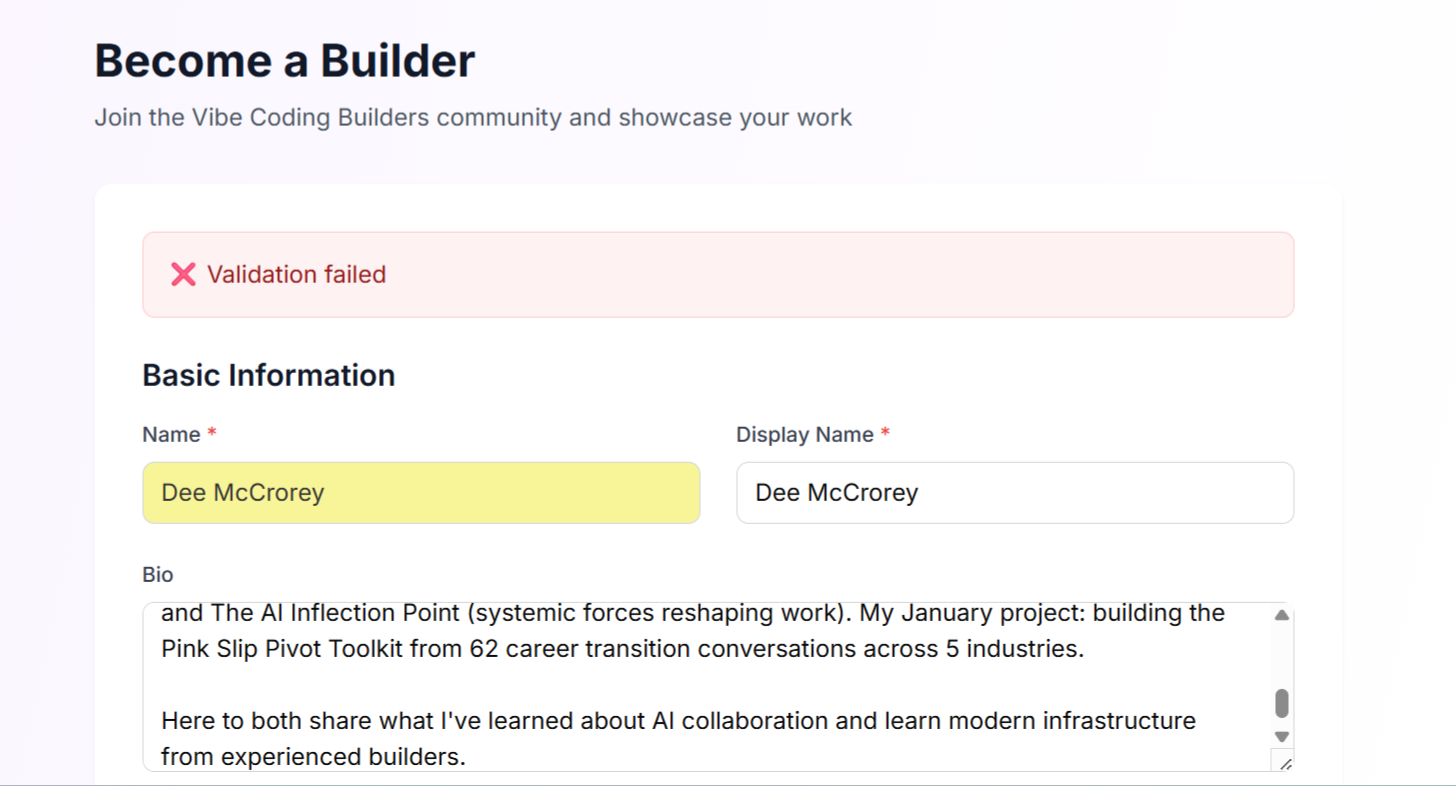
Even just yesterday, after a recent release, Dee McCrorey was hitting another validation issue on VibeCodingBuilders. I’m so glad that she caught it in the middle of progressive changes I’ve made!
Another unexpected production story:
I built a newsletter content fetcher for SubstackExplorer. Tested it locally on my machine, worked perfectly. Fetched articles flawlessly. Parsed content. Stored everything correctly.
Deployed to production on shared hosting. The feature completely stopped working. No errors. No warnings. Just… nothing. Articles wouldn’t fetch.
Spent hours debugging. Finally discovered: Substack APIs were actively blocking requests from shared hosting IPs and VPS providers. My local machine? No problem. Production server? Blacklisted.
Same thing happened with one of my high-ticket products. Worked perfectly locally with my computer’s IP address. Production environment? Way more restrictive. External APIs treated production traffic differently than my development requests.
The lesson: Your local environment and your production environment are different universes. APIs that trust your IP might not trust your hosting provider’s IP. Rate limits that don’t exist locally suddenly appear in production.
This is why Phase 2 testing matters. Test the deployed version BEFORE you announce publicly. Give yourself time to fix production bugs in private.
Works locally ≠ works in production.
Works for you ≠ works for everyone.
Your IP address ≠ production server IP address.
Always test the deployed version.
Test 8: The Fresh Eyes Test
Get someone who’s never seen your app to try it.
They’ll find things you completely missed because you’re too close to the project.
Who I ask:
A patient friend
My spouse
A colleague from a different field
Someone from an online community (Reddit, Discord, Twitter)
Instructions I give them:
“I built this thing. Can you try to use it and tell me:
What’s confusing?
Where did you get stuck?
What broke?
Please don’t be nice. I need honest feedback on what’s broken.”
What I watch for:
What do they click that I didn’t expect?
Where do they pause and look confused?
What questions do they ask?
Where do they give up and stop trying?
Here’s the hard part: Don’t explain anything. Watch. Their confusion is your feedback.
Every time you feel the urge to say “no, you’re supposed to click here,” that’s a UX problem you need to fix.
The story that taught me this:
When I first released VibeCodingBuilders, I thought the auth flow was obvious. Sign up, verify email, log in. Simple.
I watched my friend try to use it. She signed up. Waited. Nothing happened. She tried logging in. “Invalid credentials.”
She looked at me: “Is it broken?”
I hadn’t made it clear she needed to verify her email first. No confirmation message. No “check your email” screen. The verification email went to spam half the time.
Fresh eyes found what I completely missed: terrible onboarding UX.
Fixed it in 30 minutes. Would have lost 50% of new users otherwise.
The best smoke test is watching someone who isn’t you try to use your app.
Test 9: The 24-Hour Test
Leave your app running for 24 hours. Check it again. See if anything broke over time.
Things I check after 24 hours:
Scheduled tasks still run (daily summaries, cleanup jobs)
No memory leaks (app doesn’t slow down over time)
Database connections stay alive
Session management works (users don’t get randomly logged out)
Why? Some bugs only appear after time passes. Memory leaks accumulate. Scheduled jobs fail silently. Session tokens expire. Database connections timeout.
You won’t catch these in 5-minute testing sessions.
Before You Announce: Here’s What I Check
By now, you’ve gone beyond what most solo builders ever check.
You didn’t just test that your app works in theory. You verified that it works in its real, deployed habitat, with:
Actual credentials
Real email delivery
Live data pipelines
Cold-start users
You even let someone else try it without hand-holding, and watched where they stumbled.
Most builders skip this step. That’s why so many first launches end in bug reports, panic, and rushed hotfixes.
→ Get detailed Phase 2 instructions in the premium guide including production troubleshooting with AI fix prompts.
Phase 2 gives you breathing room. Confidence. It turns a rollout into a release.
Now it’s time to move forward, but not blindly. Because the next phase isn’t about launching. It’s about not breaking what already works.
Phase 3: When You Add New Features
You’ve launched. You’ve tested in production. But you’re not done.
The moment you ship a new feature, you risk breaking something that already works. AI doesn’t check for compatibility. It doesn’t remember what assumptions your old code made. It just generates more code and you’re the one responsible for making sure it all still holds together.
Phase 3 is your regression safety net.
This phase is about protecting what you’ve already earned: trust, stability, working features. You’re testing not just the new thing, but whether it quietly breaks anything old.
It’s a 15–30 minute ritual I do before every deploy. Here’s how.
Test 10: The Feature Test
Test the new feature in isolation AND with existing features.
Basic checklist:
New feature works on its own
New feature didn’t break existing features
UI still looks good with the new addition
Works on mobile
Error handling exists for edge cases
Example: When I added template customization to Quick Viral Notes
I tested these scenarios: Customize a note template → Does it work? Generate notes without customizing → Does it still work? Edit an existing template → Does it save correctly? Switch between different templates → Does it work? Delete a custom template → Does it work? Create 10 different templates → Does the UI handle it?
Test 11: The Integration Test
Make sure the new feature plays nicely with old features. Test data compatibility.
What I check:
New feature works with old data (notes created before templates existed)
Old features work with new data (notes created with custom templates)
Can mix new and old functionality
Data migration works properly (old notes get default template)
Common integration bugs:
Old notes without templates break the display
New “template” field is required, but old notes don’t have it (crashes on load)
Different data formats conflict (template stored as string, code expects object)
After Every Update – Why This Phase Saves You
If your app is alive, it’s evolving. Every feature you add is a potential crack in the foundation unless you test like this.
You just checked:
That the new feature works
That old features still behave as expected
That your UI didn’t collapse somewhere quietly
That edge cases didn’t creep in through new logic
That your data formats still make sense
These tests don’t take long, but they save you from slow leaks, UX breaks, backend crashes, or user complaints that trickle in over days.
Phase 3 is what lets you move fast without breaking everything. It’s how you keep your velocity while holding onto quality.
You’ve now completed all three phases.
→ Get the complete Phase 3 workflow in the premium guide (includes regression testing, integration testing, and decision frameworks)
Testing Mindset & When to Ship
You’ve tested what matters. Now the question is: how do you know when it’s enough?
You can’t test forever. And you’ll never catch everything. But there’s a point where you’ve done enough to ship with confidence, not fear.
This is how I make that call.
When to Stop Testing
Can you confidently check most of these?
Main feature works reliably (95%+ of the time, not 100% perfect)
Tested on mobile and desktop
Error messages help users recover (not “Error” with no context)
Can’t easily break it with normal use
At least 2 other people have tried it successfully
You’d feel confident showing it to a stranger
If yes to most of these → Ship it.
Don’t ship if these are true (hard blockers):
Main feature fails 50% or more of the time
Authentication is broken (users can’t log in or sign up)
People lose their data (content disappears randomly)
You’re exposing private information (users see each other’s data)
It only works on your specific computer/setup
Fix these before you deploy.
Shipping Imperfectly
Ship when you’re confident, not when it’s perfect.
You’re not building mission-critical banking software. You’re building a product to help people solve a problem.
The first 10 real users will find more bugs than 100 hours of your own testing. That’s fine. That’s expected. Fix them fast. Iterate. Improve.
Testing isn’t about perfection. It’s about:
Catching obvious problems before they embarrass you
Building confidence to ship
Reducing risk of critical bugs
You’ve been systematic. You’ve done the work. You’ve tested more than 90% of builders ever do.
Ship it.
Real example: I built an MCP tool that worked perfectly technically, but users had no idea how to use it. Too technical. The problem wasn’t bugs—it was complexity.
The lesson? Meet people where they are, not where you want them to be.
The Transformation
Before systematic testing:
Anxious on launch day
10-15 bug reports immediately
Users saying “it’s broken” and “buggy”
Spent launch day firefighting instead of celebrating
Avoided checking user feedback
After systematic testing:
Confident on launch day
1-2 minor issues at most
Users saying “this feels polished” and “smooth experience”
Spent launch day engaging with users and gathering feedback
Excited to read user reactions
The shift: From hoping nothing breaks to knowing I caught the obvious stuff.
That confidence changes everything. You ship without fear. You engage with users instead of hiding. You iterate based on feedback, not emergencies.
This is what systematic testing gives you.
Next Steps
You’ve seen what systematic testing can do, now it’s time to put it into action.
Download the Free Checklist
→ Free 75-Item Master Checklist
Download the complete checklist covering all 12 tests from this article. Print it. Use it every time you ship.
Immediate Action Plan:
Start with the Happy Path Test → Test your main user journey 3 times. If it passes, continue. If it fails, fix it before moving on.
Run the “What If I’m Dumb?” Test → Try to break your app. Leave fields empty. Type weird things. Click rapidly. See what breaks.
Pull out your phone → Test on your actual phone. Not mobile view. Your real device.
Get one friend to test → Watch them use it. Don’t explain anything. Note where they get confused.
Fix what breaks → Prioritize bugs that stop the main feature from working. Ship when confident.
Target time: 30-60 minutes for your first complete smoke test
Join the Community
Connect with other vibe coders shipping real products. Share your testing wins (and fails). Learn from builders who’ve been where you are.
→ Join VibeCodingBuilders - Community for AI builders shipping products
→ Subscribe to Build to Launch newsletter - Weekly guides for shipping AI-built products
Essential Tools Quick Reference
You already have everything you need. Here are the 5 tools that catch 90% of problems:
Chrome DevTools (F12) - See JavaScript errors, throttle internet speed, check network requests
Your Actual Phone - Desktop “mobile view” doesn’t catch real device issues
Different Browsers - Test Chrome, Safari, Firefox minimum for compatibility
Incognito Mode - Test without cached data, simulates brand new users
A Patient Friend - Fresh eyes find bugs you’ll never see
Want to Go Deeper? Get the Complete System
→ Premium: Complete Smoke Testing System (Paid subscribers only)
Get everything you need to systematically test your AI-built app:
✅ Detailed step-by-step instructions (all 12 tests with tool setup)
✅ Fill-in-the-blank test run template (customized for YOUR app)
✅ Troubleshooting guide (10+ problems + AI prompts to fix them)
✅ Essential tools deep dive (DevTools mastery, mobile testing techniques)
✅ 4 bonus app-type checklists (AI tools 45+ items, SaaS 27+ items, marketplace 45+ items, social apps 48+ items)
15,000-word comprehensive guide. Everything from this article + complete execution toolkit with examples, templates, troubleshooting, and decision criteria.
Related Reading on Vibe Coding
How to Make Vibe Coding Production-Ready - Security and technical debt deep dive
How Two Prompting Strategies Made My AI Code Production Ready - Top-down and bottom-up prompting for building with AI
Essential Software Engineering Practices Every AI Builder Needs to Know - Best practices for sustainable development
What’s Happening in the Community
After my consistent hero image post:
AI Meets Girlboss took it to the next level. She let AI redesign her face 5 times, check it out if you need image inspiration. You won’t be disappointed.
Giuseppe Santoro 🚢 created his full set of brand images. He’s even had cartoon videos for his brand. Crisp, cohesive, and fun.
After this viral prompt, I started treating every prompt with care. If you’re in the same mindset, these are worth following:
Juan Salas-Romer has been sharing prompt collaborations so consistently. I’m honored to join it once here. Reach out to him if you’re looking for prompt collaboration!
Speaking of prompts, Sam Illingworth has always been a lead here supporting collaboration and leveling up the community. Check out his Collaborating with Slow AI and Slow AI Supporters Programme.
It’s already halfway through December, and Elena Calvillo at Product’s AI Advent Challenge calendar is getting hot. Check it out and learn one AI skill per day.
Dee McCrorey just joined us her famous Pink Slip Pivot! Looking forward to trying it out.
I think Karen Spinner is every Substacker’s favorite AI builder this week. She created a FREE Chrome extension to manage Substack subscriptions. If you feel overwhelmed about reading, she’s got a solution!
Kenny - Your Freelance Friend is bringing vibe coding with Replit to the next level. He made a mobile app out of it! Stay tuned for the next Build to Launch Friday this week ;)
Gamal Jastram got a special gift for December Automation + UI Build, check it out here!
What bugs did smoke testing catch for you?
— Jenny
I’m about to launch version 2.0 of Right-Click Prompt. This is going to be a commercial release and I’m obviously a little worried because I completely vibe coded it and I don’t know what I’m doing. 😂 would love to get your take on this fiasco when it happens
Thanks for the mention