
How to Install MCP Servers in Claude Code & Claude Desktop
Step-by-step MCP server setup for Claude Code and Claude Desktop. Covers stdio, HTTP, OAuth types, exact config locations, and connection error fixes.

MCP servers connect Claude to your real tools: your inbox, databases, APIs, and anything else you want it to reach. Installing one is almost always a config file edit — but the exact steps depend on which type of MCP you have and which client you’re using. This guide covers every combination: Claude Desktop, Claude Code, and Cursor, across stdio, HTTP, and OAuth connections.

You found an MCP you want to run. Maybe it’s on npm. Maybe someone sent you a URL. Maybe you built one yourself.
Now you’re staring at a config file you’ve never opened, wondering which field goes where.
That friction is real.
The MCP ecosystem doesn’t have one standard installation flow. It has three, depending on how the server distributes itself. And the official docs jump straight into TypeScript build guides without a clear answer for people who just want the thing working.
I’ve installed dozens of MCPs across Claude Desktop, Claude Code, and Cursor.
The What Is an MCP Server article covers the conceptual side.
This one is the practical side: the exact steps, the config fields, and what breaks.
What you’ll go through with me:
The three types of MCPs — how they distribute and what that means for installation
The config format — the same JSON structure works in every client
Claude Desktop setup — where to find the config file and what to add
Claude Code setup — using the CLI or editing the config directly
Cursor setup — through settings or the project config
When it doesn’t connect — common errors and what actually fixes them
Hi, I’m Jenny 👋
I help non-technical people ship real products with AI. I run the Practical AI Builder program — for people who already use AI and want to build real things with it. Check it out if that sounds like you.
If you’re new to Build to Launch, welcome! Here’s what you might enjoy:

The Three Types of MCPs
Before you touch a config file, figure out which type you’re dealing with. It determines everything else.
Type 1: stdio (runs on your machine)
Runs locally. Claude starts it when needed, shuts it down when done. Your data never leaves your machine.
Spot it by: an install command in the README.
npx— Node.js npm packageuvx— Python package via uvpython3ornode— local script you run directly
What you get:
API keys stay on your machine
No server to host or pay for
No internet required to run it
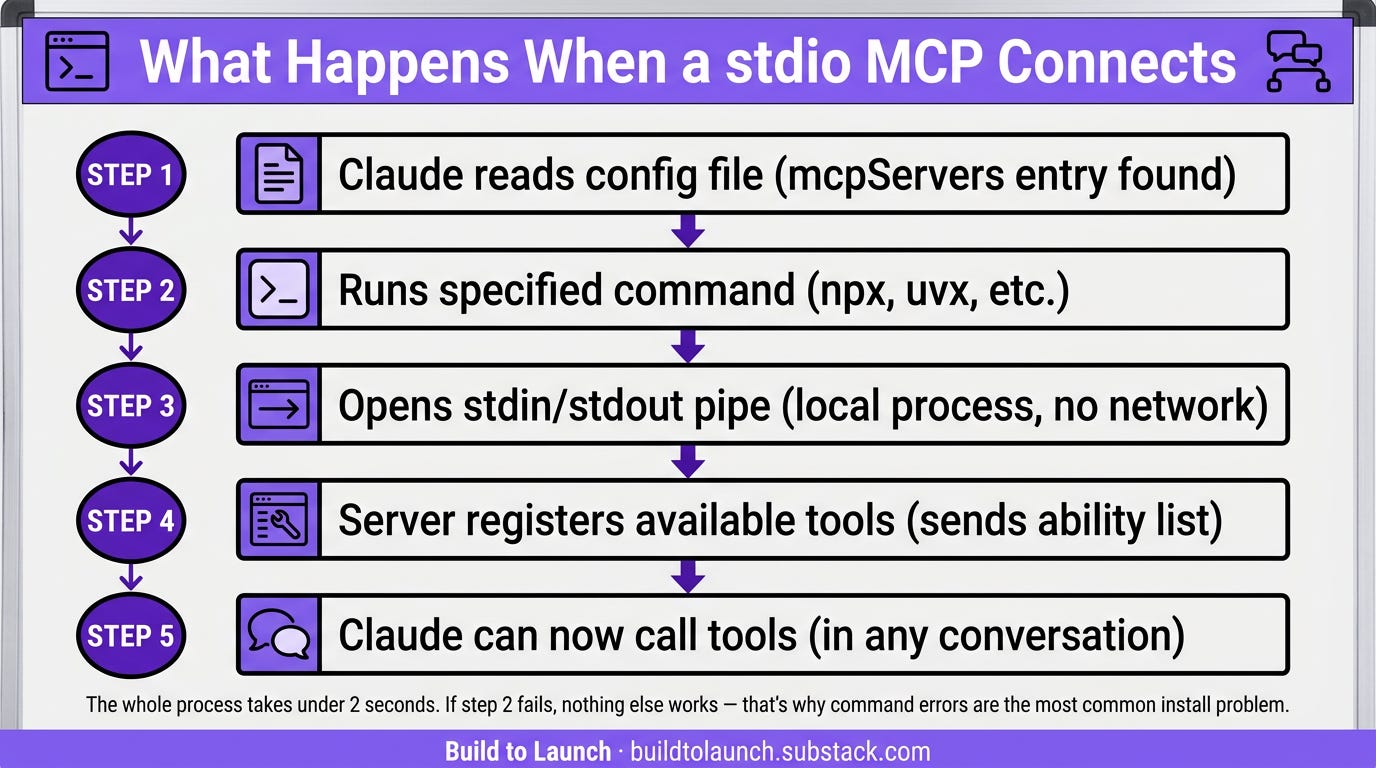
Real example from my stack: the Substack Article MCP. Install command: npx -y substack-article-mcp. It runs locally, stores your Substack auth on your machine, and retrieves full paid articles inside Claude.
Type 2: Remote HTTP (connects to a URL)
Runs on someone else’s server. Claude connects over the internet.
Spot it by: a URL and an API key in the README. No install command.
What you get:
Zero setup on your side
Updates happen automatically
Trade-off: your requests go through their server
Real example from my stack: the Substack Notes MCP. The server URL is https://mcp.quickviralnotes.xyz. In Cursor, you paste the URL and a Bearer token. In Claude Code, one CLI command connects you.
Type 3: OAuth (sign in with a browser)
The cleanest experience.
Runs on their server. You sign in with your browser. No token to copy.
Spot it by: README says “click Connect” or “sign in.”
What happens:
You add the URL (same as HTTP)
The client detects OAuth and opens a browser tab
You sign in
Client stores the token — you never see it
The config looks identical to HTTP, just a URL with no headers field:
{
  "mcpServers": {
    "my-oauth-mcp": {
      "url": "https://mcp.example.com"
    }
  }
}
Client support:
Claude Desktop: native, via Connectors UI
Claude Code: triggers browser flow with
--transport httpCursor: partial, some OAuth MCPs work, others need a Bearer token fallback
Real example from my stack: the Build to Launch MCP, installed through Claude Desktop’s Connectors UI. You paste the URL, Claude opens a browser window to the Build to Launch login page, you sign in, and you’re done. No token to copy.
The three MCPs above are in my Build to Launch stack. Full setup + prompts to try: The Custom MCPs Included in Your Build to Launch Subscription.
A 2025 analysis of 8,000+ MCP servers found 55% are JavaScript-based (npm/npx) and 38% are Python-based (uvx/pip). Most MCPs you encounter will be one of those two. If you’re not sure which, check the README. The install command makes it obvious.
Claude Desktop only: some MCPs ship a .mcpb Desktop Extension file.
Download it, double-click, click Install — no config editing
No Node.js required — runtime is bundled
Claude Desktop stores API keys in your OS keychain
Only works in Claude Desktop. Cursor and Claude Code use JSON config regardless.
Browse available extensions: Settings > Extensions > Browse extensions.
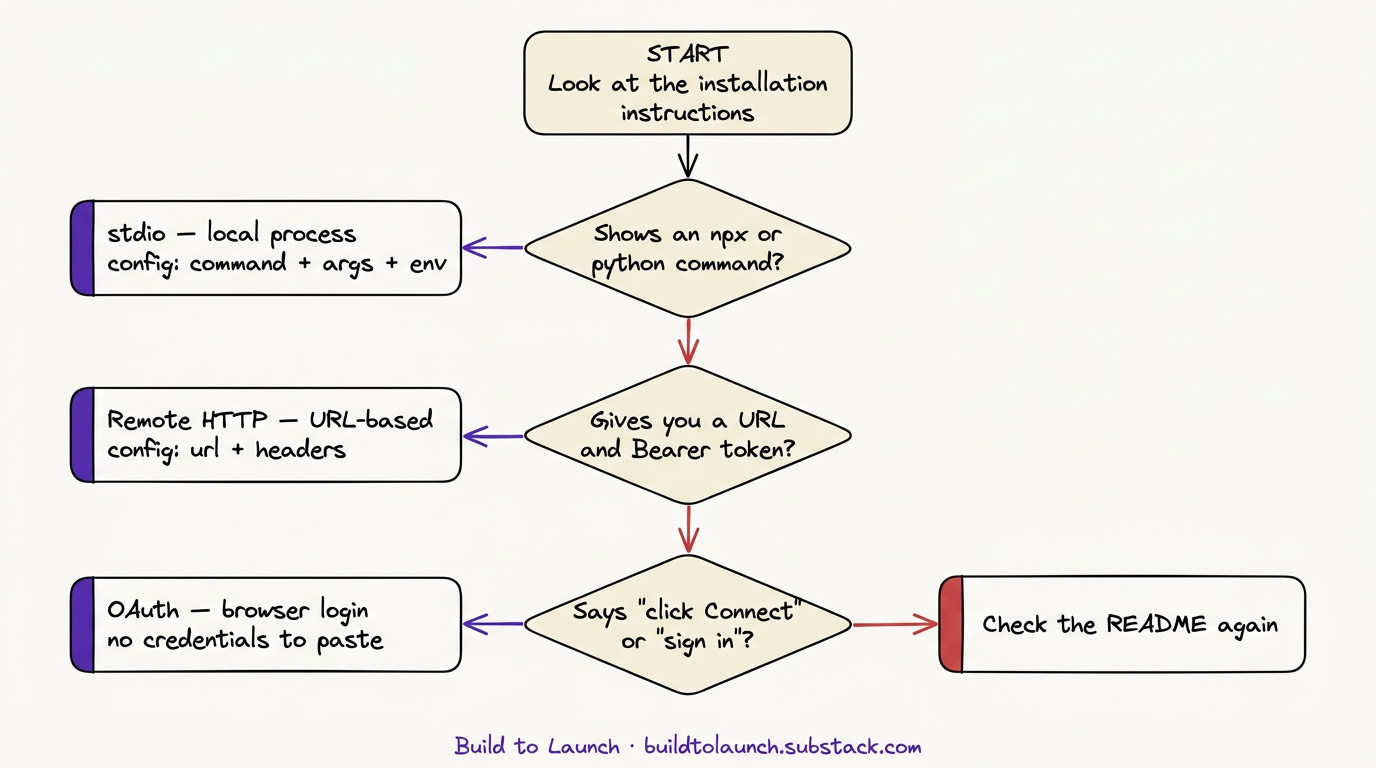
The Config Format: Same JSON, Every Client
Here’s the thing that simplifies all of this: the config format is identical across Claude Desktop, Claude Code, and Cursor.
One format. All clients.
A config entry that works in Claude Desktop works in Claude Code with no changes. The only difference is where each client looks for the file.
For stdio MCPs:
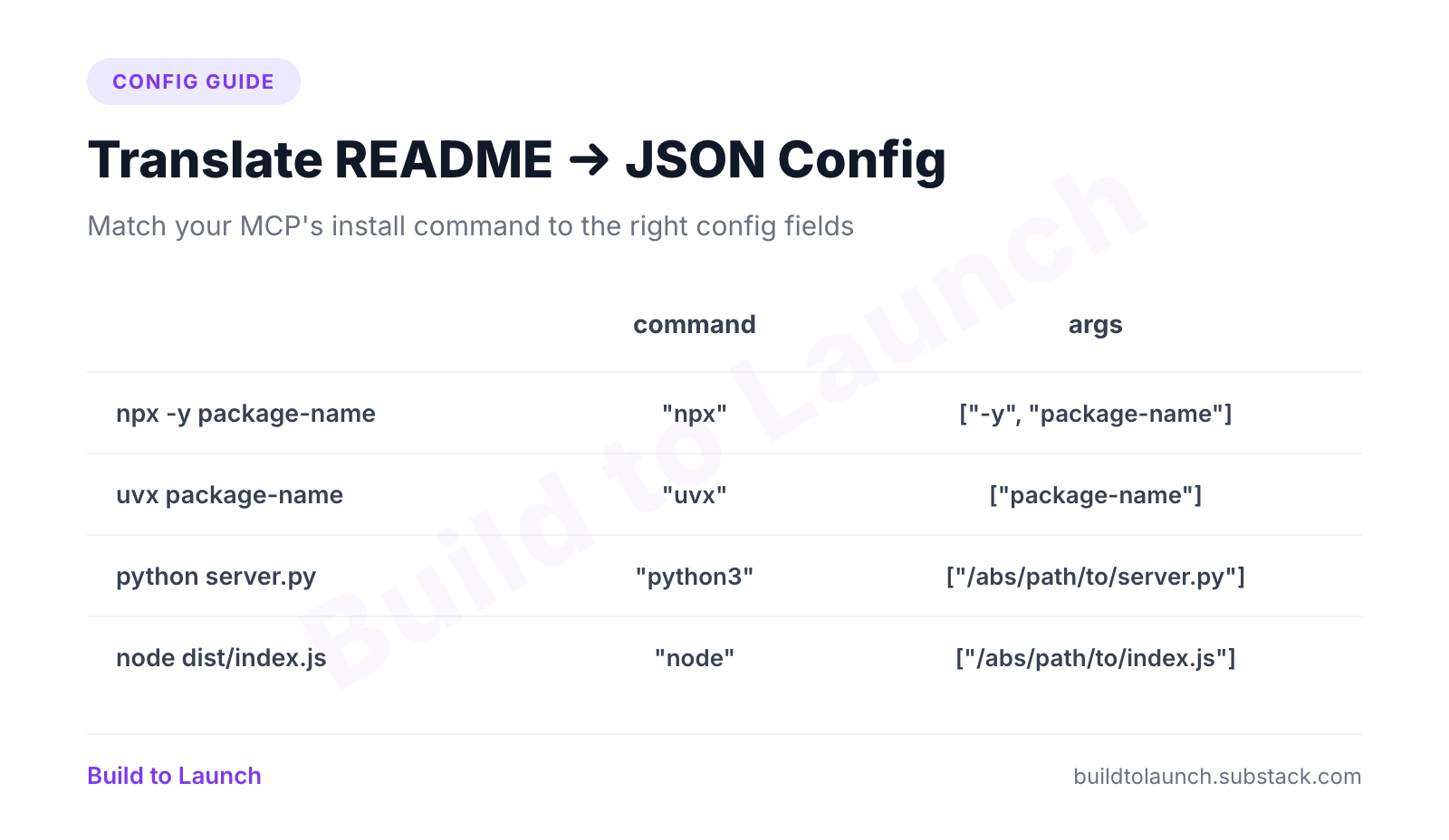
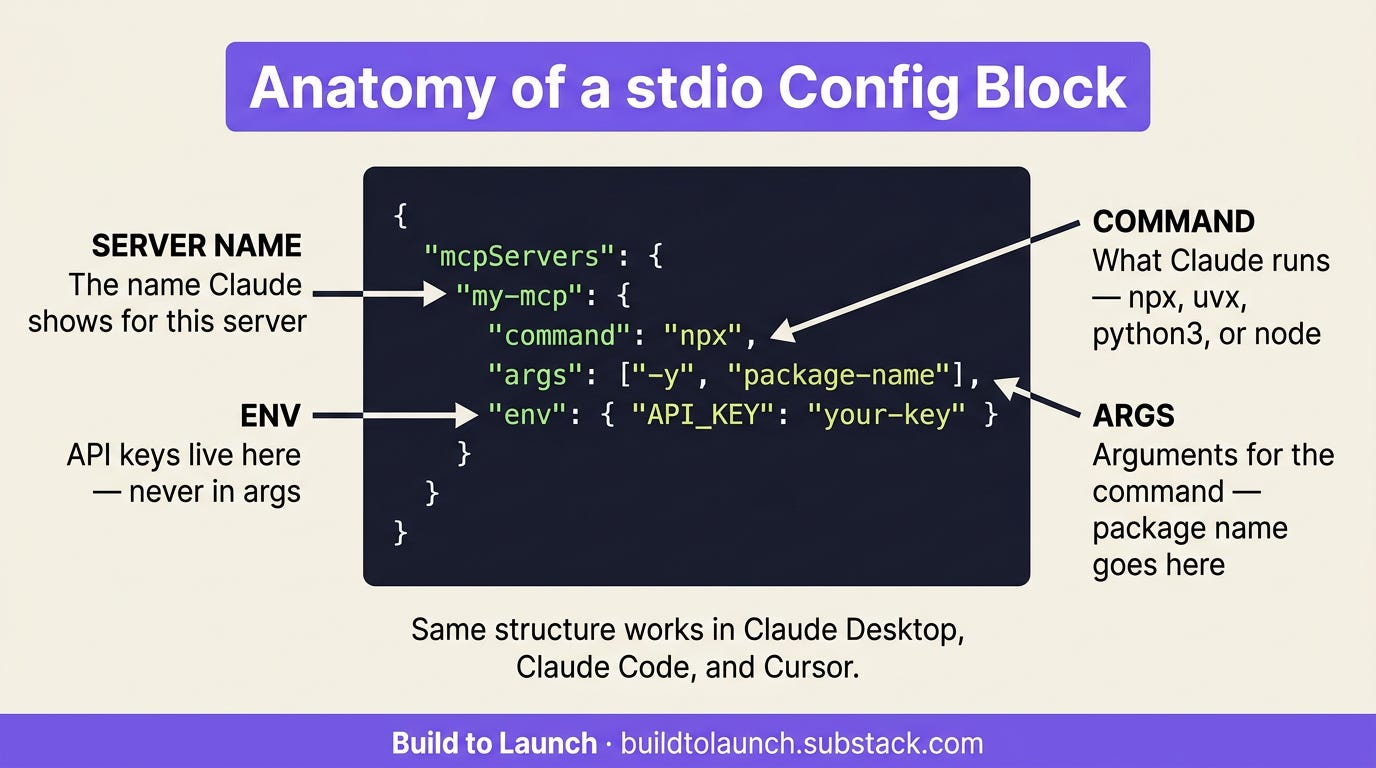
The config shape is the same regardless of which command runs the server. Only command and args change based on what the MCP’s README tells you to use:
npm package (most common):
{
  "mcpServers": {
    "my-mcp": {
      "command": "npx",
      "args": ["-y", "my-mcp-package"],
      "env": { "API_KEY": "your-key-here" }
    }
  }
}
Python package via uvx:
{
  "mcpServers": {
    "my-python-mcp": {
      "command": "uvx",
      "args": ["my-python-mcp-package"],
      "env": { "API_KEY": "your-key-here" }
    }
  }
}
Local script (cloned from GitHub):
{
  "mcpServers": {
    "my-local-mcp": {
      "command": "python3",
      "args": ["/Users/you/repos/my-mcp/server.py"],
      "env": {}
    }
  }
}
For local scripts, use the absolute path. Relative paths don’t work reliably across clients.
Three fields, every stdio MCP:
command: what Claude runs to start the serverargs: arguments for that commandenv: API keys go here — never inargs
The key inside mcpServers ("my-mcp" in the example) is the name Claude shows. Make it readable.
For HTTP MCPs:
{
  "mcpServers": {
    "my-remote-mcp": {
      "url": "https://my-server.com/mcp",
      "headers": { "Authorization": "Bearer your-api-key" }
    }
  }
}
url: the full URL of the MCP endpoint.headers: where authentication goes. Almost alwaysAuthorization: Bearer [key].
For OAuth MCPs:
Same as HTTP — just a URL, no headers. The client detects OAuth and opens a browser tab on first connect. You sign in. Done.
Adding MCPs in Claude Desktop
What do you have?
A URL that starts with
https://→ Option 1 (Connectors UI)A
.mcpbfile → Option 2 (Desktop Extension)An install command (
npx,uvx,python,node) → Option 3 (Config file)
Option 1: Connectors UI (prebuilt + remote HTTP MCPs)
For prebuilt integrations (Google Drive, GitHub, Slack, Gmail, etc.) and remote HTTP MCPs:
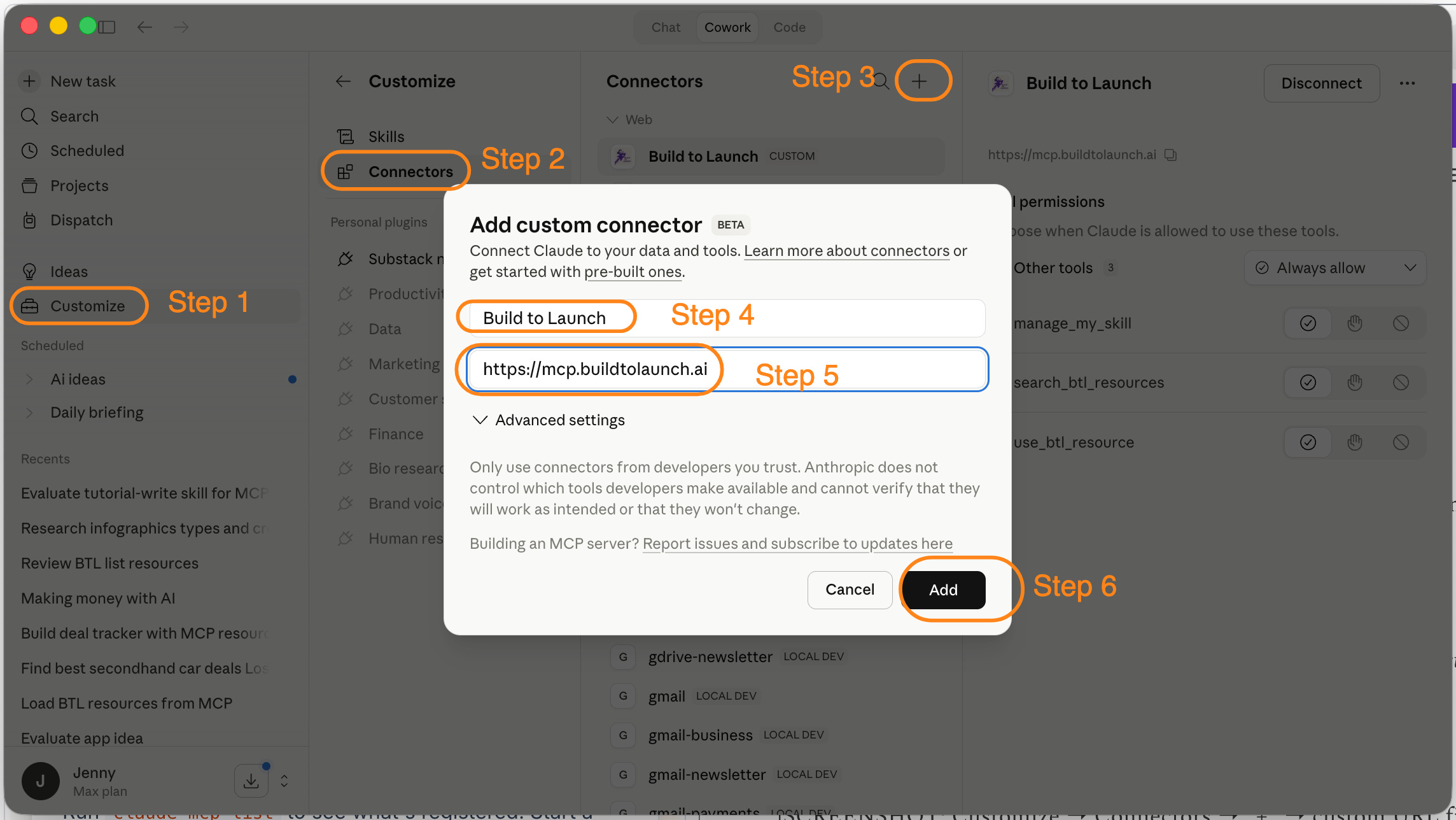
Click Customize in Claude Desktop
Go to Connectors
Click “+”
Browse the directory for prebuilt integrations, or paste a custom URL for a remote MCP server
No config file. No restart. Fastest path for any URL-based MCP.
Example: paste https://mcp.quickviralnotes.xyz, click Allow when the sign-in page opens. Under a minute.
Option 2: Desktop Extension (.mcpb file)
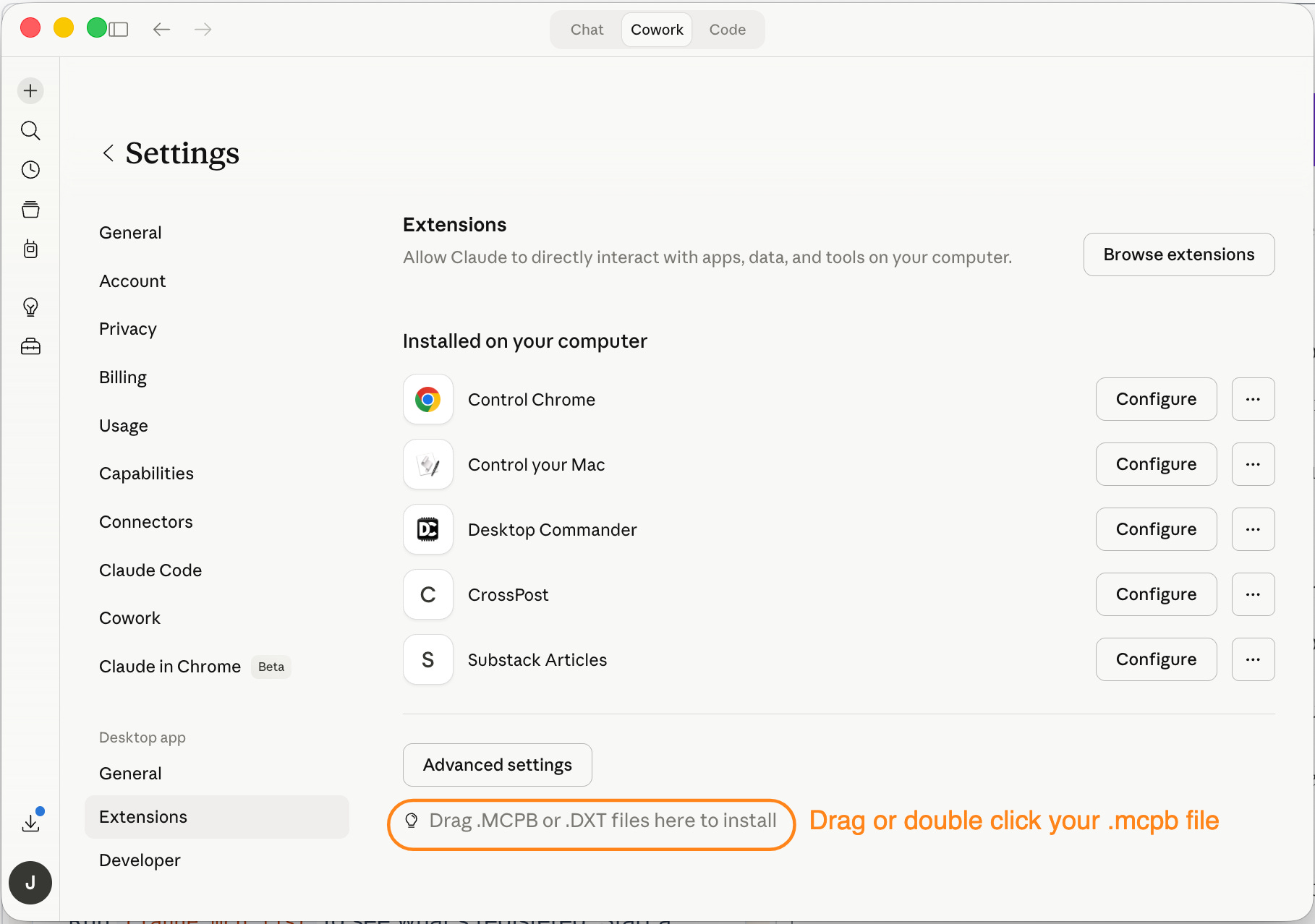
For local MCPs that ship a .mcpb file on their release page:
Download the
.mcpbfileDouble-click it. Claude Desktop opens automatically.
Click Install in the Extensions panel
What Claude Desktop handles for you:
Config — no JSON editing
API keys — stored in OS keychain, prompted via settings UI
Runtime — Node.js is bundled, so you don’t need it installed
Claude Desktop only. Cursor and Claude Code use JSON config regardless.
Example: Postingly ships a .mcpb on their release page. Download, double-click, Install. No Node.js, no config.
Option 3: Edit the config file (local stdio MCPs)
For MCPs that run locally (whether via npx, uvx, python, or a direct path to a local script), you edit the config file directly.
macOS:
~/Library/Application Support/Claude/claude_desktop_config.jsonWindows:
%APPDATA%\Claude\claude_desktop_config.jsonOpen in any text editor. Create the file if it doesn’t exist. Add your entry inside mcpServers.
npm package (npx):
{
  "mcpServers": {
    "substack": {
      "command": "npx",
      "args": ["-y", "substack-article-mcp"]
    }
  }
}
This is the real config for the Substack Article MCP. No API key — it authenticates separately. Need to add a key? Drop "env": { "API_KEY": "your-key-here" } inside the entry.
Python package (uvx):
{
  "mcpServers": {
    "my-python-mcp": {
      "command": "uvx",
      "args": ["my-python-mcp-package"],
      "env": { "API_KEY": "your-key-here" }
    }
  }
}
If uvx isn’t installed, run: curl -LsSf https://astral.sh/uv/install.sh | sh
Local script (cloned repo):
{
  "mcpServers": {
    "my-local-mcp": {
      "command": "python3",
      "args": ["/Users/you/repos/my-mcp/server.py"],
      "env": {}
    }
  }
}
Use the absolute path to the script. Relative paths don’t work reliably in Claude Desktop.
Save the file, then quit and reopen Claude Desktop completely. The MCP won’t show up until you do.
Verify any connection worked
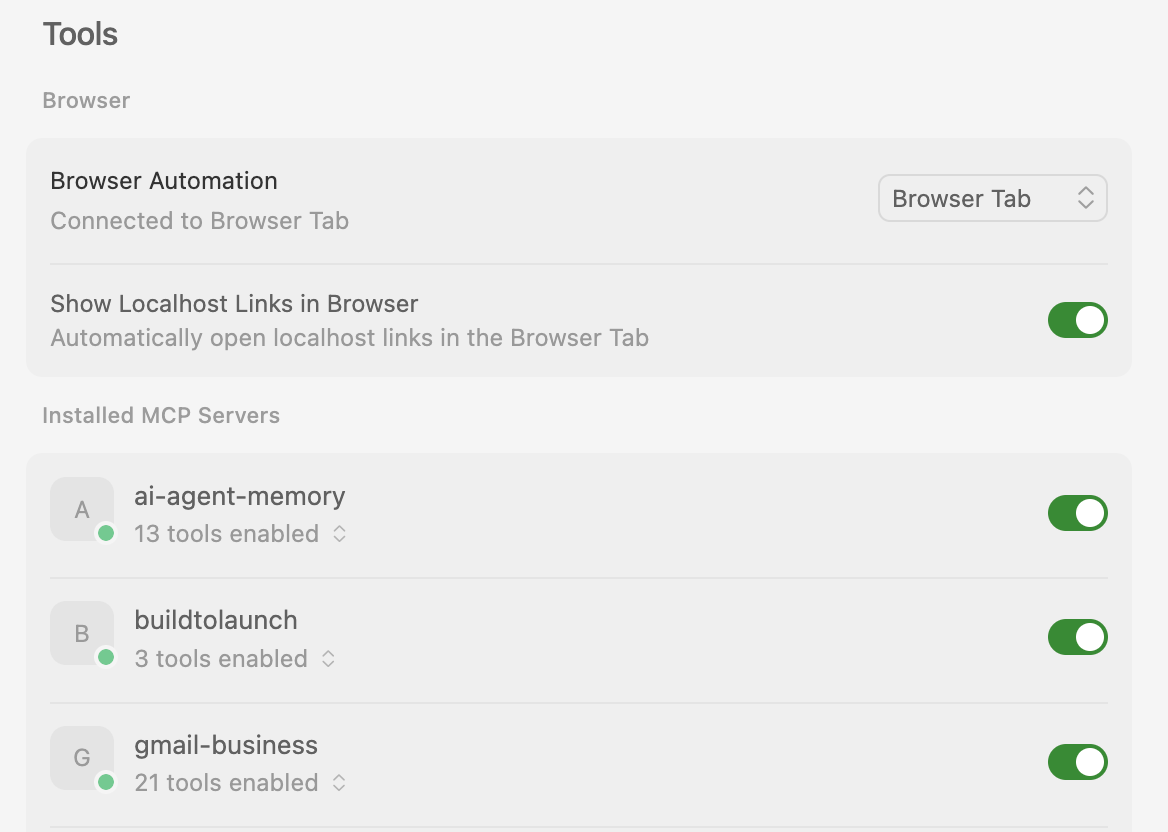
Click the “+” button in any conversation and select Connectors. This shows all connected MCP servers and their available tools.
[SCREENSHOT: Connectors panel showing connected MCPs and their tools listed]
Adding MCPs in Claude Code
What do you have?
An install command (
npx,uvx,python) → CLI option or config fileA URL → CLI with
--transport http
Two options: CLI (faster) or direct config edit.
Option 1: CLI command
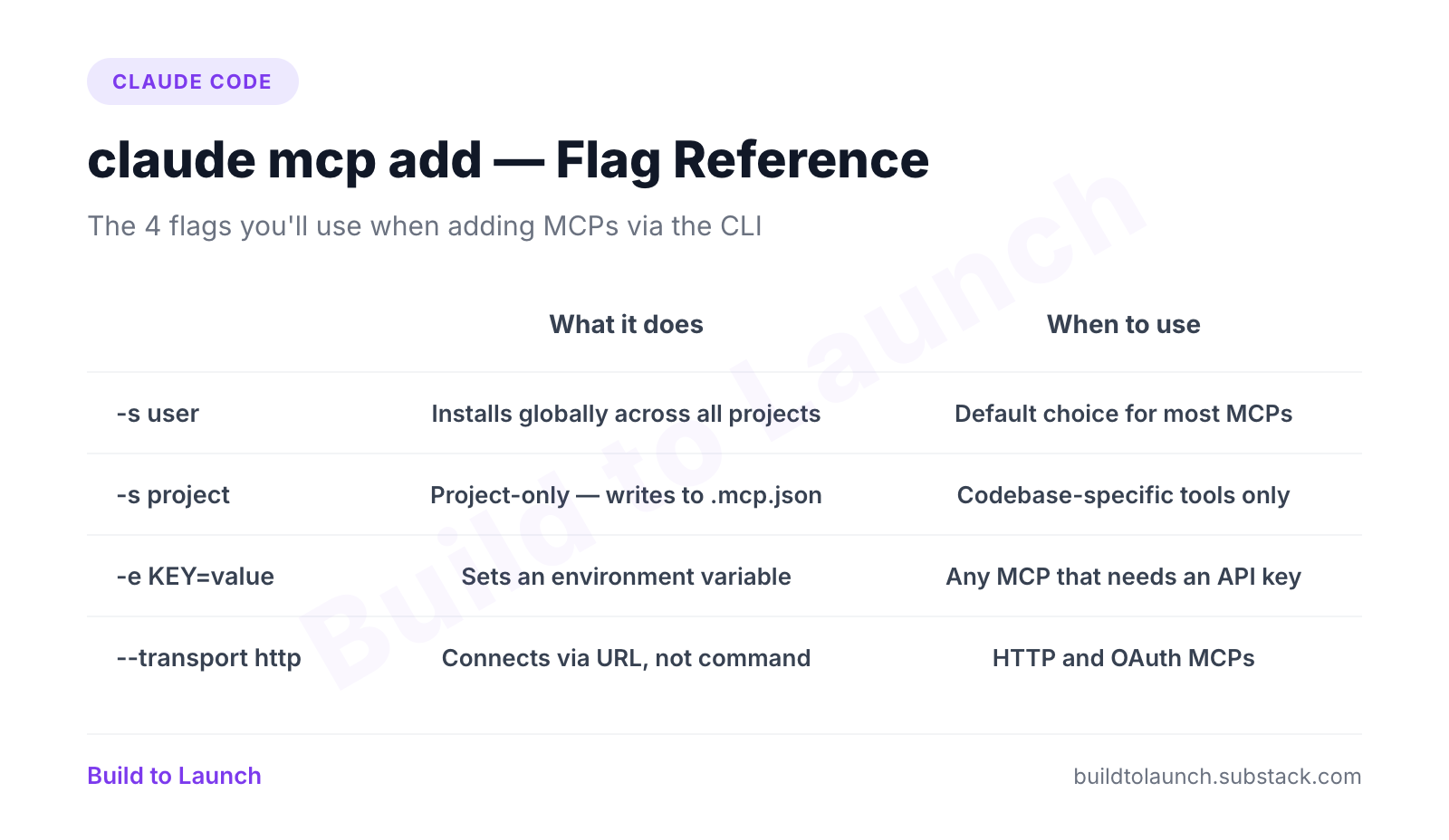
Key flags:
stdio via npx (Node.js npm package):
claude mcp add my-mcp -e API_KEY=your-key-here -- npx -y my-mcp-packageReal example: adding Postingly’s crosspost MCP:
claude mcp add -s user crosspost \
  -e CROSSPOST_API_KEY=your-api-key-here \
  -e CROSSPOST_API_URL=https://postingly.io \
  -- npx -y crosspost-mcp
stdio via uvx (Python package):
claude mcp add -s user my-python-mcp -e API_KEY=your-key-here -- uvx my-python-mcp-packageRemote HTTP MCP with Bearer token:
claude mcp add --transport http -s user my-mcp https://mcp.example.com \
  --header "Authorization: Bearer your-api-key"
Remote HTTP MCP with OAuth (triggers browser sign-in):
claude mcp add --transport http -s user substack-notes https://mcp.quickviralnotes.xyzClaude Code opens a browser window. Sign in. Connected. No token to copy.
Full flag list: claude mcp add --help
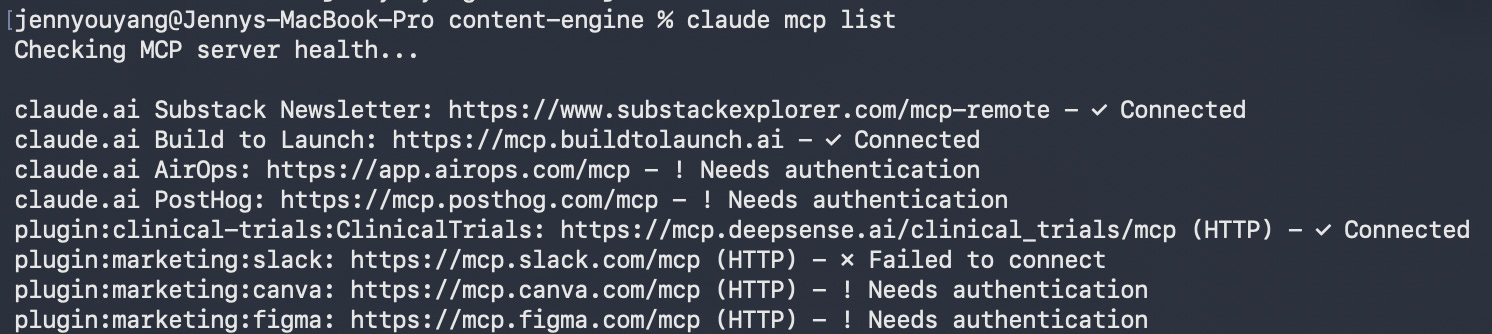
Here’s how my terminal look like after installing the build to launch MCP:

Option 2: Edit the config directly
Same JSON format. Global config: ~/.claude.json
Project-specific MCPs: create .mcp.json in the project root.
Takes precedence over the global config
Only active for that project
The
-s projectflag creates this file automatically
Verify it connected
Run claude mcp list to see what’s registered. Start a session, ask Claude to use one of the tools. No error = working.
Adding MCPs in Cursor
What do you have?
An install command (
npx,uvx,python) → Option 1 (Settings UI) or Option 2 (project config)A URL → Option 1 or paste directly in the URL field in Settings
Settings applies to every project. Project config only activates in that folder.
Option 1: Through Cursor Settings
Open Settings (Cmd+, on macOS)
Search for MCP
Find the MCP servers section
Add your entry using the same JSON format
Cursor has a form UI — fields for server name, command, and env vars. Either the UI or raw JSON produces the same result.
Option 2: Project config
Create .cursor/mcp.json in your project root.
stdio (npx) example:
{
  "mcpServers": {
    "substack": {
      "command": "npx",
      "args": ["-y", "substack-article-mcp"]
    }
  }
}
HTTP with Bearer token (the Substack Notes MCP in Cursor):
{
  "mcpServers": {
    "substack-notes": {
      "url": "https://mcp.quickviralnotes.xyz",
      "headers": {
        "Authorization": "Bearer YOUR_TOKEN_HERE"
      }
    }
  }
}
Get your token at quickviralnotes.xyz/settings → MCP Integration → Generate Token.
Use for MCPs that only make sense in one project. Multiple MCPs in the same file: add more entries inside mcpServers.
Verify it connected
Connected MCPs appear in the AI context panel. Ask Cursor to use one of the tools. No error = connected.
When It Doesn’t Connect
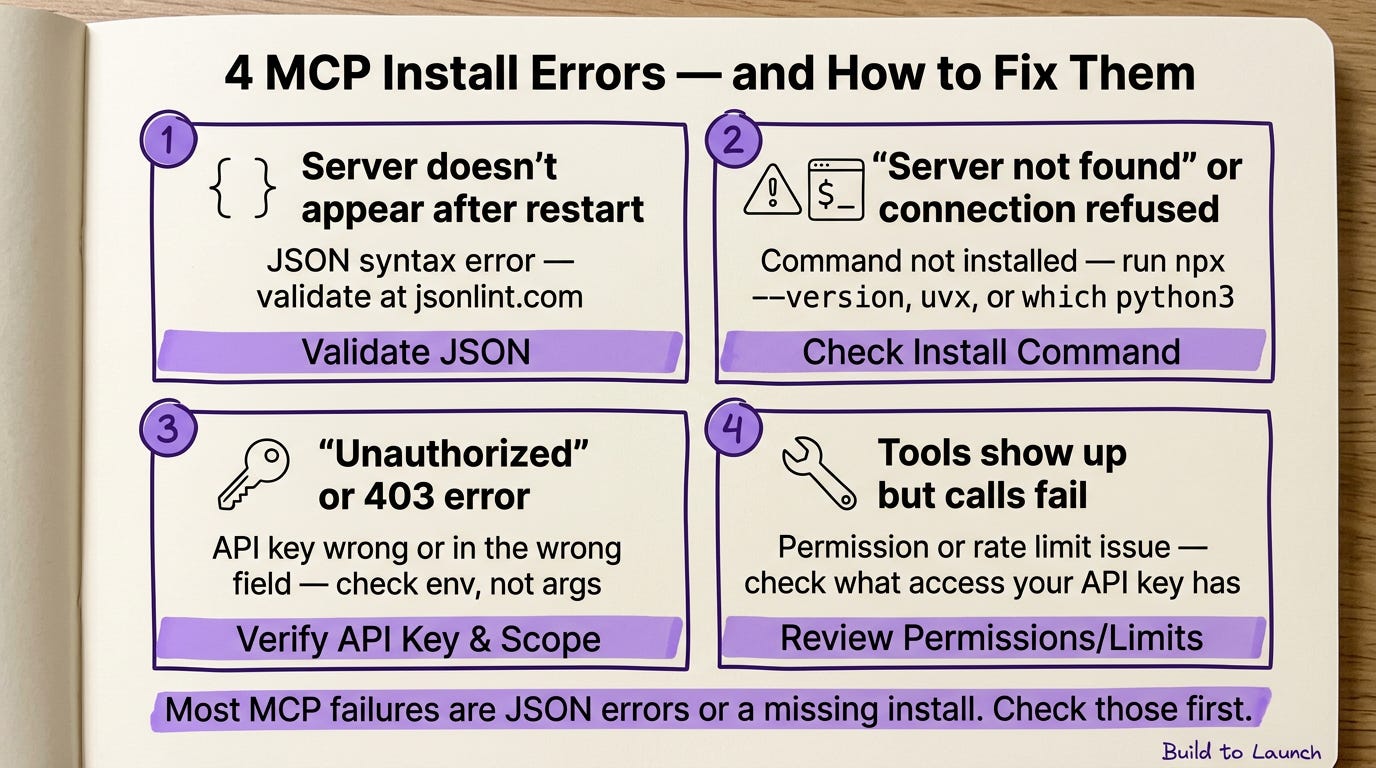
Most failures fall into four buckets.
The server doesn’t appear after restart
Almost always a JSON syntax error. Missing comma, trailing comma, mismatched brace.
Paste your config into jsonlint.com before blaming anything else.
“Server not found” or “connection refused”
For stdio MCPs: the command can’t be found on your machine.
npxerrors: runnpx --versionto check Node.js is installeduvx: command not found: install uv:curl -LsSf https://astral.sh/uv/install.sh | shpython3missing or wrong version: runwhich python3and use that absolute path in your config. Some Python MCPs require 3.10+.Local script not found: use the absolute path, not a relative one
For HTTP MCPs: open the URL in a browser. Any response — even an error page — means the server is reachable. No response means the URL is wrong or the server is down.
“Unauthorized” or 403 errors
Check three things:
Key is in
env, notargsNo extra spaces in the value
Key hasn’t expired or been revoked
The tools show up but return errors
Connection is fine — individual calls are failing. Two causes:
API key doesn’t have permission for what the tool is doing
Rate limit hit
Check the MCP docs for what permissions your key needs.
One specific case: the Substack Article MCP stops working every few weeks. Not broken — Substack session cookies expire. Run npx -y substack-article-mcp login to refresh. This applies to any MCP that uses browser session auth instead of an API key.
Next Steps
Beginner: install one MCP, run one real job
Pick a tool you already use (Perplexity, GitHub, Notion). Install it. Ask Claude to do one job you’d normally do manually. Don’t build a stack yet.
Find one: Best MCP Servers for Claude Code
Ready-made stack: Custom MCPs in Your Build to Launch Subscription — six MCPs with install commands and prompts
Intermediate: set up project-level configs
Working across codebases? Keep research tools in your global config. Codebase-specific tools in project config. Different contexts, different tooling.
Advanced: connect Claude to data only you have
The most useful MCPs are the ones nobody else has: your database, your notes, your internal knowledge base.
A small Python or Node.js server with a few query tools gets you there. I built several of the custom MCPs, and here are the 5 ways you could build your own too.
Bundle MCP with skills and plugins for autonomous workflows.
If this helped, share it with someone who keeps asking how to get MCPs running.
Frequently Asked Questions
Do I need to know how to code to install an MCP server?
No. Stdio MCPs install with a config file edit and an npx command. HTTP MCPs are just a URL and an API key. If you can follow written instructions, you can install either type.
Does the same config file work in Claude Desktop and Claude Code?
Yes. The JSON format is identical across Claude Desktop, Claude Code, and Cursor as of early 2026. The difference is where each client looks for the file.
What’s the easiest MCP to start with?
Perplexity MCP or Brave Search MCP. Both install with a single npx command, need only an API key, and immediately give Claude real-time web search. Neither touches your personal accounts or data.
Why isn’t my MCP showing up after I edited the config?
Two most common causes: a JSON syntax error (validate it at jsonlint.com), or you didn’t fully quit and reopen the client. A tab-close and reopen isn’t enough — you need a full restart.
Can I add multiple MCPs?
Yes. Add multiple entries inside mcpServers, each with its own key. Restart once after adding all of them.
I run the Practical AI Builder program. For people who already use AI and want to go from chatting with it to building real systems. If that sounds like where you're stuck, take a look.
What’s the first MCP you’re connecting — and what do you want Claude to actually do with it?
— Jenny
Why Upgrade · Practical AI Builder Program · Templates · Builder Showcase